As an Aggregator user assigned with the Operations role, you view and manage your contracts with Cloud Services Providers from the Contracts menu in Omnissa Commerce Portal. You can make requests for new contracts, requests for upgrades and downgrades of contracts, and requests for cancellations of contracts. You can also request top-ups on existing pre-pay contracts.
If there is an issue with a contract creation request that you submitted, Omnissa might send the request back to you for adjustments. To submit the request properly, make the necessary changes and resubmit the request from your task inbox.
How do I view my contracts with Cloud Services Providers
You view your contracts with Cloud Services Providers and details about them in the Contracts menu.
Verify that you are logged in with an account that has the Operations role assigned.
-
On the Commerce Portal toolbar, click Contracts.
-
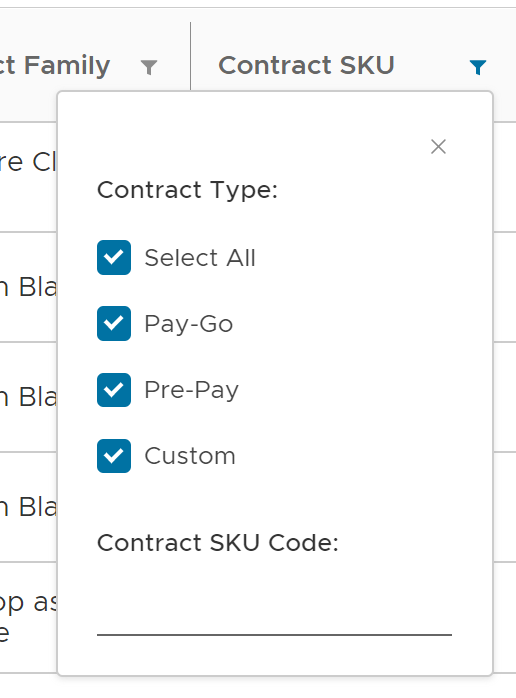
Filter displayed contracts using the filter buttons located inside the Contracts table's column headers.
-
To download the contracts information as a CSV file, click Download above the Contracts table.
If you applied filtering to the table, the CSV file contains only the filtered results.
-
To get more details about a specific contract, click its contract number.
You are redirected to the details page of that contract which contains additional information about the contract and its timeline.
Tag your contracts for additional filtering options.
How do I request a new contract creation
You use the Contracts menu to create new contract requests for Cloud Services Providers that you manage.
Verify that you are logged in with an account that has the Operations role assigned.
-
In the Contracts menu, click New Contract.
-
In the Track page of the wizard, select the track and product family of the contract.
-
In the Provider page of the wizard, enter the Cloud Services Provider and Aggregator contact details and click Next.
To open a drop-down menu with possible selection options, enter ? in any of the text boxes.
If you selected the AWS Resell track in the Track page of the wizard, you can use the New Contact option to create a new Cloud Services Provider contact.
-
In the Plan page of the wizard, use the drop-down menus to select the contract SKU of the contract, currency, and term in months. The wizard is updated based on the selected type of Contract SKU. The following table lists the required parameters for every Contract SKU type.
Contract SKU type Required parameters All Contract SKU types - Track
- Product Family
- Contract SKU
- Discount (%) (auto-provided for Pay-Go contract SKUs)
- Currency
- Term (in Months)(always 12 months for Pay-Go contract SKUs)
- Start Date
- License Contact (when Track is set to Rental)
- ThresholdPre-Pay - Total Prepaid (Points)
- Notify When Balance is Below
- SPF
- Vendor Price Per PointPay-Go No type-specific parameters. Custom - Discount (%)
- SPF -
Select the currency, term, start date, and any additional type-specific parameters of the contract and click Next.
- If you are creating a Managed Services Provider (MSP) contracts which is not point-based, you must also enter values for Threshold and Notify When Balance is Below.
- Depending on the type of Contract SKU selected, you are redirected to one of the following pages of the wizard:
Contract SKU type Wizard page Pre-Pay Burndown Schedule Pay-Go Billing Custom Minimum Commits -
If the Contract SKU type is Pay-Go, go to 8. If the Contract SKU type is Pre-Pay, go to 6. If the Contract SKU type is Custom, go to 7.
-
In the Burndown Schedule page of the wizard, allocate burndown points for each month and click Next.
-
In the Minimum Commits page of the wizard, enter minimum commit points for each month and click Next.
-
In the Billing page of the wizard, enter the billing information of the contract and click Next.
-
Enter the purchase order number of the contract.
-
(Optional) Enable Autofill Purchase Order Number into Monthly Billing Order.
-
From the Bill-to Location drop-down menu, select a site.
-
Select your order preference.
**Note:**Contracts of the AWS Resell track only support the online order preference. -
(Optional) Enter an entitlement account number associated with your Omnissa profile. You are redirected to the Tagging page of the wizard.
-
-
To assign a tag to the contract, click New Tag, enter a string, and press Enter. The tag appears in the list of tags. You can use the tag filters in the Contracts menu to find the contract in your list of contracts.
-
Click Next. You are redirected to the Summary page of the wizard.
-
Review the contract details and click Next.
-
Confirm that you have read and agreed to the terms and conditions, and click Submit.
If you are creating a Custom or a Pre-Pay contract, the contract creation request is sent to Omnissa for approval. The contract appears in the list of contracts with its status and a placeholder for its contract number.
When a contract number is assigned by Omnissa, it is displayed in the list of contracts.
How do I work with tags
Commerce Portal provides you with a tagging mechanism to group your contract items. You can tag your contracts with strings to group contracts together and use tag filters in the Contracts menu to view only the contracts with the selected tag.
Verify that you are logged in with an account that has the Operations role assigned.
-
On the Commerce Portal toolbar, clickContracts.
-
Click the contract number of the contract you want to tag.
You are redirected to the details page of that contract.
-
At the bottom of the page, click New Tag.
-
Enter a tag name and press Enter.
The tag appears in the Associated Tags list and above the Contracts table.

- To filter tagged contracts, select tags above the table in the Contracts menu. You can select multiple tags at once.
- To remove a tag, click the x next to a tag's name.
How do I request upgrades on pay-go contracts
You upgrade active pay-go contracts on behalf of Cloud Services Providers that you manage. The upgrade takes effect on the month selected by you.
Verify that you are logged in with an account that has the Operations role assigned.
If you want to modify the purchase order (PO) number or the Order Preference method before requesting an upgrade, edit the existing contract details first. See How do I edit contracts in this topic.
-
In the Contracts menu, click the contract number of the pay-go contract you want to upgrade.
You are redirected to the details page of that contract.
-
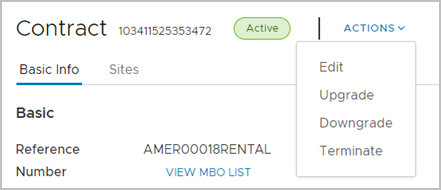
From the Actions drop-down menu, select Upgrade.
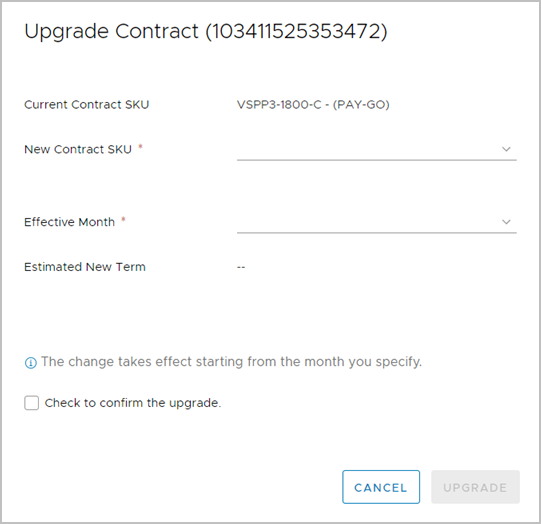
The Upgrade Contract form appears.
-
Using the drop-down menus, select the new contract SKU and the effective month on which you want the upgrade to take effect.
-
Select the Check to confirm the upgrade check box and click Upgrade.
The contract upgrade takes effect on the effective month as selected in the Upgrade Contract form.
How do I request downgrades on pay-go contracts
You request downgrades on active pay-go contracts on behalf of Cloud Services Providers that you manage. The downgrade request is sent to Omnissa for approval.
Verify that you are logged in with an account that has the Operations role assigned.
If you want to modify the purchase order (PO) number or the Order Preference method before requesting a downgrade, edit the existing contract details first. See How do I edit contracts in this topic.
-
In the Contracts menu, click the contract number of the pay-go contract you want to downgrade.
You are redirected to the details page of that contract.
-
From the Actions drop-down menu, select Downgrade.
The Downgrade Contract form appears.
-
Using the drop-down menus, select the new contract SKU and the effective month on which the downgrade takes effect.
-
Enter a comment, select the Check to confirm the downgrade check box, and click Downgrade.
The downgrade request is sent to Omnissa for approval. If the downgrade is approved, it takes effect on the effective month selected in the Downgrade Contract form.
How do I request top-ups on pre-pay contracts
You request top-ups on active pre-pay contracts on behalf of Cloud Services Providers that you manage. The top-up request is sent to Omnissa for approval.
Verify that you are logged in with an account that has the Operations role assigned.
If you want to modify the purchase order (PO) number or the Order Preference method before requesting a top-up, edit the existing contract details first. See How do I edit contracts in this topic.
-
In the Contracts menu, click the contract number of the pre-pay contract you want to top up.
You are redirected to the details page of that contract.
-
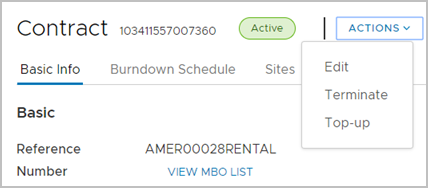
From the Actions drop-down menu, select Top-up.
-
In the Top-Up Payment window, enter the number of points you want to top up and the purchase order with Omnissa.
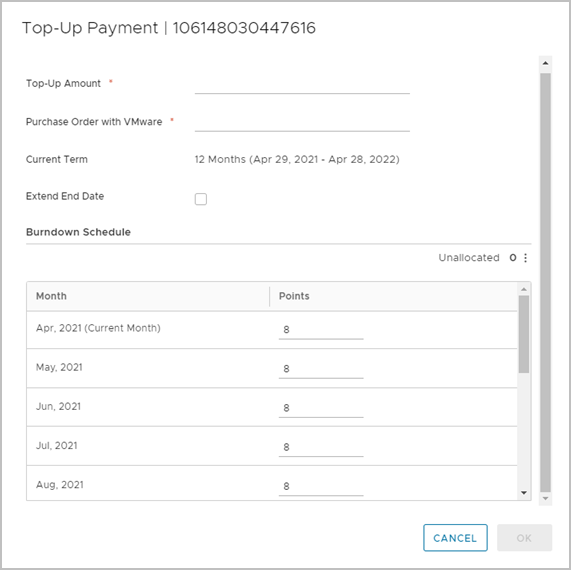
If you are topping-up a Managed Services Provider (MSP) contract, enter the value of the top-up in the currency of the transaction.
-
Request an extension of the contract.
-
Select Extend End Date.
-
Click the calendar icon and select a new year and month for the end date.
-
-
To change the burndown schedule of the contract, modify the monthly allocation of points in the Burndown Schedule section of the window.
-
Click Ok.
The top-up request is sent to Omnissa for approval. If approved, the contract is topped up with the number of points entered in the Top-Up Payment form and updated with the new burndown schedule and end date.
How do I request a contract termination
You can request terminations of active contracts that you have with Cloud Services Providers. Contract terminations are sent to Omnissa for approval.
Verify that you are logged in with an account that has the Operations role assigned.
All Pay-Go contracts are automatically renewed at the end of term. If you do not want to renew your contract you, raise a termination request before the renewal date.
-
In the Contracts menu, click the contract number of the contract for which you want to request termination.
You are redirected to the details page of that contract.
-
From the Actions drop-down menu, select Terminate.
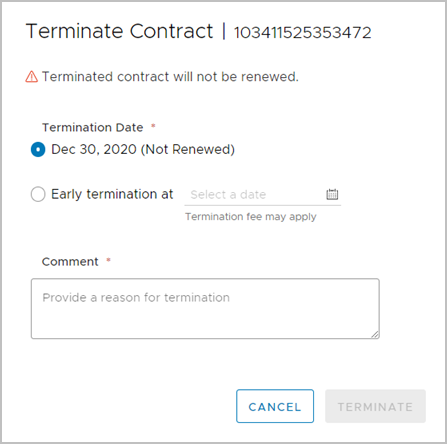
The Terminate Contract window appears.
-
To request termination of the contract's renewal at its current end date, select the contract end date. To request termination at an earlier date, select Early termination at and select the termination date.
-
In the Comment text box, provide a reason for the termination and click Terminate.
The contract termination request is sent to Omnissa for approval. The contract's status is updated in the Contracts menu.
How do I edit contracts
You can edit the details of a contract. You can edit the Cloud Services Provider contact, the license contact, the Aggregator contact, the SPF, the purchase order number, the entitlement account number, the bill-to location, and the order preference of a contract.
Verify that you are logged in with an account that has the Operations role assigned.
-
In the Contracts menu, click the contract number of the contract you want to edit.
You are redirected to the details page of that contract.
-
To start editing the contract, click Actions and select Edit.
-
Modify the details of the contract and click Save.
The contract is updated with the information you entered in the Edit Contract form.
How do I review and submit contract creation requests sent by Omnissa
To finalize the creation of a new GSS or SRV contract, you must review and submit the contract creation request sent by Omnissa.
Verify that you are logged in with an account that has the Operations role assigned.
-
In your task inbox, select the contract creation request you want to submit.
-
Review the information in all sections of the form.
-
Enter a comment in the Comments section.
-
To confirm the contract creation and send it to Omnissa for processing, click Submit.
The contract creation request is sent to Omnissa for processing. You can see the status of the contract in the Contracts menu.
How do I resubmit contract creation requests sent back by Omnissa
If there is an issue with a contract creation request that you submitted, Omnissa might send the request back to you for adjustments. To submit the request properly, make the necessary changes and resubmit the request from your task inbox.
Verify that you are logged in with an account that has the Operations role assigned.
-
In your task inbox, select the contract that Omnissa sent back to you.
-
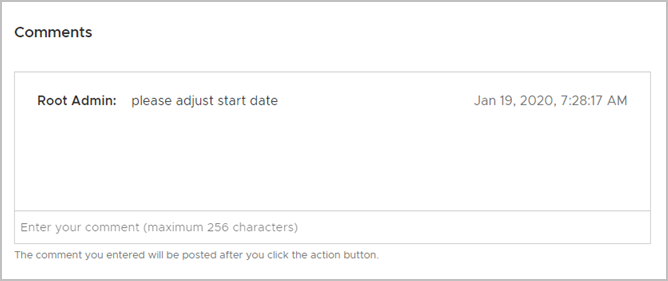
In the Comments section, review the comment given by Omnissa.
-
Make the necessary changes.
-
To confirm you have read and agree to the terms and conditions, select the check box in the Legal Agreement section.
-
Click Resubmit.
The contract creation request is resubmitted to Omnissa for processing. You can see the status of the contract in the Contracts menu.
Was this page helpful?