You can import an image into a tenant.
Prerequisites
Check the video settings for each virtual machine that you are going to use as an image. The minimum video settings are two monitors and 128 MB video memory.
Procedure
-
Log into the Administration Console and click Inventory > Images.
-
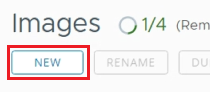
Click the New button.
-
Select the desktop to import. When you start entering the name of the image you want to import, the Desktop text box populates with the image name. Click the populated name to select it. After selecting the image, the system begins performing the agent pairing process. When the agent pairing process has finished, Agent Status changes to Active.

-
Fill out all required text boxes, and click Publish.
Note: Traditional Clone images require local admin credentials to be entered. Image import status changes from In Transition to Published.
-
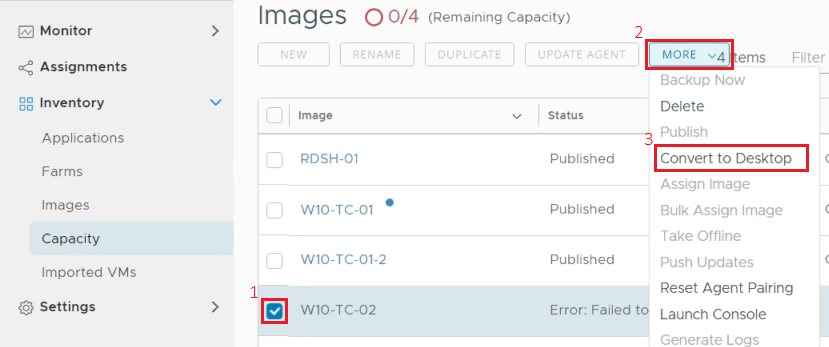
If the import fails, return to Inventory > Images, select the image, then click More > Convert to Desktop.
You can also look at Monitor > Activity to identify what caused the failure. In this example, the image failed to convert because it was set to import as an Instant Clone image without the Instant Clone feature enabled in the Horizon Agent.
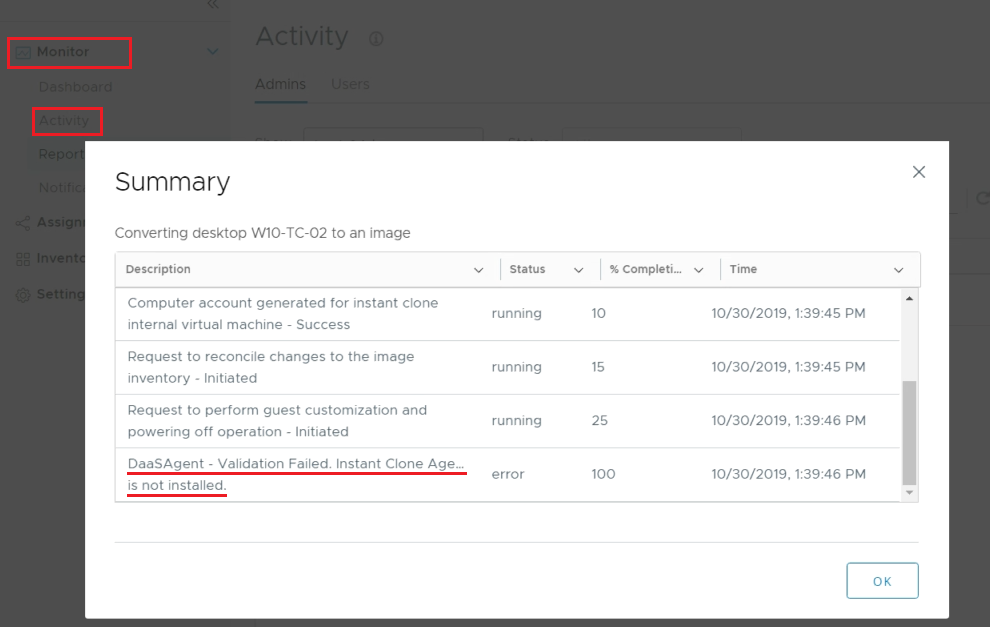
Resolve any issues preventing the image conversion process, then try the import process again.
Was this page helpful?