You can optimize an image using the Omnissa OS Optimization tool.
To optimize the image for best performance, we recommend downloading and using the OS Optimization tool. This is not normally required if you are using an Omnissa-provided image that has already been optimized.
Procedure
-
Download the tool from Omnissa Tech Zone onto the image you want to optimize.
-
Open the ZIP file and extract the two files onto the desktop.
-
Run the OS Optimization Tool executable.
-
On the Analyze tab, click the Template drop-down menu, and select the correct template. For example, Windows 7 (Horizon Cloud) or Windows 10 (Horizon Cloud).
-
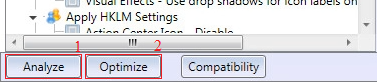
Click Analyze > Optimize.
-
Reboot the machine.
-
Delete the downloaded ZIP file and the extracted files.
What to do next
You are now ready to import your image for use in assignments. See Import an Image.
Was this page helpful?