This topic describes the procedure for upgrading your service provider appliance.
Note: Staggered environments (SP/RM and TA on different versions) are only supported for change/migration to the latest version and not for ongoing production level support. In such an environment any tenant change operation such as assignment, creation/agent updates, and so forth is not supported until the tenant is on the same version as the backend services.
Procedure
-
Log into the Horizon Version Manager portal.
-
Click Jobs > Horizon DaaS Upgrade Management Appliances.
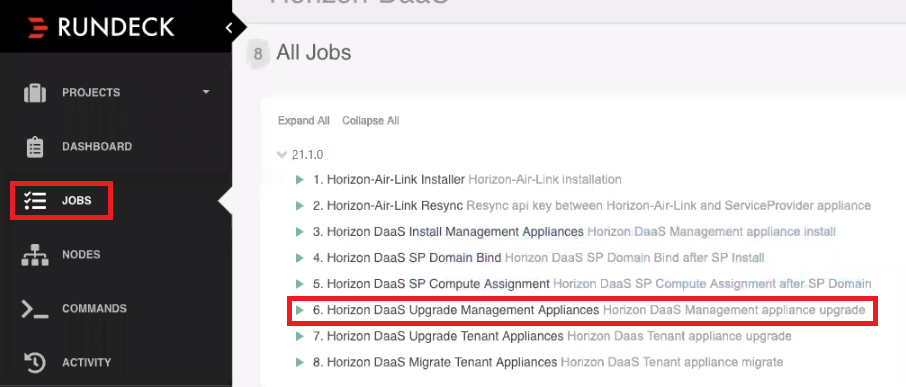
Note: Appliances must be in the root folder in vCenter. If not, the system cannot find the specified VMs and the job fails.
-
Fill out the info based on the details in the Service Provider Upgrade Worksheet and click Run Job Now.
Note: If you did not change the Template OVA password, the value in the Default-Template-Password text box must be Desktone1.
-
Click the top left Log Output button and monitor the upload status on the bottom left of the browser page.
If your job fails at this point with error:
Appliance# already existsthen delete from the disk the VMs in the vCenter folder named
22.1.x.x.x. -
The following output appears in the log when the job has finished successfully:
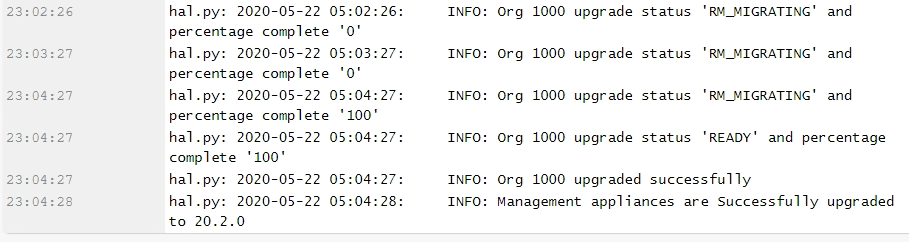
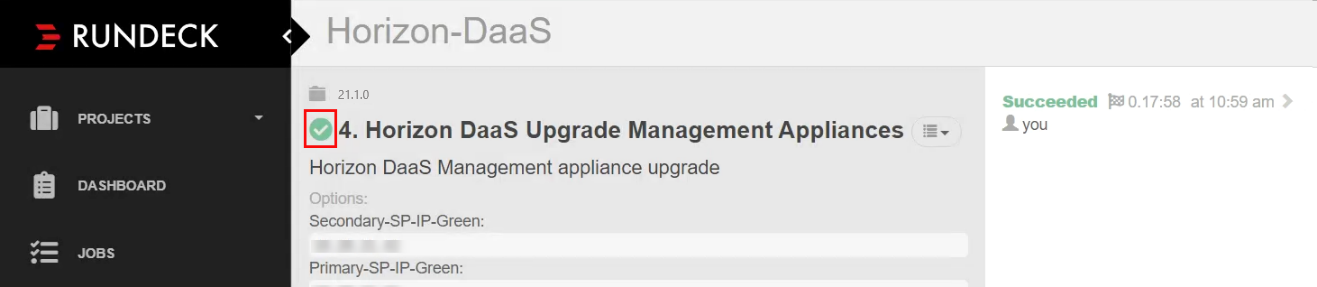
You can also scroll to the top of the page and verify that the job has a green check next to the job name.
-
Verify the new version:
-
Log into Service Center using the new IP address.
-
Click the Version hyperlink at the bottom of the page.
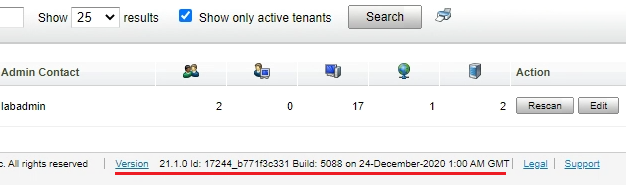
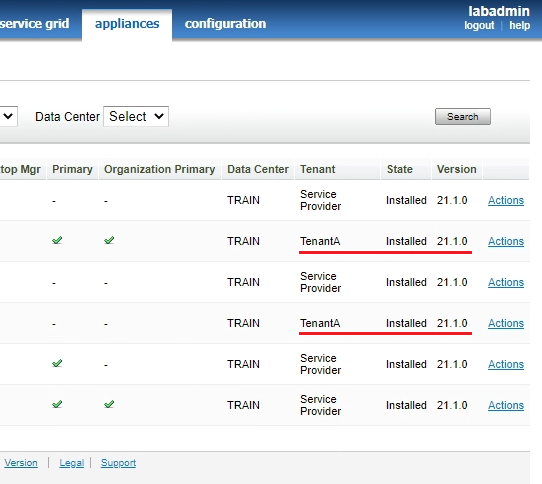
You can also click appliances and see the updated versions.
-
-
Update DNS records so that the records for Service Provider appliance A point to the new IP addresses.
Note: If you have any bookmarks pointing to the old vCenter IP, you must update them.
-
If you are using a single vCenter Server configuration, after the tenant appliances are deployed you must set the
allow.shared.hostmanagerpolicy totrue.Important: Using a single vCenter Server configuration is not considered a best practice for production environments. Use this configuration for demonstration or limited-use environments only.
-
In Service Center, click tenants > policy.
The Policy configuration page displays.
-
Click an empty area of the page to the right or left of the policy list.
-
Type
dtpolicy.Additional hidden policies display in the list.
-
If
allow.shared.hostmanageris set tofalse(the default value), double-click on the wordfalseto edit the value. -
Enter
trueand click OK.
-
Was this page helpful?