On your new or upgraded tenant, you can configure integration with VMware vCloud® Usage Meter.
Attention: It is strongly recommended that you use the latest version of vCloud Usage Meter, which has all of the current features included.
Procedure
-
In Service Center, add a user account with the Read-only mode - View all/No Saving role.
-
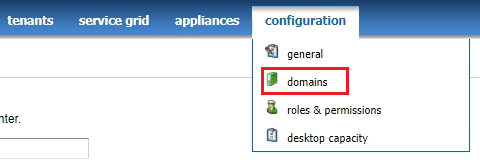
Click configuration > domain.
-
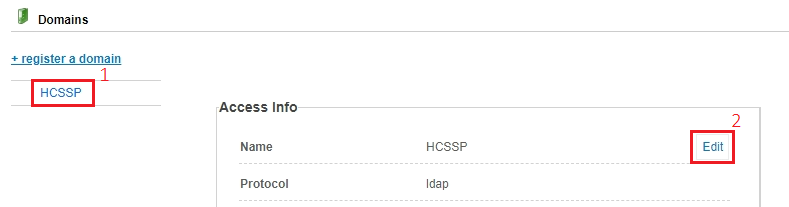
Click on the name of the domain on the left side of the screen, then click Edit.
-
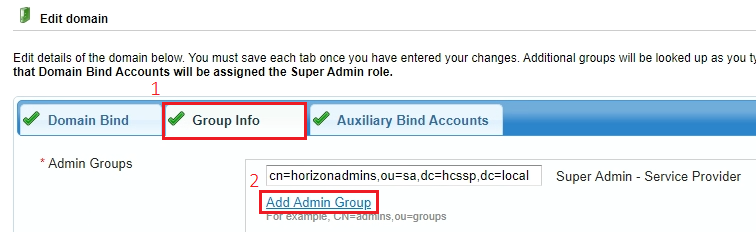
Click the Group Info tab and then click the Add Admin Group hyperlink.
-
- Select the role on the right and begin typing the name of the AD group name you want to add using distinguished name format. The system provides a dropdown of all available group names starting with the text you typed. Click it, then click the Save button.

-
-
Install vCloud Usage Meter following the steps in Deploying and Configuring vCloud Usage Meter.
-
Using the read-only account you have created, follow the instructions for adding Horizon DaaS in Managing vCloud Usage Meter Services.
Attention: Horizon DaaS 9.2.x and 22.1.x are the same release. As a result, when you are setting up vCloud Usage Meter integration, you might see the 22.1.x product version instead of 9.2.x. If you see this, it does not indicate a problem of any kind, so you can still proceed with the setup.
Was this page helpful?