The Enterprise Application Repository (EAR) in the Omnissa Workspace ONE UEM console allows administrators to easily add and manage commonly used, publicly available enterprise applications.
You can also include internal applications in your environment and manage them centrally through the Application Repository. Once applications are added, they can be distributed and installed on devices directly from the console.
Deploying Windows Applications from the Application Repository
The Application Repository provides a centralized list of applications from trusted third-party providers.
By automating the retrieval of application metadata and deployment configurations, the repository minimizes manual effort and simplifies application management across your organization.
This approach streamlines deployment workflows, reduces packaging complexity, and scales easily across multiple environments.
Automatically Generated Installation Commands
When adding an application from the repository, the system automatically generates a default installation command based on the installer type (for example, .exe or .msi).
Default silent switches are added to ensure that installations run unattended.
In some cases, an installer may require a different silent switch or additional parameters.
Administrators can manually adjust the generated command as needed before deployment to ensure compatibility with specific application requirements.
Automatically Generated Uninstallation Commands
For each application, the repository also generates an uninstallation command automatically.
This allows Workspace ONE to cleanly remove applications without requiring administrators to build or test their own uninstallation logic.
While these generated commands work for most standard installers, certain applications may use custom uninstallers or background services that require manual updates to the uninstall logic.
Automatically Generated Detection Methods
The detection method verifies whether an application is already installed or was successfully installed on a device.
The repository automatically provides a default detection script for each supported application, helping administrators avoid the manual process of installing applications locally just to collect detection data (for example, file paths, registry keys, or version details).
In most cases, the generated detection logic works without modification. However, some applications may require manual updates to accurately detect installation status or handle unique edge cases.
Some apps can update themselves outside of Workspace ONE UEM. In this case, Workspace ONE still detects the application as installed even if the version changes. If a newer version of the application is later deployed from Workspace ONE, the managed app is updated to match the deployed version.
When repository-based updates are enabled, the system uses repository metadata to update applications. However, any changes made to the application's metadata are not migrated to the newly created application version.
Configure Applications from the Enterprise App Repository for Windows
Administrators can browse, select, and import applications easily into Workspace ONE UEM for streamlined deployment using the Enterprise App Repository. The following procedure describes the steps to configure any application and assign the app to the targeted devices.
Procedure
-
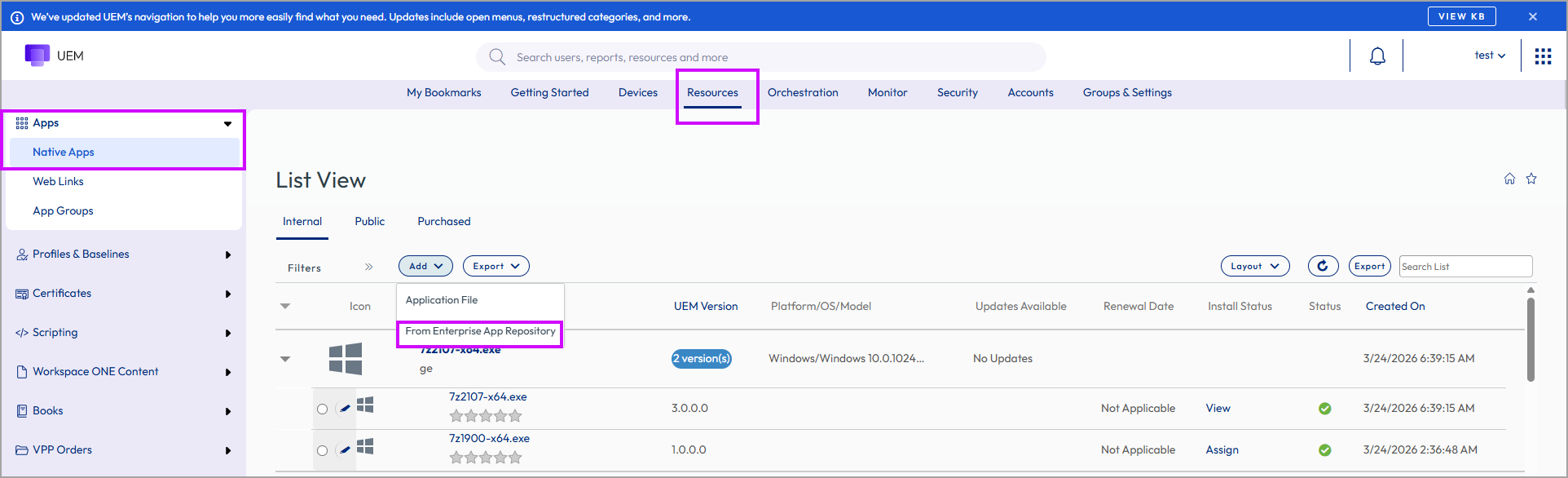
Navigate to Resources > Apps > Native Apps > Internal and then select ADD > From Enterprise App Repository.
-
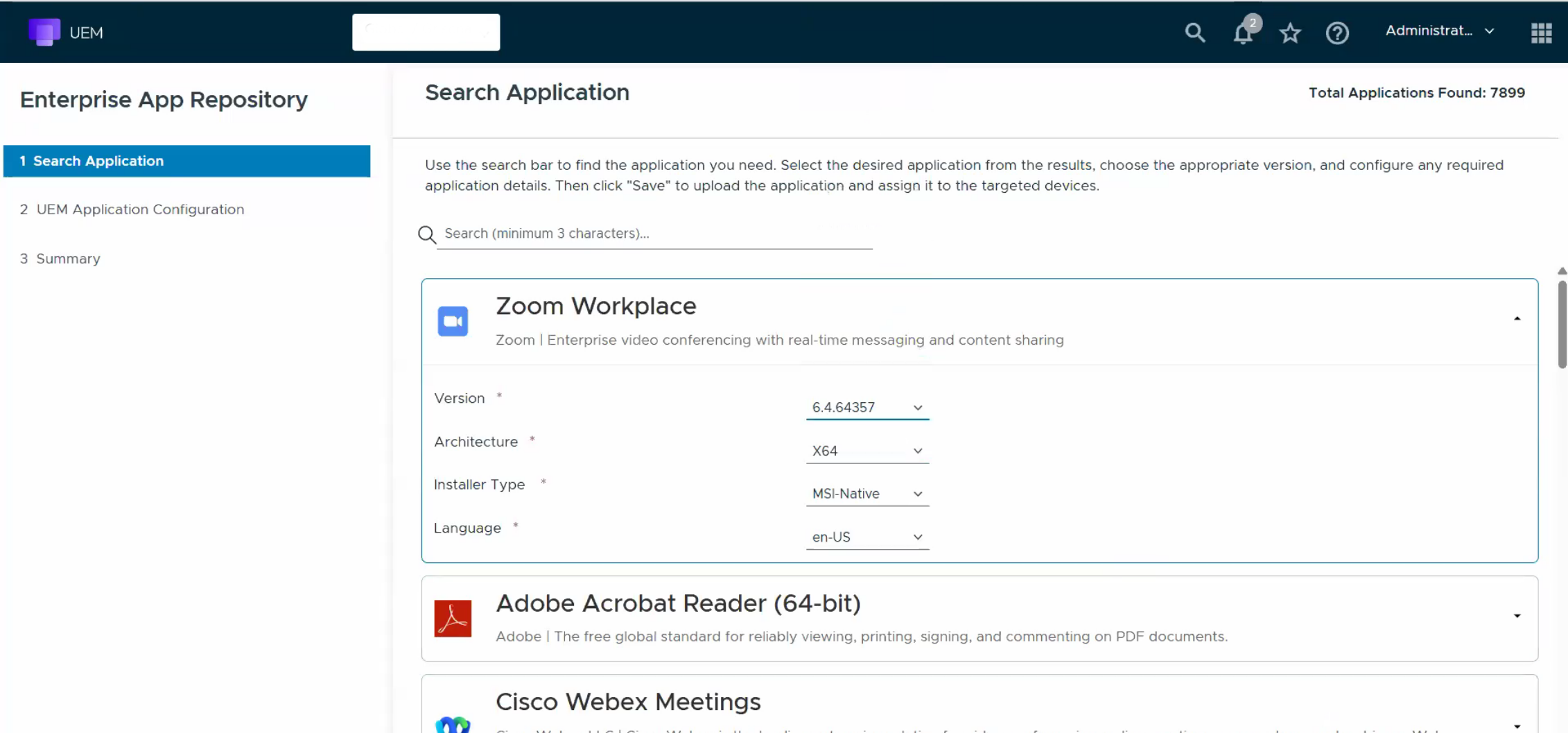
On the Enterprise App Repository page, under Search Application use the search bar to search and select the internal application. In this example, Zoom Workplace is the application being searched for.
-
Select the Zoom Workplace application from the results, choose the appropriate Version, Architecture, Installer Type, and Language details to configure the application. Note: Currently, .msi and .exe file types are the supported Windows application package formats.
-
Click Next to review your selected application and edit the application configuration as required.
-
Enter the installation command in the Install Command text box and verify if the silent command is added in this text box. If the silent command is not added, then add the command as required.
-
The Default Uninstall Command and Default Detection Criteria settings are activated by default. Deactivate these fields to enter your uninstall command or detection criteria.
-
To support apps that automatically update to their latest versions when available, toggle the Support Applications with Auto Update setting. When this setting is activated, UEM detects the app as installed even if the app is updated outside of UEM.
If this setting is deactivated, detection fails and results in app reinstallation or reinstallation attempts. -
In the Install Context, select Device or User to specify if the application requires user interaction or will silently install on the device.
-
In the Admin Privilege, select Yes or No to specify if the application requires admin privileges for installation.
-
In the Device Restart, specify if a device restart is required after the installation of the application. Specify the type of restart required by selecting the options from the drop-down menu.
-
In the Uninstall Device Restart, specify if a device restart is required after the uninstallation of the application. Specify the type of restart required by selecting the options from the drop-down menu.
-
Specify the integer code in the Installer Reboot Exit Code returned by the installer. This number shows that the app has been successfully installed once the device has been rebooted.
-
Specify the integer code returned by the installer in the Installer Success Exit Code, which shows the success of the operation.
-
Specify the Retry Count, the number of times that the download and installation operation will be retried before the installation will be marked as failed. Note: The limit on the retry count is 10.
-
Specify the Retry Interval time in minutes between retry operations. Note: The limit on the retry interval is 10 minutes.
-
Specify the Install Timeout in minutes, so that the installation process can run before the installer considers the installation may have failed and no longer monitors the installation operation. Note: The limit on the install timeout is 480 minutes.
-
Specify the Launch Type, select Launch Path to define how the app is launched from Intelligent Hub, or select Launch URI to invoke a URI.
-
Specify the Launch Command from where the apps need to be launched.
-
Click Add to upload an application icon to help identify and find it easily in the catalog.
-
This step is optional. To allow automatic app updates, toggle the Enable App Automatic Updates setting. When activated, the system uses repository metadata to perform updates. Any changes made to the application's metadata are not migrated to the new application version.
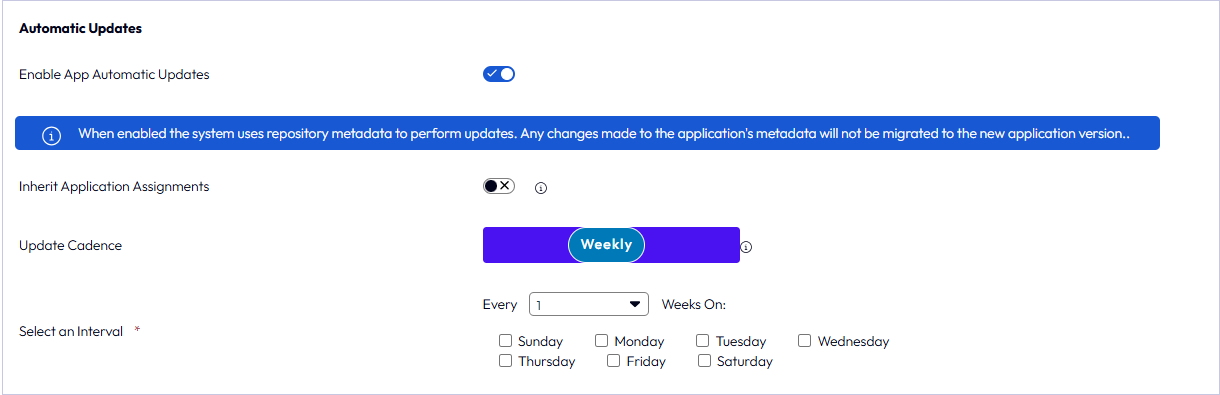
Once you activate automatic updates, the following settings are available.
- Inherit Application Assignments - Activate the setting to carry over the current application assignments to the new version. When deactivated, assignments are not inherited, and you must create new assignments manually.
- Update Cadence - Select a monthly, weekly, or daily schedule for the system to check for new application versions. If an update is available, it is automatically added as a new version.
Based on the selected schedule, additional settings are displayed. For example, if you select a weekly schedule, you can specify the interval (number of weeks) and the day on which the system checks for updates.
If you're editing an existing application, this setting is located in the Repository tab.
For more information about automatic app update scheduling, see Automated Patching for Enterprise Application Repository v2 Apps
-
Click Save to upload the application and assign the app to the targeted devices.
-
In the Summary tab, you can view the details of the configured application.
Updating Applications from the Application Repository
After the application configuration is complete and the application is assigned to an assignment group, administrators can navigate to
Resources > Apps > Native > Internal to view the configured application in the List View page.
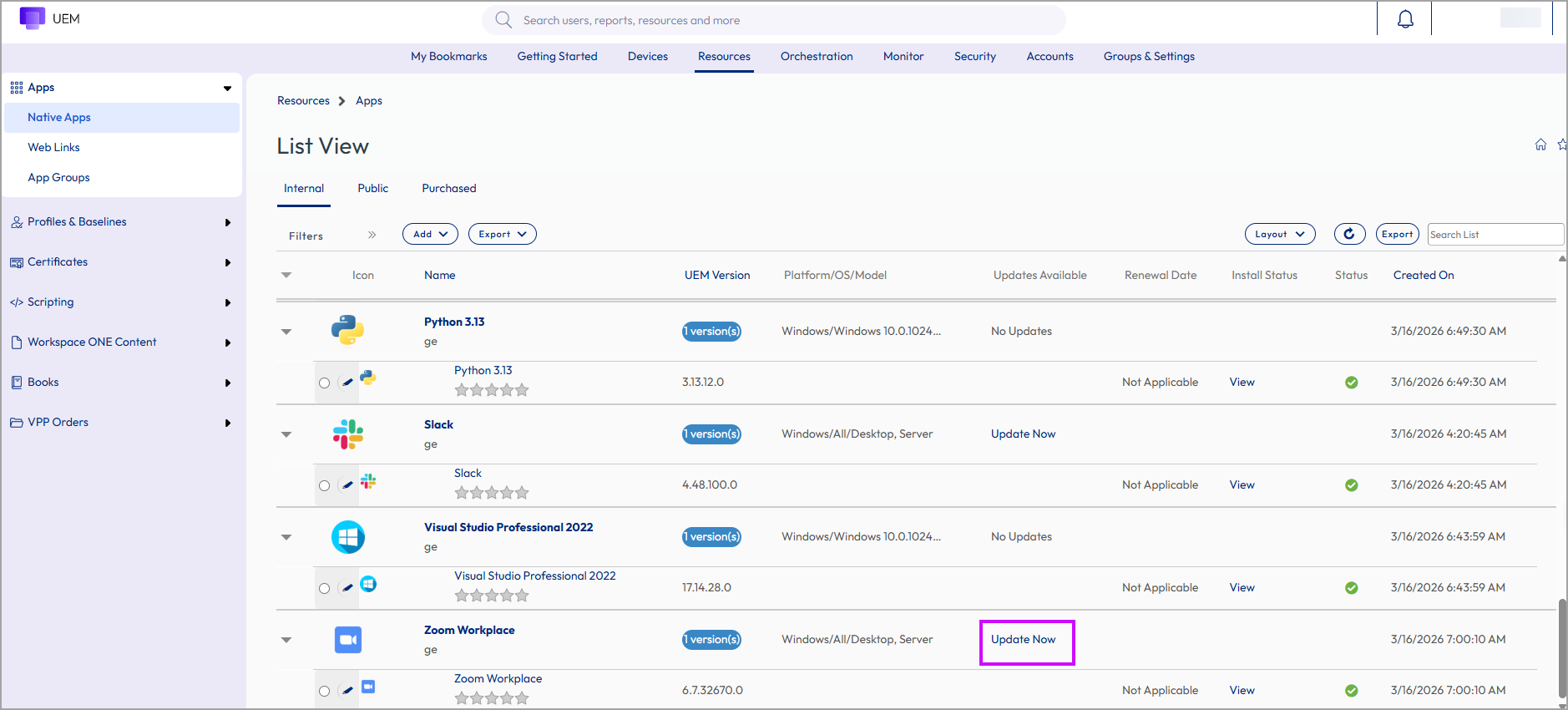
From this view, you can click Update Now to initiate an update check and configure the application catalog accordingly.
Live Update Status from the Repository
When the application list view is loaded, Workspace ONE UEM performs a live query against the Application Repository to determine if any newer versions of the listed applications are available.
This live update check ensures that administrators always see the most current application version information without needing to perform a manual synchronization.
The live query applies to both:
- Applications added from the Enterprise Application Repository (EAR)
- Brownfield applications (manually uploaded apps that were not originally sourced from the repository)
If a newer version is found, the system displays the update information directly in the list view, allowing administrators to review and deploy the latest version easily.
Linking Brownfield Applications to the Repository
Administrators can associate existing (brownfield) applications with the Application Repository to take advantage of automated version tracking and updates.
- Open the application configuration page for the existing app.
- Select the new Repository tab.
- In the Package Manager ID field, search for the relevant application name.
- The correct PackageManagerID value is filled automatically.
- Select the corresponding architecture (for example, x64 or ARM).
- Save the configuration.
Once linked, the application is included in the live update check performed whenever the application list view is loaded.
If a newer version is detected in the repository, it will appear as an available update in the list view, making it easy to keep both EAR and manually uploaded applications current.
Note: If you select an app with a lower version then the selected application cannot be added as an app with the same or higher version already exists in the environment. The admin can select any higher version of the app that needs to be updated.
Application Repository Security and Validation
The Application Repository follows a multi-layered validation and security vetting process to ensure that all submitted applications are safe, trusted, and compliant before becoming available in the public repository.
This process is managed by the repository owner and integrates both automated and manual validation steps to maintain the highest security standards.
Validation and Security Review Stages
-
Manifest Syntax and Metadata Validation
Each submission undergoes schema and metadata validation to confirm correct syntax, field integrity, and compliance with repository standards.
Metadata fields such as Publisher, Package Identifier, Installer Type, and Installer Source are verified for internal consistency. -
URL Reputation and Integrity Checks
All external URLs associated with the submission—such as installer download links, publisher websites, and licensing references—are evaluated using reputation and integrity validation services.
This ensures that no installer is hosted on a compromised or untrusted domain. -
Antimalware and Behavioral Analysis
Every submitted binary is scanned using three independent security engines to detect malware, trojans, or other suspicious patterns.
In addition to static scanning, installers are executed in a sandboxed validation environment to observe runtime behavior.
This behavioral analysis detects unusual installation activity, persistence mechanisms, or privilege escalation attempts. -
Policy and Compliance Enforcement
Automated policy checks ensure that each submission adheres to repository governance standards, including compliance with allowed content, licensing, and naming policies.
Disallowed or policy-violating content (for example, offensive terms or unauthorized trademarks) is automatically rejected. -
CVE Monitoring and Vulnerability Response
Applications in the repository are continuously monitored for new Common Vulnerabilities and Exposures (CVEs).
If a published application is associated with a critical CVE, it is immediately removed from the repository until the issue is resolved.
This ongoing monitoring ensures that only safe and up-to-date packages remain available for deployment. -
Manual Review and Approval
A repository moderation specialist conducts a final review to verify publisher legitimacy, resource accuracy, and overall package trustworthiness before approval for publication.
End-to-End Security and Hash Validation
Workspace ONE UEM enforces an end-to-end secured flow for application delivery, ensuring that only verified and unmodified binaries are installed on managed devices.
-
When an administrator uploads an application, Workspace ONE UEM validates the binary hash against the hash stored in the Application Repository.
If the hashes do not match, the upload is rejected immediately. -
The same verified hash value is distributed to the target device as part of the installation metadata.
Once the device downloads the installer, it compares the downloaded file’s hash with the repository hash.
Only if both match will the installation begin.
This multi-stage validation and verification process ensures complete integrity of application packages—from repository submission, through admin upload, to device-level installation—creating a fully secured, end-to-end application deployment flow.
Was this page helpful?