You manage a Horizon Cloud tenant environment using its administrative console. Ability to access that console relies on an authentication flow that provides for authentication of a Customer Connect account that has authorization to access that Horizon Cloud tenant and for authentication using an Active Directory domain that is registered to the same tenant.
For the login steps and a screenshot depicting the login screen, see Log In to the Horizon Universal Console to Perform Management Tasks on Your Horizon Cloud Environment
When you have integrated your Horizon Cloud environment with your Workspace ONE environment, you can log into your Horizon Cloud tenant using either Workspace ONE or the Horizon Cloud login flow.
Note: Users created with Just-in-Time user provisioning are not able to log in using the Horizon Cloud login flow. These users must log in using Workspace ONE.
In all of the following tenant states, the login flow redirects the authentication request to Cloud Services.
-
If your organization has enterprise federation configured in Omnissa Connect, you are authenticated according to that organizational configuration.
- The account an administrator used to authenticate with when enterprise federation is in use must be added with an appropriate role as decribed in Give Administrative Roles to Individuals in Your Organization for Logging In To and Performing Actions in Your Horizon Cloud Tenant Environment Using the Horizon Universal Console.
-
Otherwise, you use your Customer Connect account's credentials in the Cloud Services login flow. The account credentials are the primary email address, such as
user@example.com, and the password that are set in the account's profile.
After using one of the above methods, the specific authentication flow that you see will vary depending on the state of the Horizon Cloud tenant at the time you are logging in — whether you are logging in before the tenant has any cloud-connected pods, after it has a single cloud-connected pod but no registered Active Directory domains, when the tenant has one registered Active Directory domain, and so on.
Initial Tenant State — No Cloud-Connected Pods
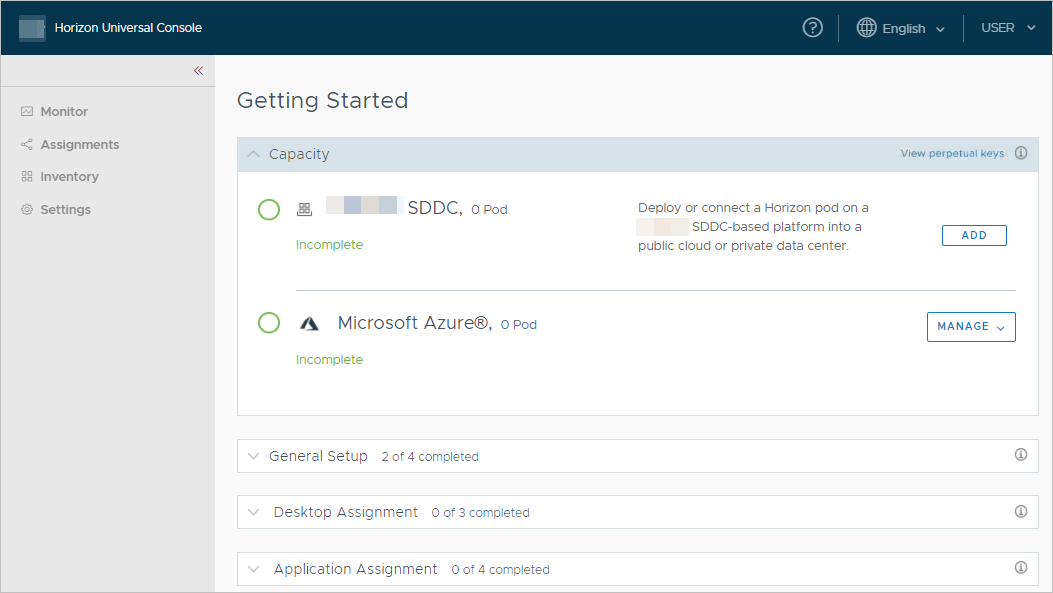
After you authenticate to the tenant, the console displays the Getting Started wizard with the Capacity section expanded by default. Until you cloud connect a pod, the Getting Started wizard is the only accessible user-interface page. At this point in time, you need to onboard a pod to Horizon Cloud to move the tenant beyond this initial state. For information about onboarding a pod, see the guide Deployments and Onboarding to Horizon Cloud for Microsoft Azure and Horizon Pods and its subtopics.
The following screenshot illustrates the console when the tenant is in this initial state.
Tenant with One Cloud-Connected Pod and Zero Registered Active Directory Domains
After you authenticate to the tenant, the console's display might look little different than in the initial state. The Getting Started wizard is displayed with the Capacity section expanded by default and is the only accessible user-interface page. However, now you have access to configure your organization's Active Directory domain with this Horizon Cloud tenant. To move the tenant beyond this state, complete the steps in First-Gen Tenants - Perform the First Required Active Directory Domain Registration for Your Horizon Cloud Control Plane Tenant.
Tenant with a Single Registered Active Directory Domain
After a successful authentication with Cloud Services, one of two things happens:
-
If the registered Active Directory domain that is registered with the Horizon Cloud tenant is also configured for enterprise federation with Cloud Services, the authentication flows according to that configuration. The authentication flow omits the Horizon Cloud Active Directory login window. After you authenticate according to what your organization configured in Cloud Services for federated identity management, the console is displayed.
-
If the registered Active Directory domain is not federated in Cloud Services, your browser is redirected to the Horizon Cloud Active Directory login window. In this Active Directory login window, provide credentials of your Active Directory account. After a successful authentication in this login screen, the console is displayed. The following screenshot illustrates this login window when a domain named
EXAMPLEDOMAINis registered with the tenant.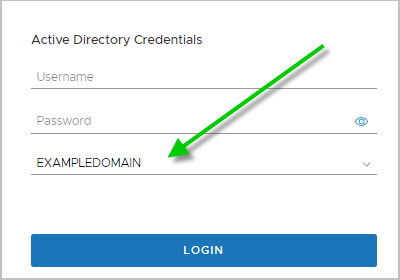
Tenant with More than One Registered Active Directory Domains
In this state, the authentication flow has these differences compared with the above single registered Active Directory domain state.
-
In the authentication flow where the Horizon Cloud Active Directory login window is displayed, you use the drop-down list to select the domain for which your provided credentials are valid. The following screenshot illustrates an example where the Horizon Cloud tenant has two registered Active Directory domains,
DOMAIN-AandDOMAIN-B.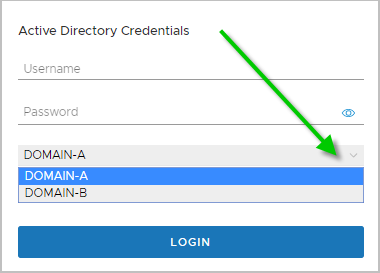
-
If your account belongs to an Active Directory domain that is both registered with the tenant and also has enterprise federation set up with Cloud services, the authentication flow omits the Horizon Cloud Active Directory login window as described in the previous section. However, if your account belongs to an Active Directory domain that is registered with the tenant but your organization has not configured that domain for enterprise federation with Cloud services, your browser is redirected to the Horizon Cloud Active Directory login window. In this case, you select your domain in the drop-down and provide your Active Directory credentials to log in.
Note: As of May 2020, this federated identity management feature is currently qualified for use only when the Horizon Cloud tenant's cloud-connected pods are all pods in Microsoft Azure.
Was this page helpful?