To provide end users with virtual desktops provisioned by cloud-connected Horizon pods, you create a multi-cloud assignment. The desktop pools in an assignment can span one or more cloud-connected Horizon pods that are in managed state.
- Maximum number of Horizon pods per VDI multi-cloud assignment
The supported maximum number of Horizon Connection Server type of pods in a VDI multi-cloud assignment is five (5). Using more than five increases the concurrent load on Universal Broker, which is the brokering technology used with VDI multi-cloud assignments. Increasing that concurrent load can lead to the end users encountering failures when they click on the assignment's displayed tile in the client and the service attempts the operation to log in the user to the virtual desktop.
Prerequisites
- Change your cloud-connected Horizon pods to managed state. See Horizon Pods - Enabling a Cloud-Connected Pod for Multi-Cloud Assignments.
- Configure sites and home site associations for your brokering environment, as described in Configuring Sites for Universal Broker and Configuring Home Sites for Universal Broker.
- Using Horizon Console, configure desktop pools on the cloud-connected pods that you want to include in the assignment.
See Horizon Pods - Create a Desktop Pool Suitable for Multi-Cloud Assignments and Horizon Pods - Prepare an Existing Desktop Pool for Use in a Multi-Cloud Assignment. Ensure that the desktop pools meet the configuration requirements for Universal Broker, as described in those topics.
Procedure
-
In the left pane of the console, click Assignments. If a submenu appears, select the option for VDI desktops.
-
On the Assignments page, select New and select the submenu option for Horizon pods on a vSphere-based SDDC platform.
The New Desktop Assignment wizard appears.
- On the Definition page, configure the required settings.
| Setting | Description |
|---|---|
| Desktop Type | Select one of the following:
|
| Desktop Name | Enter a user-friendly name for the assignment. Entitled end users might see a form of this assignment name in the client they use to access their desktops. The name must contain only letters, hyphens, and numbers. Spaces are not allowed. The name cannot start with a non-alphabetic character. |
| Description | Enter an optional description for the assignment. |
| Select Pod(s) | Select the check box next to each pod containing desktop pools that you want to add to the assignment. You can select multiple pods to create an assignment of desktop pools from different pods. Note: The supported maximum number of Horizon Connection Server type of pods in a VDI multi-cloud assignment is five (5). Using more than five increases the concurrent load on Universal Broker, which is the brokering technology used with VDI multi-cloud assignments. Increasing that concurrent load can lead to the end users encountering failures when they click on the assignment's displayed tile in the client and the service attempts the operation to log in the user to the virtual desktop. |
| Scope |
To specify where the broker can search for desktops in response to a user's desktop request, select one of the following options:
|
| Site Connection Affinity |
This setting specifies a certain geographic site as the default site for the user. When the user requests a desktop, the broker begins searching in the default site for available desktops. If no available desktops are found in the default site and no site restrictions are in effect, the broker continues searching for desktops beyond the default site.
Select one of the following options:
|
After you configure the Definition settings, click Next to proceed to the next page of the wizard.
- On the Desktop page, specify the configuration properties and policies used to filter the desktop pools that can be added to the multi-cloud assignment.
For example, if you specify Windows 10 (64-bit) for Operating System and enable the Allow Users to Restart VMs policy, only desktop pools based on Windows 10 (64-bit) that have the Allow Users to Restart VMs policy enabled are available for inclusion in the assignment.
| Option | Description |
|---|---|
| Operating System | Specify the operating system of the desktop pools that you want to include in the assignment. In the menu, you might see two listed choices that refer to Windows Server 2016: Windows Server 2016 and Windows Server 2016 or above. The Windows Server 2016 or above choice will match with pools configured with Windows Server 2016 or later Windows Server versions, such as Windows Server 2019. Note: This setting becomes read-only when you are editing an existing assignment. |
| Default Display Protocol | Select the default display protocol of the desktop pools that you want to include in the assignment. |
| Allow Users to Choose Protocol | This policy filters desktop pools based on whether they allow users to select a display protocol other than the default. Note: This setting becomes read-only when you are editing an existing assignment. |
| Horizon Web Client |
This policy filters desktop pools based on whether they allow users to connect to virtual desktops from a Web browser using the HMTL Access client. For more information about this feature, see the |
| Allow Users to Restart VMs | This policy filters desktop pools based on whether they allow users to restart virtual machines with a graceful operating system restart. This policy applies only to an automated pool or a manual pool that contains vCenter Server virtual machines. Note: This setting becomes read-only when you are editing an existing assignment. |
| Clean Up Redundant Sessions | This policy specifies whether to close duplicate user sessions automatically. Duplicate sessions can occur when a pod that contains a session goes offline, the user logs in again and starts another session, and the problem pod comes back online with the original session. When duplicate sessions occur, Horizon Client prompts the user to select a session. This policy determines what happens to sessions that the user does not select. When this policy is deactivated, users must manually close their own extra sessions, either by logging off in Horizon Client or by launching the sessions and logging them off. |
| Select Desktop Pools |
Select the check box next to each desktop pool that you want to add to the assignment. You can add multiple pools to a single assignment.
If you cannot find the desktop pool that you want in the list, verify the following:
|
After you configure the Desktop settings, click Next to proceed to the next page of the wizard.
- On the Users page, specify the users and user groups that you want to entitle to the assignment.
| Option | Description |
|---|---|
| Domain | Specify the Active Directory domain in which the users and groups reside. Note: Only cloud-configured domains are available for selection. |
| Find Users | Type the first few characters of the user or group name, and select the users or group of users from the list that appears. Your selection is added to the Selected Users / User Groups list. You can use the Remove button to delete a selected user or group from the list. |
| Assign Home Site |
Use this optional setting to configure a home site override for the selected user or group accessing this assignment. In this case, Universal Broker begins searching for available desktops in the override site instead of the user or group's configured home site.
For example, suppose that a user has a home site in San Francisco but you specify New York as the override site. When the user accesses the assignment, Universal Broker first searches for available desktops in New York instead of in San Francisco.
Note: The Assign Home Site menu is available only if you selected Home Site for Site Connection Affinity on the Definition page of the wizard.
To specify a home site override, select the user or group and click Assign Home Site. The Assign Home Site menu displays all the available sites for pods participating in this assignment.
|
After you configure the Users settings, click Next to proceed to the next page of the wizard.
- Review the settings on the Summary page, and then click Finish.
Results
The newly created assignment appears in the list on the Assignments page.
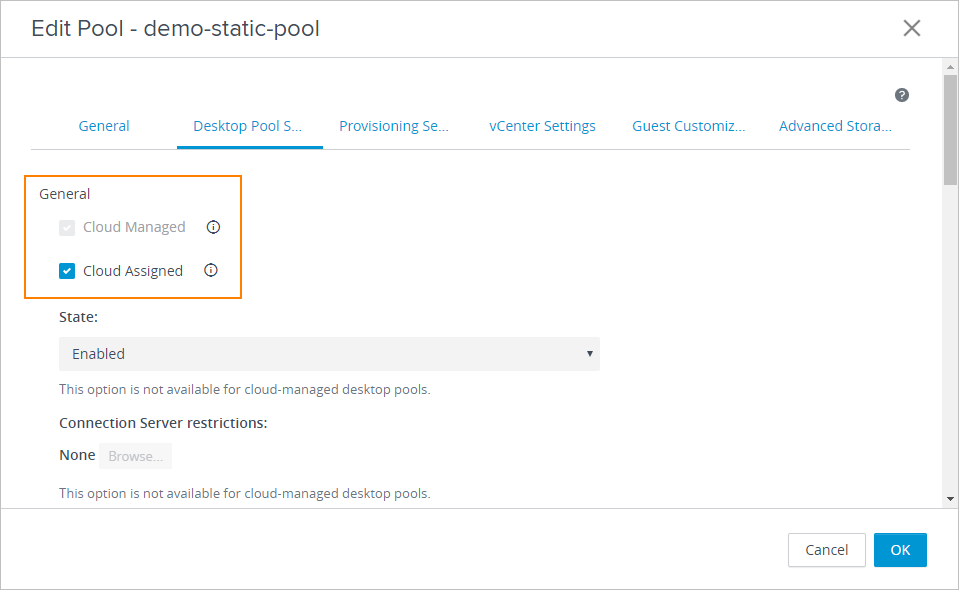
Each desktop pool included in the assignment is now marked as Cloud Assigned in the Edit Pool wizard in Horizon Console. You cannot use Horizon Console to delete or deactivate a desktop pool marked as Cloud Assigned.
Note: If a Horizon Client user logs in to a floating desktop from a multi-cloud assignment, they might encounter a duplicate connection session, even when the Clean Up Redundant Sessions policy enabled. If the user attempts to log out manually from the duplicate session, they receive the error message "You do not have a current session from which to log off." The error occurs because the duplicate session has already been closed through the assignment's policy but Horizon Client does not yet reflect the session's closed state. When the user closes the error message, the Horizon Client refreshes its display and the duplicate session is no longer visible.
Was this page helpful?