This page applies to first-generation Horizon Cloud deployments. This page describes the multi-step workflow for configuring the Active Directory domain information that is required to unlock the first-gen Horizon Universal Console management features.
Tip: You can omit this Active Directory domain registration and your cloud-connected Horizon pod deployments will continue to receive licensing. Except for some features available within the console's Getting Started - Capacity and General Setup areas, the console will remain locked until at least one Active Directory domain is configured.
Completing this registration flow unlocks all of the console's management features that are appropriate for your first-gen tenant's environment.
Purpose
It is a best practice to complete this workflow immediately or shortly after the first pod is added to your tenant's pod fleet is a best practice — whether that pod is a Horizon Cloud on Microsoft Azure deployment or a deployment of a Horizon pod with Horizon Cloud Connector.
The reason why completion is a best practice is because this workflow will unlock the console's management features. Until the tenant has at least one configured Active Directory domain, almost all of the console's management features are grayed out and locked.
High-Level Overview
The overall domain registration workflow has this high-level sequence.
-
From cloud.horizon.omnissa.com, follow the on-screen prompts to log in to the console. Then in the console, start the Active Directory configuration workflow.
-
For the domain-bind step, you specify the Active Directory domain's name-related information, protocol-related information, and credentials of a domain-bind service account that your tenant can use to query that Active Directory domain. Both a primary and auxiliary account must be specified. For information about what Horizon Cloud requires for that domain-bind account, see Domain Bind Account - Required Characteristics.
-
The domain-join information is required for a Horizon Cloud on Microsoft Azure deployment. In this step, you provide the IP address for the DNS server that will allow the service to resolve machine names for your tenant, the default organizational unit (OU) in which you want the pod-provisioned multi-session and single-session machines (VMs) to be created, and credentials of a domain-join service account that the tenant can use to join those VMs to the Active Directory domain. Such VMs include imported VMs, farm RDSH instances, and VDI desktop instances, and so on. For information about what the tenant requires for that domain-join account, see Domain Join Account - Required Characteristics.
If your tenant's first pod is a Horizon Connection Server type of pod, you can choose to skip entering domain-join account information, and the cloud plane services for such pods will work fine. However, if you choose to do that and then later add a Horizon Cloud pod deployment to this same tenant and that pod will provision resources for end users in the same domain, you must remember to configure the domain join information after deploying that pod. The console does not automatically notify you that the domain join information is unconfigured after you deploy a Horizon Cloud pod.
-
In the workflow's final Add Administrator step, you assign the Horizon Cloud Super Administrator role to an Active Directory domain group.
-
After you save the administrator information, the console will automatically log you out. This step ensures that only administrators in the domain group identified in the previous step are allowed access to the console's management features.
Then when the workflow is completed for one Active Directory domain, you can later configure additional Active Directory domains, as appropriate for your organization's needs.
Key Considerations
- You must finish this entire workflow for at least one domain before you can move to other pages in the console. Main services are locked until you finish these tasks.
- Completing the workflow step of assigning the Super Administrator role to an Active Directory domain group is a requirement for supported use of the console's features. If you cancel out of the wizard before completing that step, reopen the Register Active Directory wizard by clicking the Configure button in the console's Getting Started page and complete that role assignment.
- Starting with the v2202 service release, use of LDAPS is supported for Horizon Cloud on Microsoft Azure deployments. For that use, your tenant must be explicitly enabled for it and the tenant's first pod and subsequent pods must be running the v2201 release manifest level. See Horizon Cloud on Microsoft Azure and LDAPS Support for details.
- Distribution groups are not supported, even if they are nested under a Security group. When creating Active Directory groups, always select Security for Group type.
- The primary and auxiliary domain bind accounts are always assigned the Super Administrator role, which grants all the permissions to perform management actions in the console. You should ensure that your specified domain bind accounts are not accessible to users that you do not want to have Super Administrator permissions.
- Ensure that the Active Directory server's clock skew is less than 4 minutes. Starting with manifest 2474.x, the system will check if a registered Active Directory server's clock skew is less than 4 minutes. If this skew is greater than 4 minutes, the system's domain server discovery fails with the exception "Clock skew is too large". End user desktop connection requests can be impacted if the system's domain server discovery fails.
- For future thinking, keep in mind that if you plan to later add additional pod deployments to this tenant's pod fleet, those pods will need to have line-of-sight to this same Active Directory domain at the time you connect or deploy those pods.
- Also, due to a known issue, when connecting Horizon pods using Horizon Cloud Connector, unexpected results can occur if you do not complete this Active Directory domain registration process for the first pod before attempting to run the connector's cloud-pairing workflow for subsequent pods. Even though the cloud-pairing workflow allows you to run it for multiple pods prior to completing the first Active Directory domain registration with Horizon Cloud, if you have not yet completed the first domain registration before running that cloud-pairing process on the next pod, this domain registration process might fail. In that case, you will first have to use Unplug in the Horizon Cloud Connector configuration portal to remove the connection between each of the cloud-connected pods until you are down to a single cloud-connected pod. Then remove the failed Active Directory registration, complete the domain registration process for that single cloud-connected pod, and re-run the Horizon Cloud Connector workflow on the subsequent pods.
Before Running the Workflow in the Console
- Verify that your first pod is successfully deployed. The console's Getting Started wizard indicates whether the first pod is successfully deployed by displaying a green checkmark icon (
 ).
). - Obtain the Active Directory domain's NetBIOS name and DNS domain name for the domain you are registering. You will provide these values in the console's Register Active Directory window in the first step of this workflow. For an example of how to locate these values, see Obtain the NETBIOS Name and DNS Domain Name information. Please note that you will input the account name itself into the fields, such as
ouraccountname, like the user logon name without the domain name. - Obtain valid information ready to input into the console's required fields for the required primary and auxiliary domain-bind accounts and for the domain-join account. Ensure those accounts exist in the domain and adhere to the requirements describe in Service Accounts That Horizon Cloud Requires for Its Operations. As part of the console's workflow, the service will validate the account information that you input.
- To prevent the domain-join account step from failing, ensure that the Active Directory infrastructure is synchronized to an accurate time source. Such a failure might require you to contact Horizon Cloud Support for assistance. If the domain-bind step succeeds, but the domain-join step fails, you can try resetting the domain and then investigate whether you need to adjust the time source. To reset the domain, see the steps in Remove the Active Directory Domain Registration.
Note: If your tenant's first pod deployment is the Horizon Connection Server and Horizon Cloud Connector deployment type and you encounter an issue running this workflow, please ensure that your deployment is running supported versions of Horizon Connection Server and Horizon Cloud Connector.
Log In and Start the Workflow
-
Log in to the console by navigating to the Horizon Universal Console portal URL at https://cloud.horizon.omnissa.com/.
That URL redirects to the Cloud Services login screen, as illustrated in the following screenshot. Sign in using the credentials that are associated with your Horizon Cloud tenant. Follow the on-screen flow.
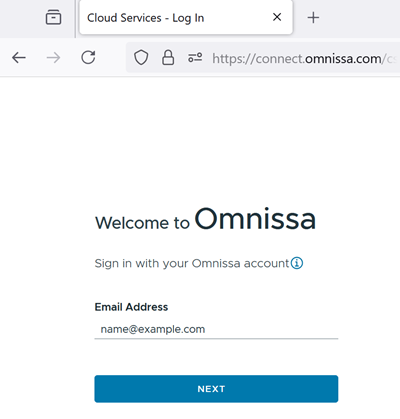
If you have not previously accepted the terms of service using those credentials, a terms of service notification box appears after you click the Login button. Accept the terms of service to continue.
When your login is successfully authenticated, the console opens and displays the Getting Started page.
-
In the Getting Started page, expand General Setup section if it is not already expanded.
-
Under Active Directory, click Configure.
The console displays a window that is the start of the Active Directory registration workflow. The look of this window will vary depending on whether your tenant is starting out with a Horizon Connection Server type of pod or with a Horizon Cloud on Microsoft Azure deployment.
Domain Bind - Horizon Connection Server Pod
Provide the requested information in the console window, and then click Domain Bind to save it. When typing in each bind account name, type the account name without the domain name, like the user logon name such asouraccountname.
| Field | Description |
|---|---|
| NETBIOS Name | The console displays a selection menu that is populated with the names of all of the Active Directory domains that the Horizon pod can see. Select the Active Directory domain that you want to register first. |
| DNS Domain Name | Read-only. The console automatically displays the fully qualified DNS domain name for the Active Directory domain selected for NETBIOS Name. |
| Protocol | Automatically displays LDAP, the protocol supported for this pod type. |
| Bind Username and Bind Password | Provide the credentials of the domain-bind service account for the service to use with the selected domain. |
| Auxiliary Account #1 | In the Bind Username and Bind Password fields, type a user account in the domain to use as the auxiliary LDAP bind account and its associated password. |
| Advanced Properties | Unless you change the defaults, the service uses the default values as displayed in the console.
|
Domain Bind - Horizon Cloud on Microsoft Azure Deployment
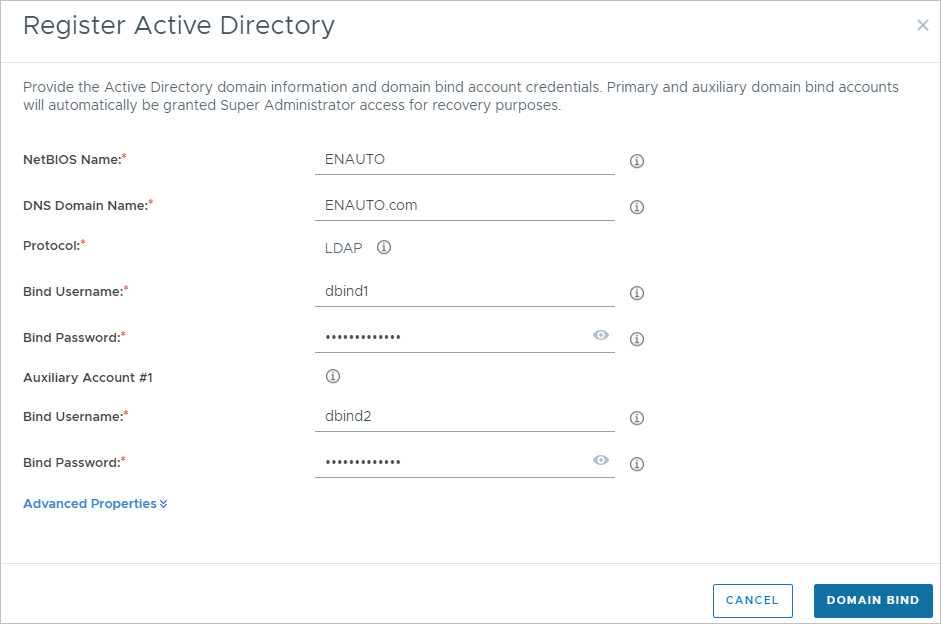
Provide the requested information in the console window, and then click Domain Bind to save it. When typing in each bind account name, type the account name without the domain name, like the user logon name such asouraccountname.
| Field | Description |
|---|---|
| NETBIOS Name | The system displays a text box. Type in the NetBIOS name for the AD domain to which the pod has line of sight. Typically this name does not contain a period. For an example of how to locate the value to use from your Active Directory domain environment, see Obtain the NETBIOS Name and DNS Domain Name information. |
| DNS Domain Name | Type in the fully qualified DNS domain name of the AD domain you specified for NETBIOS Name. |
| Protocol | Automatically displays LDAP, the protocol supported for this pod type. |
| Bind Username and Bind Password | Provide the credentials of the domain-bind service account for the service to use with the selected domain. |
| Auxiliary Account #1 | In the Bind Username and Bind Password fields, type a user account in the domain to use as the auxiliary LDAP bind account and its associated password. |
| Advanced Properties | Optional. Unless you change the defaults, the service uses the default values as displayed in the console.
|
The following screenshot illustrates the Register Active Directory window when your first cloud-connected pod is in Microsoft Azure. The fields have values for an example Active Directory domain with NetBIOS name of ENAUTO and DNS domain name of ENAUTO.com.
Domain Join
When the domain-bind step succeeds, the console automatically displays the Domain Join dialog box. For the account credentials, use an Active Directory account that adheres to the guidelines for the domain-join account described in the prerequisites.
It is a best practice to complete the required fields in this wizard step. Even though in this release the domain-join account is primarily used for system operations involving VMs located in pods in Microsoft Azure, completing this step ensures the console prompts you to complete the subsequent step of granting the Super Administrator role.
Important: If the domain-bind step fails, but you proceed to add the domain-join account and the system goes ahead to the Super Administrators role step, the registration process is not fully complete, even if the system proceeded to the next step. If this situation occurs, follow the steps in Remove the Active Directory Domain Registration and then start the Domain Bind flow again.
-
In the Domain Join dialog box, provide the required information.
Option Description Primary DNS Server IP The IP address of the primary DNS Server that you want Horizon Cloud to use to resolve machine names. For a pod in Microsoft Azure, this DNS server must be able to resolve machine names inside of your Microsoft Azure cloud as well as resolve external names. Secondary DNS Server IP (Optional) IP of a secondary DNS Server Default OU Active Directory organization unit (OU) that you want used by the pod's desktop-related virtual machines such as imported VMs, farm RDSH VMs, VDI desktop instances. An Active Directory OU is of the form such as OU=NestedOrgName, OU=RootOrgName,DC=DomainComponent. The system default isCN=Computers. You can change the default to match your needs, likeCN=myexample. Note: For a description of nested organization names, see Considerations For Using Nested Active Directory Domain Organizational Units. Each individual entered OU must be 64 characters long or less, not counting theOU=portion of your entry. Microsoft limits an individual OU to 64 characters or less. An OU path that is longer than 64 characters, but with no individual OU having more than 64 characters, is valid. However, each individual OU must be 64 characters or less.Join Username and Join Password User account in the Active Directory that has permissions to join computers to that Active Directory domain. Provide the user name and its associated password. Note: Only provide the user name itself. Do not include the domain name here. Auxiliary Join Usernameand Auxiliary Join Password Optional. Specify an auxiliary domain-join account. If the primary domain-join account you specified becomes inaccessible, the system uses the auxiliary domain-join account for those operations in pods in Microsoft Azure that require joining the domain, such as importing image VMs, creating farm RDSH instances, creating VDI desktop instances, and so on. Use an Active Directory account that adheres to the same guidelines for the primary domain-join account described in the prerequisites. Ensure that this auxiliary domain-join account has a different expiration time from the primary domain-join account, unless both accounts have Never Expires set. If both the primary and auxiliary domain-join accounts expire at the same time, the system's operations for sealing images and provisioning farm RDSH VMs and VDI desktop VMs will fail. If you do not add an auxiliary domain-join account at this time, you can add one later. If you add one now, you can update or remove it later. Only one auxiliary domain-join account can be added. -
Click Save.
When the domain-join step succeeds, the Add Administrator dialog box appears and you should continue with the step to add the Super Administrator role to your group of admins in the AD domain.
Important: If the domain-join step fails, the registration process is not fully complete. If this situation occurs, follow the steps in Remove the Active Directory Domain Registration and then start again with step 4.
Add Super Administrator Role to an AD Group
- In the Add Administrator dialog box, use the Active Directory search function to select the Active Directory administrator group you want performing management actions on your environment using this console. This assignment ensures that at least one of your Active Directory domain's user accounts is granted the permissions to log in to this console now that the Active Directory domain is configured for this customer account.
- Click Save.
When you click Save, the system automatically logs you out. Now that you have registered the pod with your Active Directory domain, the system requires you to log back in, to enforce use of an Active Directory account along with your Customer Connect account credentials. For example, this time, you log in with your Customer Connect account credentials and then with the Active Directory account credentials of a user that is in the Active Directory group to which you just assigned the Super Administrator role.
Important: After an Active Directory group is assigned to the Super Administrator role, never remove the specified administrator group from your Active Directory system or change its GUID as it appears in your Active Directory system unless you have added another administrator group to this Super Administrator role, as described in Assign Roles to Active Directory Groups that Control Which Areas of the Horizon Universal Console are Activated for Individuals in Those Groups After They Authenticate to Your Horizon Cloud Tenant Environment. This Super Administrator role governs which of your AD user accounts can log in to your Horizon Cloud tenant account and perform administrative operations in the console. If you remove the group from your Active Directory system or change its GUID in your Active Directory system, that change will not be communicated to the Horizon Cloud control plane, and Horizon Cloud's knowledge of that AD group having the Super Administrator role will be broken. If that group is the only group assigned to this Super Administrator role, none of your AD accounts that used to have Super Administrator access will be able to log in to your Horizon Cloud tenant account with the access to perform administrative operations. At that point, only the credentials of the domain-bind account and auxiliary domain-bind account can be used to log in and add groups to the Super Administrator role.
Results of Completing the Process
When all of the wizard's steps are completed, the following items are now in place:
- The Active Directory domain is configured in the cloud plane as the first cloud-configured Active Directory domain associated with this Horizon Cloud customer account.
- Horizon Cloud has the domain-join account needed for those system operations involving joining virtual machines to that domain, for Horizon Cloud pods.
- Management activities in the console are now accessible.
- The login flow as you log in to the console is changed, now that the Horizon Cloud tenant has its first registered Active Directory domain. For an overview of the login flow, see About Authentication to a Horizon Cloud Tenant Environment.
- Users in the group to which you granted the Super Administrator role will be able to access the console and perform management activities when they log in using the associated Customer Connect account credentials. To enable those administrators to use their own Customer Connect account credentials to authenticate with Horizon Cloud, complete the steps described in Give Administrative Roles to Individuals in Your Organization for Logging In To and Performing Actions in Your Horizon Cloud Tenant Environment Using the Horizon Universal Console.
- User accounts from the registered Active Directory domain can be selected for assignments involving resources from pods in Microsoft Azure.
- The console's help desk features can be used with user accounts from that registered Active Directory domain.
What to Do Next
From this point, you typically perform the following tasks:
- Add additional auxiliary bind accounts to this Active Directory domain configuration. If the primary and first bind accounts you specified become inaccessible, the system uses the next auxiliary bind account to connect to the Active Directory. Having auxiliary bind accounts avoids locking out your administrator users from the console in situations where the primary bind account is inaccessible in the Active Directory domain. See Add Additional Auxiliary Bind Accounts for a Cloud-Configured Active Directory Domain in Horizon Cloud.
- Grant access to additional users to administer your environment. First add their Customer Connect accounts with associated Horizon Cloud roles, and then give their Active Directory accounts the appropriate Horizon Cloud role. See Give Administrative Roles to Individuals in Your Organization for Logging In To and Performing Actions in Your Horizon Cloud Tenant Environment Using the Horizon Universal Console and Assign Roles to Active Directory Groups that Control Which Areas of the Horizon Universal Console are Activated for Individuals in Those Groups After They Authenticate to Your Horizon Cloud Tenant Environment.
- Continue with the Getting Started wizard's steps. See Horizon Cloud Getting Started Wizard - Overview.
- Navigate to the Dashboard and other areas of the console to explore or perform other management tasks. See First-Gen Tenants - Tour of the First-Gen Horizon Universal Console.
- If you have additional Active Directory domains with users to whom you want to grant management access to the console or end users to whom you want to give assignments, you can register those Active Directory domains also. See Register Additional Active Directory Domains as Cloud-Configured Active Directory Domains with Your Horizon Cloud Tenant Environment.
- Assign the demo administrator role to those users in this domain to whom you want to grant read-only access to the console. See Best Practices about the Two Types of Roles You Give to People to Use the Console to Work in Your Horizon Cloud Environment and Assign Roles to Active Directory Groups that Control Which Areas of the Console are Activated for Individuals in Those Groups After They Authenticate to Your Horizon Cloud Tenant Environment.
CAUTION:
If you only have one Active Directory group with the Super Administrator role assigned, do not remove that group from the Active Directory server. Doing so can cause issues with future logins.
Was this page helpful?