This page describes how to use the Manage Subscription workflow in the Horizon Universal Console to change, modify, or update existing subscription information that is stored in your Horizon Cloud environment. One use case for this workflow is when the subscription's key is close to expiring and you have created a new key in the Azure Portal, and now you need the pods in that subscription to use that new key.
Brief Introduction
In some circumstances, you might find you need to change, modify, or update the Microsoft Azure subscription information that is associated with the pods deployed in those subscriptions.
Similarly, if you used the feature to deploy an external gateway using a subscription separate from the pod's subscription, you might find you need to change that subscription information.
The Manage Subscription workflow is also used to add new subscription information into your environment, as well as to delete subscription information that is no longer associated with any pods and that you wish to remove completely from being visible in Horizon Cloud.
Typical Use Case
How might you find yourself needing to change, modify, or update the Microsoft Azure subscription information that is associated with the deployed pods?
Imagine that you created the subscription's application key to have it expire in one year and now the time is close to day 360.
Before the final day 365 passes and the key expires, you would first need to use the Microsoft Azure portal to create a new key for the subscription and then immediately change the stored subscription information in the Horizon Universal Console to start using the new key.
When the subscription information on both sides matches — the Microsoft Azure portal side and the Horizon Universal Console side — the subscription information stored in your Horizon Cloud environment remains viable for use with the pods already deployed in that subscription.
Console Location for These Steps
You update the subscription information used by a pod or by its external gateway — when that gateway is deployed in a separate subscription — from the Capacity page's Resources tab. For a description of the subscription information fields, see the Deploying Additional Pods page.
Important: If the pod is running a manifest of 4136.0 or earlier, then whenever you update the application key, you must reach out to Omnissa Support to restart the required services on the pod. For pods of such manifests, this step ensures the new key takes effect. Without this restart, the new key will not be active. If the pod is running manifest 4136.1 or later, the required services are restarted automatically and you don't have to reach to Omnissa Support to restart them.
Procedure
-
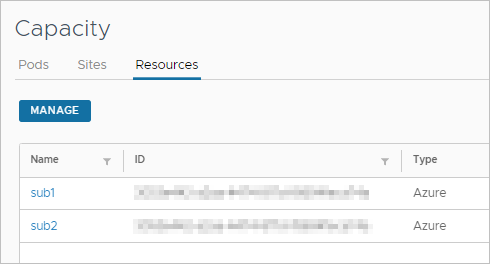
In the console, navigate to the Capacity page and click Resources.
The following screenshot illustrates the Resources tab with two named subscriptions listed. Each name is a hyperlink. Clicking the hyperlink name opens a window in which you can change the stored information.
-
Click the displayed subscription name of the subscription you want to change to use new values.
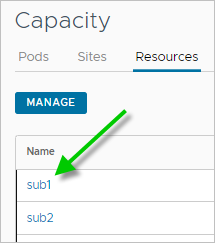
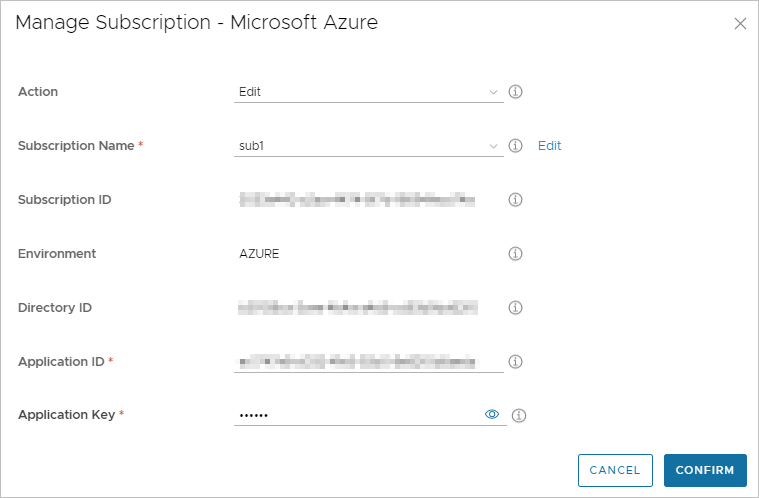
When you click a hypertext name of the set for Microsoft Azure subscription information, the Manage Subscription window opens with the Edit action selected by default.
-
Type in new values for the ones you want to change to match the values you set for the subscription in the Microsoft Azure portal.
You can change the Subscription Name, Application ID, and Application Key. Even though the Application Key field has the icon to view the key, the key stays hidden. To type in a new subscription name, click Edit next to the Subscription Name menu in the Manage Subscription window.
Note: The Environment, Subscription ID, and Directory ID values cannot be updated.
-
Click Confirm.
Was this page helpful?