As the claims issuer (or identity provider), AD FS sends security tokens containing authentication claims to Omnissa Access. Relying party claim rules define the content of these claims and transform them into a format that Omnissa Access can recognize and consume.
You must configure two claim rules for Omnissa Access as the relying party. The first rule directs AD FS to look up the LDAP email address attribute for the requesting user and to send this attribute as the claim. The second rule transforms this claim into the SAML-based email address attribute expected by Omnissa Access.
Prerequisites
Add Omnissa Access as a Relying Party for AD FS
Procedure
-
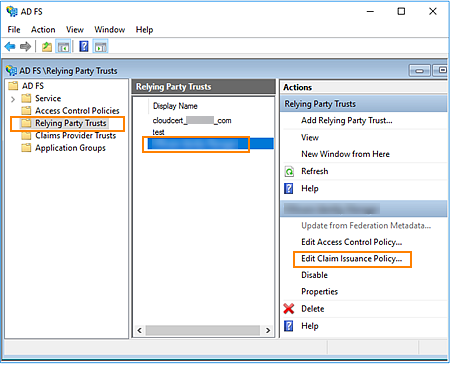
If needed, open the Edit Claim Issuance Policy window (AD FS 4.0) or Edit Claim Rules window (AD FS 3.0) on the AD FS server by performing the following steps.
-
Run the AD FS Management console as an administrator.
-
(AD FS 3.0.) In the left pane, expand the Trust Relationships folder.
-
In the left pane, select Relying Party Trusts.
-
In the center pane, select the relying party trust that you created for Omnissa Access.
-
In the right pane, click Edit Claim Issuance Policy (AD FS 4.0) or Edit Claim Rules (AD FS 3.0).
-
-
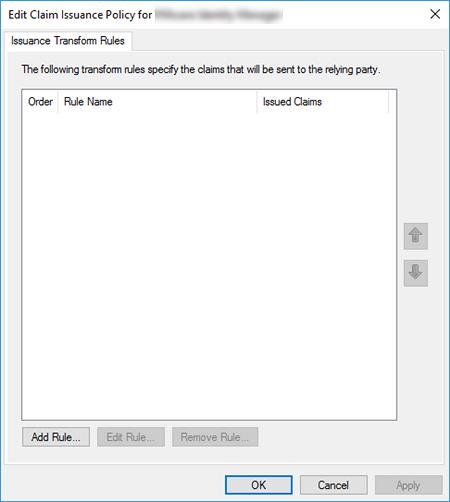
In the Edit Claim Issuance Policy window (AD FS 4.0) or Edit Claim Rules window (AD FS 3.0), select the Issuance Transform Rules tab.
-
Click Add Rule.
The Add Transform Claim Rule Wizard appears.
-
For Claim rule template, select Send LDAP Attributes as Claims. Then click Next.
The Configure Rule page appears.
-
Specify the following settings.
Setting Description Claim rule name Enter a descriptive name for the rule (for example, Get E-Mail Address Attribute).Attribute store Select Active Directory. LDAP Attribute Select E-Mail-Addresses. Outgoing Claim Type Select E-mail address. -
Click Finish.
-
Verify that the email address attribute rule appears in the list of claim rules.
Next, you add a second rule that transforms the email address attribute in the outgoing claim to the SAML-based format expected by Omnissa Access.
-
Click Add Rule.
-
For Claim rule template, select Send Claims Using a Custom Rule. Then click Next.
-
Specify the following settings.
-
For Claim rule name, enter a descriptive name for the rule (for example,
Transform E-Mail Address). -
In the Custom rule text box, enter the following script, where {AccessTenant} at the end of the script is replaced with the fully qualified domain name (FQDN) of the Omnissa Access service. This script uses the required syntax for custom rules.
c:[Type == "http://schemas.xmlsoap.org/ws/2005/05/identity/claims/emailaddress"] =>

issue(Type = "http://schemas.xmlsoap.org/ws/2005/05/identity/claims/nameidentifier", Issuer =
c.Issuer, OriginalIssuer = c.OriginalIssuer, Value = c.Value, ValueType = c.ValueType,
Properties["http://schemas.xmlsoap.org/ws/2005/05/identity/claimproperties/format"] =
"urn:oasis:names:tc:SAML:1.1:nameid-format:emailAddress",
Properties["http://schemas.xmlsoap.org/ws/2005/05/identity/claimproperties/spnamequalifier"]
= "{AccessTenant}");

~~~~~~~
-
-
Click Finish.
-
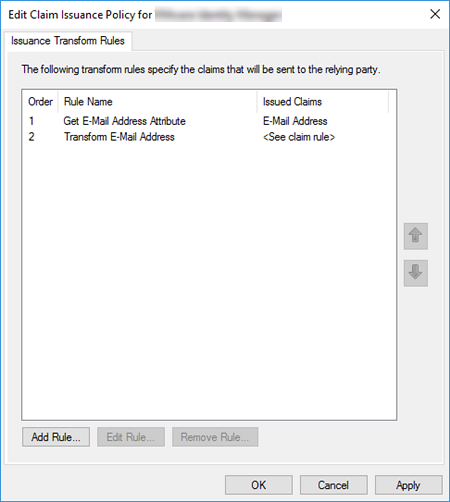
Verify that both new rules appear in the rules list, with the custom transformation rule appearing in the second position. Click Apply, and then click OK.
Results
This procedure concludes the integration of AD FS as a federated identity provider for Omnissa Access.
What to do next
Test the Workspace ONE Intelligent Hub Login with AD FS Authentication
Was this page helpful?