To configure AD FS as a service provider for Omnissa Access, you add AD FS as an application source. The AD FS application source enables Omnissa Access to respond to authentication requests from the AD FS server.
Prerequisites
Download the federation metadata file for the AD FS server by navigating to the URL: https://{ADFSdomain}/FederationMetadata/2007-06/FederationMetadata.xml**** where {ADFSdomain} is replaced with the fully qualified domain name (FQDN) your AD FS server.
Procedure
-
Log in to the Omnissa Access console with full administrator privileges.
-
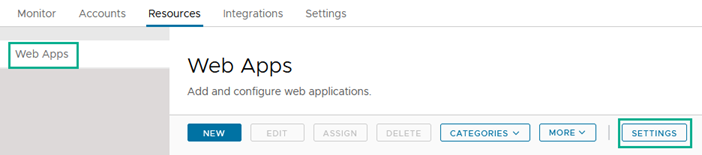
In the Resources tab, select Web Apps.
-
Click Settings.
-
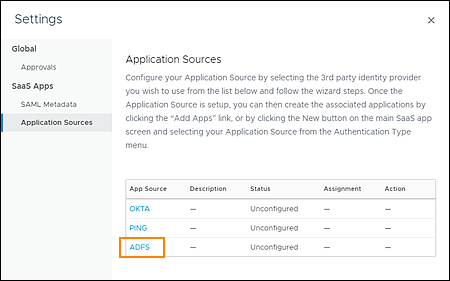
In the left pane, click Application Sources.
-
On the Application Sources page, click ADFS.
-
On the Definition page of the ADFS Application Source wizard, click Next.
-
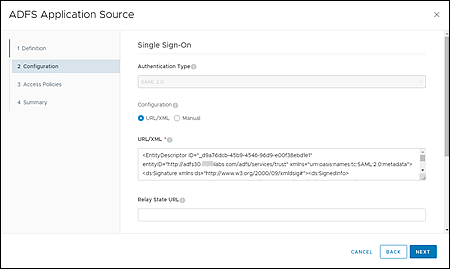
On the Configuration page, perform the following steps.
-
For Configuration, select URL/XML.
-
In the URL/XML text box, copy and paste the contents of the federation metadata file that you downloaded previously from the AD FS server.
-
-
Click Next.
-
On the Access Policies page, select the access policy that you want to use for the AD FS application source.
For more information about access policies, see the Managing Omnissa Access User Authentication Methods guide.
-
Click Next, review your selections, and click Save.
Saving the setup at this stage allows Omnissa Access to import configuration settings from the AD FS metadata.
-
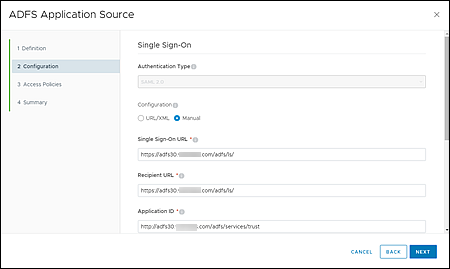
On the Application Sources page, click ADFS again. Then click Next.
Some settings on the Configuration page now contain values imported from the AD FS metadata.
-
On the Configuration page, modify the following settings. Accept the default values for all other settings.
-
For Username Format, select Unspecified.
-
For Username Value, enter
${user.domain}\${user.userName}. This value ensures that Omnissa Access sends the user name value in the WindowsAccountNamedomain\userformat required by AD FS.
-
-
Expand the Advanced Properties section and configure the following settings.
-
Set Include Assertion Signature to Yes.
-
For Signature Algorithm, select SHA256 with RSA.
-
-
Click Next, and click Next again to advance to the Summary page. Then click Save.
What to do next
Was this page helpful?