In a successful configuration, users who visit the web portal of an AD FS-federated application can select their authentication method. You can automate this selection by configuring AD FS to authenticate desktop users and route mobile users to Omnissa Access for authentication.
Use the following procedure to implement Mobile Device Trust (MainUseCases.md)). With this use case, you gain the unique mobile device management features provided by Omnissa Access with Workspace ONE UEM. Desktop users can continue to use the existing AD FS authentication workflow to which they are accustomed.
This use case applies to users who log in directly to an AD FS-federated application through the application portal (for example, portal.office.com for Office 365). When a user starts an SP-initiated flow in this way, AD FS routes the authentication request to the appropriate identity provider based on the user's device type.
- If the user logs in from a desktop computer, AD FS handles the authentication request as the identity provider. The login experience remains unchanged for desktop users, as they sign in to the application using their familiar AD FS credentials.
- If the user logs in from a mobile device, AD FS forwards the authentication request to Omnissa Access as the trusted identity provider (or claims provider). Omnissa Access validates the user's credentials, and Workspace ONE UEM manages the user's access to the application based on the device posture policies in effect.
Note: The following procedure uses an AD FS Web Theme to run the HRD page, which contains the mobile redirect code. If your Relying Party contains only a single Claims Provider, the HRD page (and thus code) does not run.
For more information about SP-initiated authentication flows, see IdP-initiated and SP-Initiated Authentication Flows.
Prerequisites
Perform the procedures described in Integrating AD FS-federated Applications With Workspace ONE Intelligent Hub.
Procedure
-
Log in to the AD FS server with full administrator privileges.
-
Run PowerShell as an administrator.
-
Create a working folder by entering the following cmdlet.
mkdir c:\myscripts -
Export the default AD FS web theme.
Export-AdfsWebTheme –Name "Default" –DirectoryPath c:\myscripts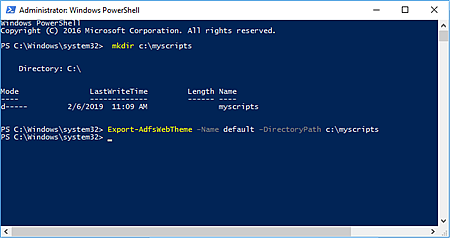
The Export cmdlet creates an
onload.jsfile in thec:\myscripts\scriptfolder. To specify the authentication option based on the type of user device, you modify this JavaScript file. -
Open
C:\myscripts\script\onload.jsin a text editor such as Notepad++, and add the following JavaScript code to the beginning of the file.Replace the placeholder values in the code as follows.
Placeholder Value Replacement Value for AD FS 4.0 Replacement Value for AD FS 3.0 {AccessTenant} Fully qualified domain name (FQDN) of the Omnissa Access service FQDN of the Omnissa Access service {AD FS claims provider} 'AD Authority' 'http://{ADFSdomain}/adfs/services/trust' (Where {ADFSdomain} is the FQDN of the AD FS server)
  var myCheckHRD = document.getElementById('hrdArea');
  if (myCheckHRD)
  {
      // redirect mobile traffic to Workspace ONE
      if (navigator.userAgent.match(/iPad|iPhone|Android|Windows Phone/i) != null)
      {
          HRD.selection('https://{AccessTenant}/SAAS/API/1.0/GET/metadata/idp.xml');
      }
      // ADDITIONAL LOGIC FOR iPadOS AND iOS 13 iPad DEVICES
      else if (navigator.userAgent.match(/Macintosh/i) != null)
      {
          if(navigator.maxTouchPoints > 2)
              {
                  HRD.selection('https://{AccessTenant}/SAAS/API/1.0/GET/metadata/idp.xml');
              }
          else
              {
                  HRD.selection('{AD FS claims provider}');
              }
      }

      // else authenticate with local AD claims provider
      else
      {
          HRD.selection('{AD FS claims provider}');
      }

      // hide HRD selector from user
      var hrdui = document.getElementById("bySelection");
      hrdui.style.display = "none";
  }
This code designates the Omnissa Access service as the authentication option for users logging in from a mobile device. It designates AD FS as the authentication option for users logging in from all other devices. It also instructs AD FS to route authentication requests automatically without prompting the user for action.
Note: Beginning with iOS 13 on Apple iPad devices, the default user agent is macOS instead of iPad. All services that rely on user agent information to determine the type of device must be updated. This JavaScript code includes the extra logic to account for Apple's current iOS products, including iPadOS. Apple can change the behavior of the 'ADDITIONAL LOGIC for iPadOS and iOS 13 iPad DEVICES" in future releases. If the behavior is changed, this code script might need to be modified to reflect the change.
-
Put the updated
onload.jsfile in thec:\myscripts\scriptfolder, overwriting the old file.Next, you customize the AD FS login page by creating a AD FS web theme that references the updated
onload.jsfile. -
In PowerShell, create a AD FS web theme.
New-AdfsWebTheme –Name "WS1ACCESS" –SourceName "Default" -
Import the updated
onload.jsfile.Set-AdfsWebTheme -TargetName WS1ACCESS -AdditionalFileResource @{Uri='/adfs/portal/script/onload.js';path="c:\myscripts\script\onload.js"} -
Activate the new web theme.
To redirect mobile traffic from an individual AD FS app to mobile:
Set-AdfsRelyingPartyWebTheme
-TargetRelyingPartyName "Microsoft Office 365 Identity Platform"
-SourceWebThemeName "WS1ACCESS"
   To redirect mobile traffic from all AD FS apps to mobile:

  ```
 Set-AdfsWebConfig -ActiveThemeName "WS1ACCESS"
-
To save your changes, restart the AD FS service.
Restart-Service adfssrvNote: If you want to revert to the default AD FS web theme, enter this cmdlet:
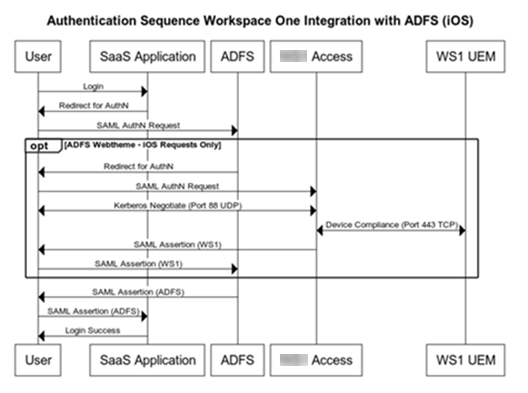
Set-AdfsWebConfig -ActiveThemeName "Default"AD FS Authentication Sequence for IOS
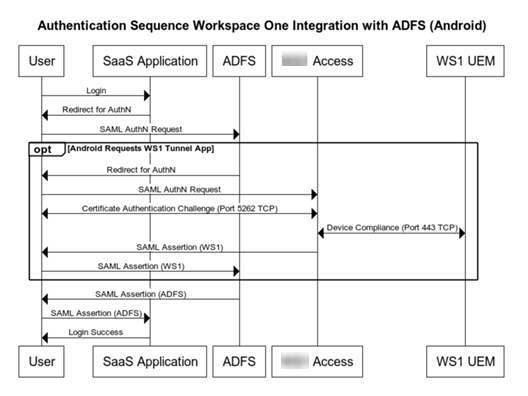
AD FS Authentication Sequence for Android
Was this page helpful?