Omnissa Access supports the Citrix multi-site aggregation and keyword filtering features that help administrators manage virtual apps and desktops. To configure these features in Omnissa Access, you must complete additional prerequisites before you set up the Citrix virtual apps collection in the Omnissa Access console.
The Citrix multi-site aggregation feature aggregates and de-duplicates application and desktop resources from multiple sites so that end users do not see duplicate applications and desktops. If multi-site aggregation is configured in StoreFront, you can select the corresponding setting, Enable multi-site aggregation, for the virtual apps collection in Omnissa Access after completing the required prerequisite tasks.
The Citrix keyword filtering feature lets administrators control resource display and launch by using keywords. If keyword filtering is configured in StoreFront, you can select the corresponding setting, Keyword filtering, for the virtual apps collection in Omnissa Access after completing the required prerequisite tasks.
Important: Only Omnissa Access connector 22.09 and later versions support Citrix multi-site aggregation and keyword filtering.
Multi-site Aggregation Feature Requirements
Omnissa Access has the following requirements for multi-site aggregation:
-
Only a single multi-site environment can be configured per virtual apps collection.
-
A virtual apps collection can either be a multi-site collection or a non-multisite collection. If you select the Enable Multi-site aggregation option, do not add any Citrix XML servers. Only enter the StoreFront URL.
-
Only Default Aggregation Group is used in sync.
-
Make sure that no multi-site StoreFront servers share a delivery controller.
-
Omnissa Access assumes that delivery controllers publish identical resources with identical entitlements. If they do not, app launch can fail.
-
For non-aggregated delivery controllers, create a separate virtual apps collection.
-
While creating additional delivery controllers, follow these guidelines:
-
If you create a delivery controller manually, do not provide UUIDs for resources in the script. Let the UUIDs be generated automatically.
For example, use the following command:
New-BrokerApplication -AdminAddress "ctx1.example.com" -CommandLineExecutable "C:\Program Files\Windows NT\Accessories\wordpad.exe" -DesktopGroup 1 -Name "WordPad2" -UserFilterEnabled 1Do not use the following command:
New-BrokerApplication -AdminAddress "ctx1.example.com" -CommandLineExecutable "C:\Program Files\Windows NT\Accessories\wordpad.exe" -DesktopGroup 1 -Name "WordPad2" -UserFilterEnabled 1 -UUID 6b151d87-b878-4e7c-bdee-86729e54213fWhen you omit the UUID, both the UUID and UID will be generated automatically and will be different from the original resource. Omnissa Access supports this scenario. However, if you enter the UUID of the original resource, the UUIDs will match but the UID, which is generated, will be different than the UID of the original resource. Omnissa Access does not support this scenario.
-
If you create a delivery controller by replicating another delivery controller, you do not need to change anything. The UUIDs and UIDs are identical to the original resources, which Omnissa Access supports.
See the following examples of supported and unsupported scenarios.
Supported scenarios for a resource in multiple delivery controllers
Controller 1 (same resource):

Controller 2 (same resource):

Controller 3 (same resource):

In this example, Controller 2 is replicated from Controller 1, while Controller 3 is created manually.
Unsupported scenario for a resource in multiple delivery controllers
Controller 1 (same resource):

Controller 2 (same resource):

In this example, the UUIDs match but the UIDs do not, therefore it is unsupported.
-
Prerequisites for Multi-site Aggregation and Keyword Filtering
For both multi-site aggregation and keyword filtering, the Omnissa Access connector server, which has the Virtual App service running, must establish a remote PowerShell connection with the StoreFront server. Some Citrix environments restrict the PowerShell commands that can be executed on the StoreFront server remotely. For these environments, you can create a PowerShell session configuration file that allows only the user running the Virtual App service to create a remote session and allows only the StoreFront commands related to multi-site aggregation and keyword filtering to be run.
Complete the prerequisites that apply to your scenario. You must complete the prerequisites before creating the virtual apps collection.
If your Citrix environment does not have any restrictions on PowerShell commands that can be executed on StoreFront remotely, complete these prerequisites:
- Install Omnissa Access connector 22.09 or later.
- Deselect the Enable Citrix StoreFront restricted PowerShell session option on the Citrix Configuration page of the Omnissa Access connector installer.
If your Citrix environment has restrictions on PowerShell commands that can be executed on StoreFront remotely, complete these prerequisites:
- Install Omnissa Access connector 22.09 or later.
- In the StoreFront server, create a session configuration file for a restricted PowerShell session. See Set up Session Configuration File for Restricted Remote PowerShell Session.
- Edit the file and add commands that are required for multi-site aggregation and keyword filtering. See Add Commands to Session Configuration File.
- In the Omnissa Access connector installer, select the Enable Citrix StoreFront restricted PowerShell session option on the Citrix Configuration page, and enter the name of the session configuration file that you created. See Select Restricted PowerShell Session Option in Omnissa Access Connector Installer.
- If you do not want the Virtual App service to load the StoreFront modules required for keyword filtering, select the Disable Citrix auto-loading of StoreFront modules option on the Citrix Configuration page of the Omnissa Access connector installer. When this option is selected, the Virtual App service does not load the modules, and the required commands are executed through the restricted PowerShell session configuration setup.
Set up Session Configuration File for Restricted Remote PowerShell Session
If your Citrix environment has restrictions on the PowerShell commands that can be executed on StoreFront remotely, create a session configuration file to set up restricted PowerShell sessions for the Virtual App service. This configuration allows only the user running the Virtual App service to create a remote session and allows only the StoreFront commands related to multi-site aggregation and keyword filtering to be run.
-
Log in to the StoreFront server.
-
Open a PowerShell window as the domain user that runs the Virtual App service.
Important: Make sure that you use the same domain user account that you use to run the Virtual App service. The domain user must also be a Citrix server Read Only administrator who is able to load the Citrix PSSnapin.
-
Run the following commands:
-
New-PSSessionConfigurationFile -VisibleCmdlets Get-STFStoreService,Get-STFStoreFarm,Get-STFUserFarmMapping,Get-STFEquivalentFarmset,'Write-Host' -LanguageMode RestrictedLanguage -SessionType RestrictedRemoteServer -Path .\filename.psscReplace filename with a name for the configuration file, such as
WorkspaceONE. Use only alpha-numeric characters for the name. -
Register-PSSessionConfiguration -Path filename.pssc -Name configurationNameReplace configurationName with a name for the configuration, such as
WorkspaceONE. Use the same name that you specified for filename, without an extension. Use only alpha-numeric characters for the name. -
Set-PSSessionConfiguration -Name configurationName -ShowSecurityDescriptorUI -
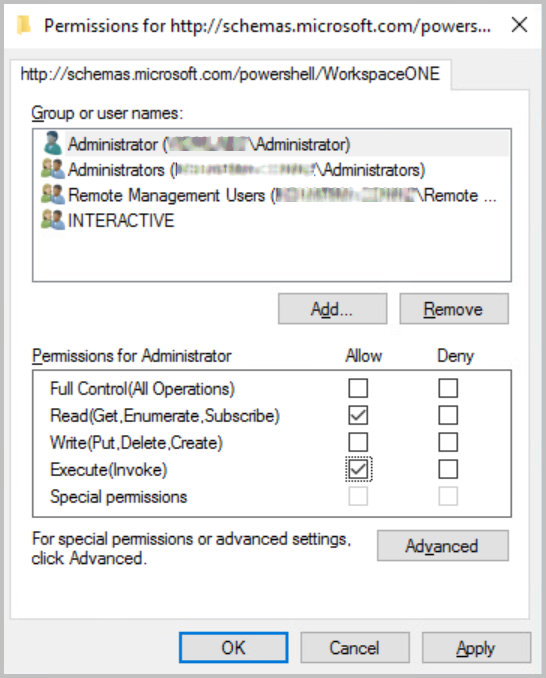
In the Permissions dialog box that appears, select the domain user that will be allowed to create the PowerShell session, and select the Execute(Invoke) checkbox in the Allow column to give the user execute permissions.
Important: Make sure that you select the same domain user account that you use to run the Virtual App service. The domain user must also be a Citrix server Read Only administrator who is able to load the Citrix PSSnapin.
For example:
A session configuration file is created in the
C:\Windows\System32\WindowsPowerShell\v1.0\SessionConfigdirectory. -
Add Commands to Session Configuration File
Edit the session configuration file that you created to add commands that are required for multi-site aggregation and keyword filtering.
-
In the StoreFront server, go to the following directory:
C:\Windows\System32\WindowsPowerShell\v1.0\SessionConfig -
Open the filename.pssc file for editing.
-
Append the following commands to the
VisibleCmdletslist:'Get-ItemProperty', 'Select-Object', 'Format-List' -
Append the following commands at the end of the file:
AliasDefinitions = @{ Name = 'Select' ; Value = 'Microsoft.PowerShell.Utility\Select-Object'} FunctionDefinitions =@{ 'Name' = 'Get-DSResourceFilterKeyword' 'Options' = 'ReadOnly' 'ScriptBlock' = { param( [Parameter(Mandatory=$true)] [long]$SiteId, [Parameter(Mandatory=$true)] [string]$VirtualPath ) $path = "C:\inetpub\wwwroot\$VirtualPath\web.config" $xpath = "/configuration/citrix.deliveryservices/wing/resources/settingsGroup/enumeration/filterByKeywords" $xml = Select-Xml -path $path -xpath $xpath $includeKeywords = $null if ( $xml.Node.include ) { GetKeywords -KeywordsString $xml.Node.include } $excludeKeywords = $null if ( $xml.Node.exclude ) { $excludeKeywords = GetKeywords -KeywordsString $xml.Node.exclude } $returnObject = new-object PSObject $returnObject | Add-Member -MemberType NoteProperty -Name "Include" -Value $includeKeywords -PassThru ` | Add-Member -MemberType NoteProperty -Name "Exclude" -Value $excludeKeywords return $returnObject }; },@{ 'Name' = 'GetKeywords' 'Options' = 'ReadOnly' 'ScriptBlock' = { param( [Parameter(Mandatory=$true)] [string]$KeywordsString ) $set = @() $res = $KeywordsString -split ";" foreach ($kw in $res) { $kw = if ($kw) {$kw.trim()} else {$null} if ($kw) { $set += $kw } } return $set } },@{ 'Name' = 'Get-STFStoreFarm' 'Options' = 'ReadOnly' 'ScriptBlock' = { $Global:FormatEnumerationLimit = -1 Citrix.StoreFront.Stores\Get-STFStoreFarm @Args } },@{ 'Name' = 'Get-STFEquivalentFarmset' 'Options' = 'ReadOnly' 'ScriptBlock' = { $Global:FormatEnumerationLimit = -1 Citrix.StoreFront.Stores.MultiSite\Get-STFEquivalentFarmset @Args } } } -
Run the following command to restart the Windows service:
Get-Service -Name WinRM | Restart-Service
Select Restricted PowerShell Session Option in Omnissa Access Connector Installer
After setting up the session configuration file, select the restricted PowerShell session option in the Omnissa Access connector installer and specify the session configuration file name.
-
Run the Omnissa Access connector installer.
-
On the Citrix Configuration page, select the Enable Citrix StoreFront restricted PowerShell session option.
-
Enter the name of the session configuration file that you created.
Enter the file name without the extension and without the extra characters that are part of the name. For example, if the name in the file system is
WorkspaceONEsjk1p2.pssc, enterWorkspaceONE.
Enable Multi-site Aggregation and Keyword Filtering
After completing the prerequisites, you can create a virtual apps collection for your Citrix integration and enable the multi-site aggregation and keyword filtering features.
-
To enable multi-site aggregation, select the Enable Multi-site aggregation option in the Citrix virtual apps collection.
-
To enable keyword filtering, select the Keyword Filtering option in the Citrix virtual apps collection.
For more information about creating a virtual apps collection, see Configuring Citrix Server Farms in Omnissa Access.
Was this page helpful?