In App Volumes Manager, you can define custom lifecycle stages for application packages in the application lifecycle management process. This capability allows administrators to introduce stages that show internal workflows such as validation, pilot testing, security review, and so on and indicate how packages are promoted before they reach production.
Custom stages work alongside the existing pre-defined stages (New, Tested, Accepted, Published, and Retired). These pre-defined stages continue to function as before. The custom lifecycle stages capability allows administrators to define new stages and adjust their priority order. For information about the existing lifecycle stages, see Pre-defined Lifecycle Stages of an App Volumes Package.
When App Volumes instances are configured for application synchronization, lifecycle stages defined in the source App Volumes Manager instance are automatically synchronized to all target App Volumes Manager instances.
In the App Volumes Manager admin UI, lifecycle stages are displayed in the Application and Package details and the Edit Storage Group pages.
Considerations for defining a custom lifecycle stage
Be aware of the following considerations when creating or modifying a lifecycle stage:
Name a stage
-
Stage names must be unique within an App Volumes Manager instance.
-
Stage names are case-insensitive; for example: Security Review and security review are considered the same.
-
Stage names are limited to
32characters, which can be alphanumeric.
Reorder the priority of a stage
-
Each stage is assigned a priority that determines its position in the lifecycle sequence.
-
Priority order of the stage can be changed by reordering the stages at any time from the Package Lifecycle Stages page.
-
The stage at the top of the priority order is the default stage. As the stages can be reordered, whichever stage is at the top of the priority order becomes the new default. App Volumes Manager assigns the default stage in the following package import scenarios:
-
No stage specified: When a package is imported and the metadata does not include a lifecycle stage name, App Volumes Manager assigns the default stage to the package.
-
Stage not found or invalid: When a package is imported and the lifecycle stage name in the metadata does not exist in App Volumes Manager, App Volumes attempts to create that stage automatically. If stage creation fails, App Volumes Manager logs an error, assigns the default stage to the package, and continues the package import.
-
Delete a stage
-
A custom stage can be deleted only when the stage is not associated with any package or storage group.
For successful deletion, assign another stage to the package and remove the to-be-deleted-stage from the associated storage group. -
When a stage is successfully deleted, App Volumes Manager automatically resets the priority order of the remaining stages.
For information about the relationship between storage groups and stages, see Configure Storage Groups in App Volumes Manager.
Behavior of a stage during synchronization
-
For lifecycle stages to get synchronized to the target instance, both the source and target App Volumes Manager instances must run the same App Volumes version.
-
Any change to lifecycle stages --- including creating, editing, reordering, and deleting --- triggers an automatic synchronization to all connected target instances.
All properties of the stage are synchronized to the target: name of the stage, GUID, status, and order (priority). -
Lifecycle stages that are synchronized from a source instance are read-only in the target instance.
These stages can be edited or deleted only in the source instance. -
If an App Volumes Manager instance with lifecycle stages is designated as a target, then the behavior is as follows after synchronization:
-
All lifecycle stages on the target are retained, but can be managed only from the source instance. If a lifecycle stage name on the target matches with that on the source, then the stage on the target is managed only from the source. This stage can no longer be edited on the target.
-
If a lifecycle stage on the source is not present on the target, then that lifecycle stage is newly created on the target instance.
-
Manage a stage
-
In the App Volumes Manager admin UI, navigate to CONFIGURATION > Lifecycle Stages.
The Package Lifecycle Stages page displays all default stages in their current order. -
In the Lifecycle Stages page, click Create.
-
In the Create Stage window, enter a name for the stage.
-
Click Save.
Result: The new stage is added to the Package Lifecycle Stages list and assigned a default priority after the existing stages. -
Optional: To reorder or change the priority of this stage, click Reorder, drag the row to the desired position in the list, and click Save Order.
Result: App Volumes Manager updates the priority of the stages to reflect the new order. -
To edit a stage, expand the row of the stage you want to modify and click Edit.
-
Update the stage name as required.
-
Click Save.
Result: If the current instance has a target instance, an automatic synchronization is triggered to the target instance. -
To delete a stage, expand the row of the stage you want to delete and click Delete.
Important: If the stage is assigned to one or more application packages or storage groups, assign another stage to the packages and remove the to-be-deleted-stage from the associated storage groups, and then delete the stage. -
Confirm the deletion.
Result: App Volumes Manager removes the stage, resets the priority order of the remaining stages, and synchronizes the change to all target instances of the source instance.
To assign a stage to a package, see Create a Package for an App Volumes Application.
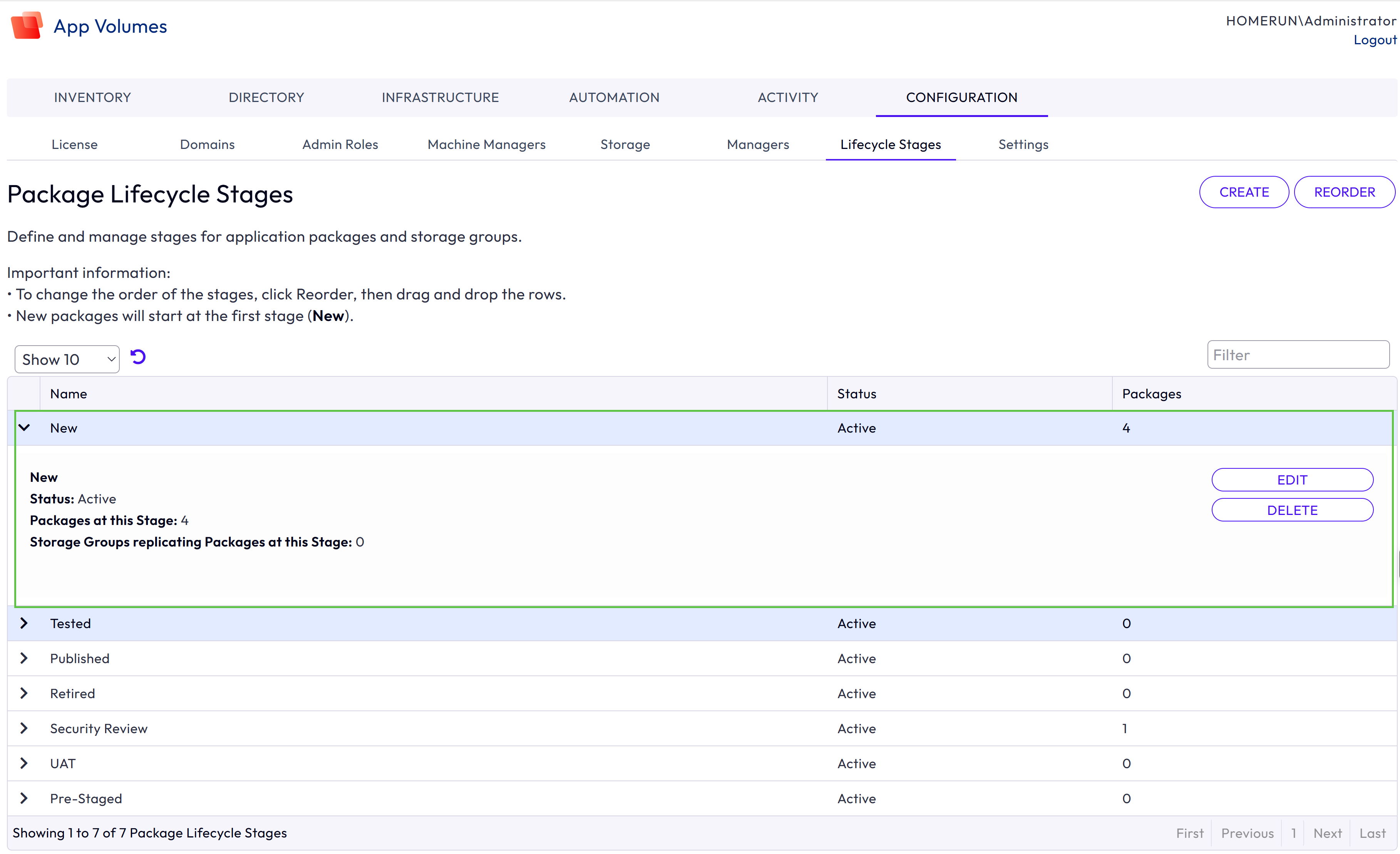
The following screenshot shows the Package Lifecycle Stages window. Multiple stages are listed. The pre-defined stages are New, Tested, Published, and Retired. The remaining are custom stages. When a stage is expanded, stage details such as status and number of packages and storage groups associated with the stage are listed. Each stage can be edited or deleted using the respective buttons.
Was this page helpful?