For those organizations that are federated and have large numbers of secondary admins, use the onboarding wizard to migrate your Omnissa Workspace ONE UEM secondary admins to Omnissa Connect.
Primary admins can use the Omnissa Connect onboarding wizard to migrate up to 100 secondary admins at a time from Omnissa Workspace ONE UEM to Omnissa Connect.
Are there usage limits? No.
You can use the onboarding wizard as many times as you need to migrate all your secondary admins. You can also exit the wizard and return to it at a later date to continue migrating secondary admins.
You can migrate 100 secondary admins at one time. If your organization has more than 100 admins, use the wizard multiple times to migrate all of your secondary admins to Omnissa Connect.
Prerequisites
To use the onboarding wizard, meet the listed prerequisites.
- Ensure your organization is federated with Omnissa Connect.
- Ensure you are assigned the Omnissa Connect Organization Owner role.
- Use Workspace ONE UEM 2506 or later.
- If your Shared SaaS environment is not using UEM 2506 yet, wait until your UEM service is upgraded before using the onboarding wizard. UEM admins will get an email notifying them when to expect the UEM service to update to the supported UEM version.
- Managed, hosted environments can schedule an upgrade to the supported UEM version through the Health and Environments tile on the Omnissa Connect Home page. See How to use the WS1 Managed Hosting SaaS Upgrade Scheduler via Omnissa Cloud Services - Health & Environments for details.
- Have your Omnissa Global Customer Support (GCS) representative activate the feature flag for the onboarding wizard.
UEM individual and group role considerations
Before you migrate secondary admins, consider these UEM role and Connect role relationships so you can select the correct options in the onboarding wizard.
- If users are assigned to groups in UEM, you cannot migrate these groups from UEM into Omnissa Connect. However, you can migrate the roles that are assigned to users in a group.
- If a user has a group role with no individual roles, select the option to migrate Group roles + Individual roles.
- After onboarding, the UEM users with just a group role become admins with an Omnissa Connect individual role.
- As a primary admin, create new admin groups in Connect and assign users permissions in the new groups.
- See the topic Groups for details about Omnissa Connect groups.
- Secondary admins must have a unique email in UEM in order to migrate successfully.
- The wizard can migrate only one user that is associated with a unique email address from UEM to Omnissa Connect.
- See the Conflicts section for what to do if a secondary admin in UEM shares an email address with another admin.
Important, other considerations
- After the migration completes, migrated uses are required to use their Omnissa Connect identity to access UEM and Intelligence.
- These secondary admins can no longer use their previous UEM login.
- For details on how to access services using an Omnissa Connect identity, see Omnissa Connect accounts.
- Before leaving the Migration Report page at the end of the wizard, select to export a CSV file of the specific migration session and save it as a reference.
- You cannot access this report if you either exit the onboarding wizard or start to migrate more admins.
- The specific file pertaining to the current migration only lives during the specific migration session. If you start a new migration session and do not export the CSV file, you lose the migration information for that session.
Procedure
As a primary admin, access the onboarding wizard in Omnissa Connect.
- In Omnissa Connect, go to Administrator Access > Administrators.
- Select the Migrate UEM Admins button to access the UEM Directory Admins Migration wizard.
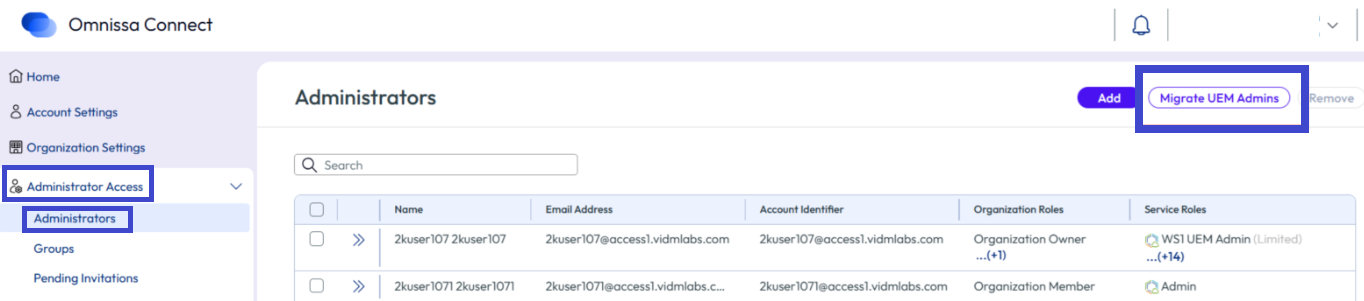
- On the UEM Directory Admins Migration > Prerequisites page, confirm your environment has met the prerequisites and select Next.
- On the Migrate roles page, select a menu option, and then select Next.
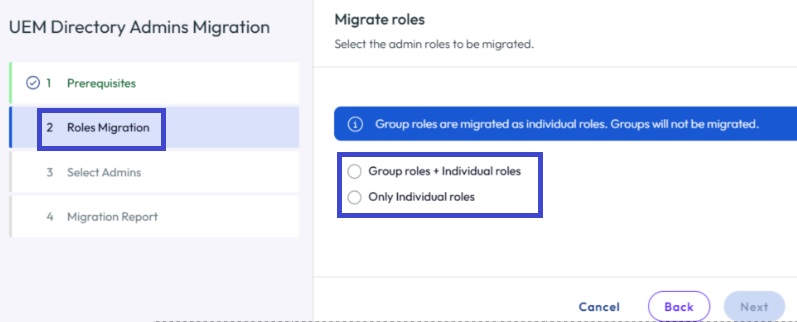
- Group roles + Individual roles: This option migrates users with their individual and group role assignments.
- Use this option if you have users in UEM that are assigned only group roles and no individual roles.
- For users with only UEM group roles, the wizard assigns them corresponding Omnissa Connect individual roles.
- Only Individual roles: This option migrates users with their individual role assignments.
- Group roles + Individual roles: This option migrates users with their individual and group role assignments.
- On the Select UEM admins > Ready For Migration tab, use the table to select the users you want to migrate as secondary admins to Connect.
- You can select all users in the table or pick and choose the users from the table.
- You can select up to 100 users to migrate.
- If you have more than 100 admins, use the wizard as many times as needed to migrate all your secondary admins to Connect.
- If you have conflicts on the Conflicts tab, you can still migrate users with no conflicts. See the next step for details on conflicts.
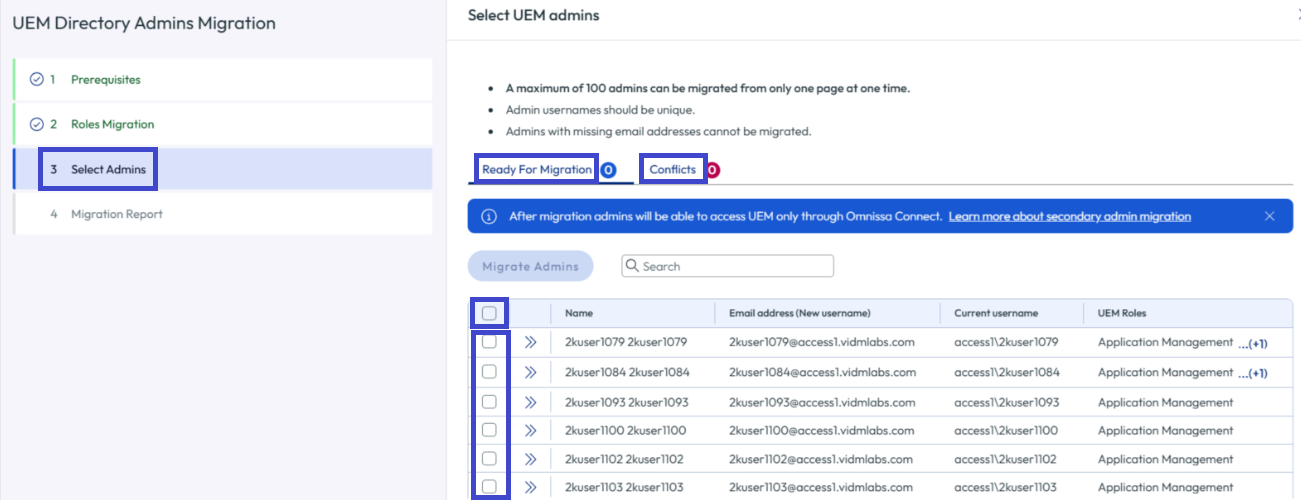
- The wizard lists admins that cannot migrate during the current session on the Select UEM admins > Conflicts tab.
- These conflicts do not block the migration of admins on the Ready For Migration tab.
- You can resolve the conflicts for admins on this tab when you are ready.
- See the Conflicts section for details on why admins might display on this tab and actions you can take to resolve conflicts.
- Select Migrate Admins on the Ready For Migration tab when you are ready.
- The wizard creates Connect identities for each of the selected users with their UEM and Intelligence role access.
- The wizard removes the selected users from UEM and adds them to Omnissa Connect.
- Each secondary admin receives an email notifying them that their login method has been updated.
- On the Migration Report page, export the session's migration report as a CSV file using the Export CSV File button.
- This report lists the number of successfully migrated admins.
- It also lists admins that failed the migration process. You can use the information in the file to resolve conflicts.
- Even if all admins successfully migrated, consider exporting this report so you have it as a reference. This report is no longer available when you exit this session's Migration Report page.
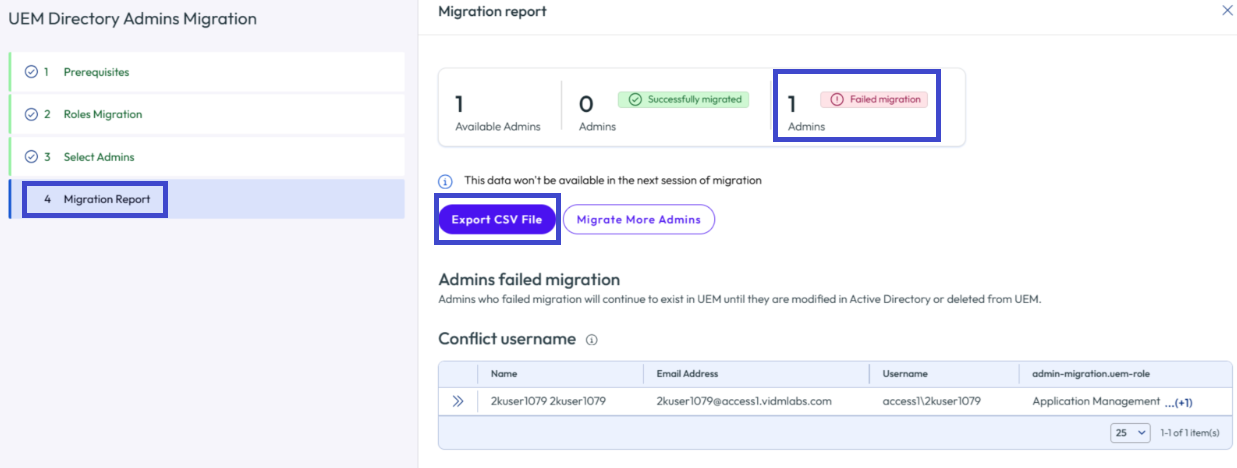
- Use the wizard as many times as needed to migrate more admins.
Conflicts
A few scenarios result in conflicts that you must resolve to complete the secondary admin migration.
Scenario 1: The relationship between a UEM user and a unique email address must be 1:1 for successful migration to Connect.
- If there are multiple users with the same email address in UEM selected for migration, the wizard does not include these users in the migration and displays them on the Conflicts tab.
- Pick a single secondary admin to migrate with the unique email address.
- Notate the other UEM users associated with the email and then delete them from the UEM console.
- Every UEM user must have a unique email address in your UEM instance for successful migration.
- As the primary admin, coordinate and add to UEM new email addresses that are within your federated domain for the other users.
- Ensure these users know the new email addresses because they need the email address to log in to Omnissa Connect.
- Run the onboarding wizard again and include the other UEM users with their new, unique email addresses.
Scenario 2: Users must have an email address in UEM before migrating to Omnissa Connect.
- If users are missing an email address in UEM and you select them for migration, the wizard does not include these users in the migration and displays them on the Conflicts tab.
- As the primary admin, coordinate and add to UEM new email addresses that are within your federated domain for these users.
- Ensure these users know the new email addresses because they need the email address to log in to Omnissa Connect.
- After UEM users have email addresses in their UEM records, you can run the onboarding wizard again and include the UEM users with their new email addresses.
Scenario 3: Users in the onboarding wizard cannot have an Omnissa Connect identity yet because the migration process creates their Omnissa Connect identities.
- If users already have access to Omnissa Connect, the wizard cannot migrate them because they already have a Connect identity.
- This scenario can occur when admins are given initial access to Omnissa Connect but still have their old UEM logins.
- If users with access to both UEM and Omnissa Connect want to migrate their Intelligence dashboards and reports to their Omnissa Connect account, have them follow the steps in the section Consolidate your UEM and Omnissa Connect accounts.
- When the UEM account is no longer needed, as a primary admin, you can delete the UEM account from the UEM console.
- Users can access Omnissa services with their Connect account.
- This cleanup process is explained in the Clean up authentication paths and unnecessary admins. section.
Was this page helpful?