If your organization uses a third-party athenticator, you can set up multi-factor authentication (MFA) on your Omnissa-managed device in Omnissa Connect to provide additional security to your account.
Supported authenticators
Omnissa Connect supports time-based, one-time password (TOTP) authenticators including Duo, Microsoft Authenticator, Google Authenticator, and Okta Authenticator.
Multi-Factor Authentication (MFA) documentation
For details on how to enforce MFA across an organization in Omnissa Connect, see Multi-factor authentication.
Requirements
To use an MFA device, meet the listed requirements.
- Any Omnissa Connect role can configure an MFA device in Omnissa Connect.
- Your Omnissa Connect account must be non-federated. This feature is not for use in federated organizations.
- Install and use a time-based, one-time password authenticator on your device.
- Use devices that are managed by an Omnissa service like Omnissa Workspace ONE UEM.
Adding an MFA device
Add your device to Omnissa Connect so you can use its authenticator app to access Omnissa resources.
- In Omnissa Connect, go to Account Settings, choose the Security tab, and select Activate MFA Device.
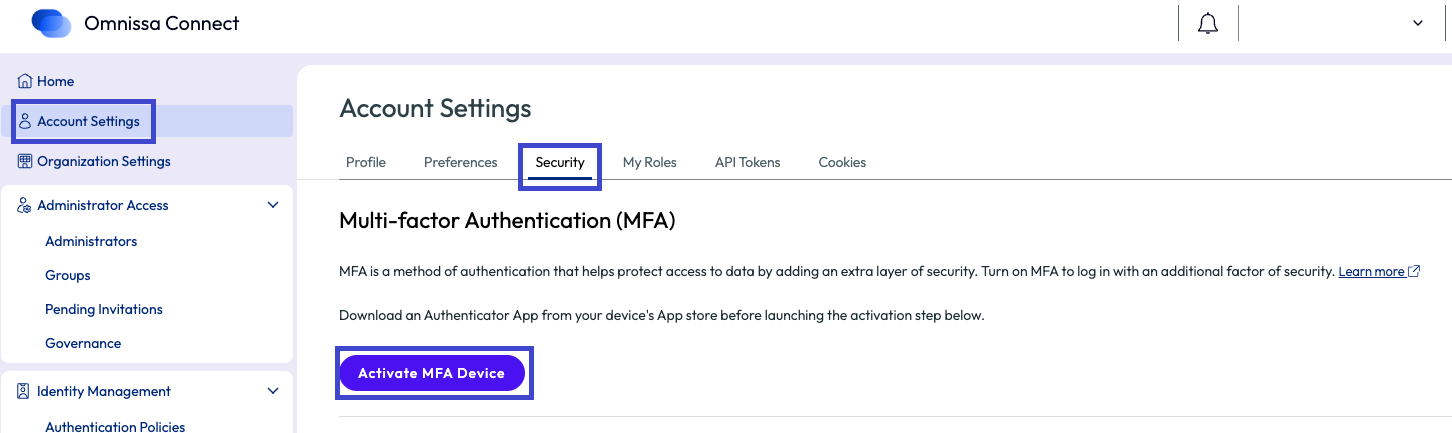
- Follow the instructions in the Activate your virtual MFA device pop up window.
- This window includes a QR code you scan with the authenticator app on your device.
- Enter your authenticator app password followed by entering two more passcodes displayed in the authenticator.
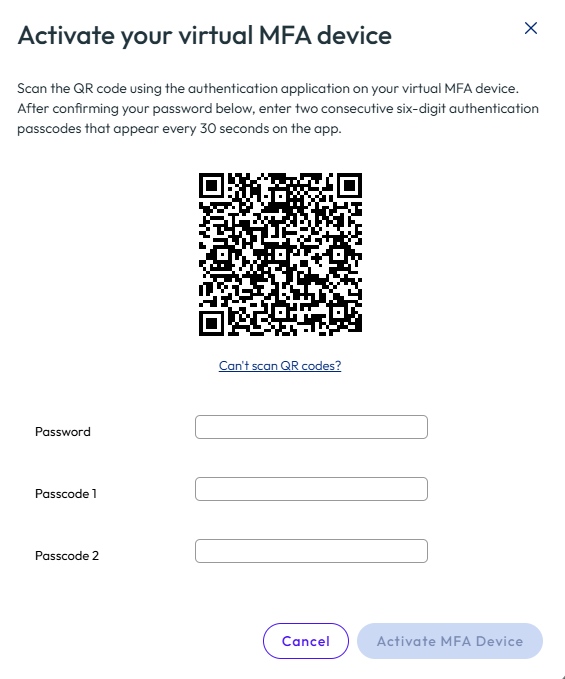
- After completing the QR code process, select to Activate MFA Device.
- Store recovery codes in a secure location.
- You need these recovery codes if you lose access to your MFA device.
- If you lose access to your MFA device and you need to access Connect, use the recovery codes by navigating to your Omnissa Connect site and selecting the Troubleshoot MFA option on the login screen.
- You cannot retrieve these recovery codes at a later date.
- You can use each recovery code one time.
Logging in with an MFA device
Use your device and the third-party authenticator to authenticate to your Omnissa resources.
- Have your MFA device available and open the authenticator app.
- Go to your Omnissa Connect site and log in with your Omnissa Connect username and password.
- On your MFA device, in the authenticator app, get the generated passcode.
- Enter the generated passcode from your authenticator app to your Omnissa Connect instance.
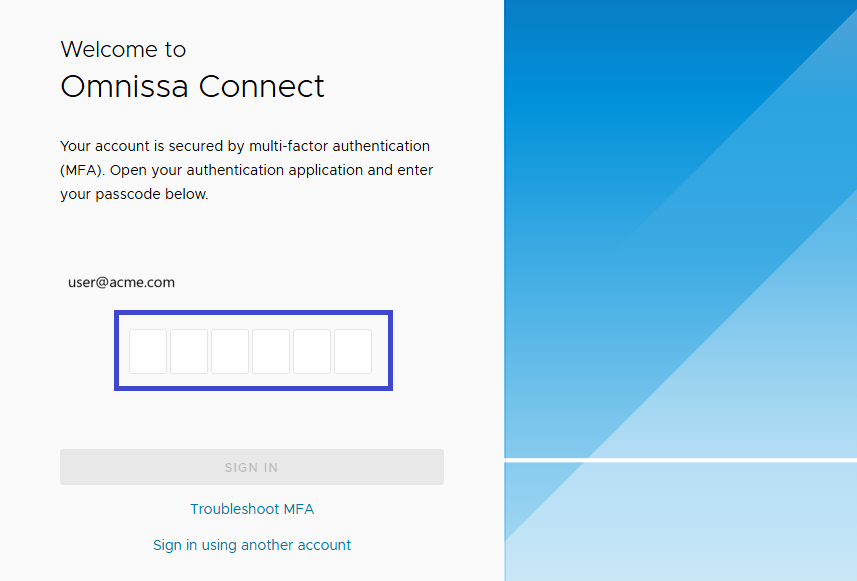
- If you have lost access to your MFA device, you must choose Troubleshoot MFA.
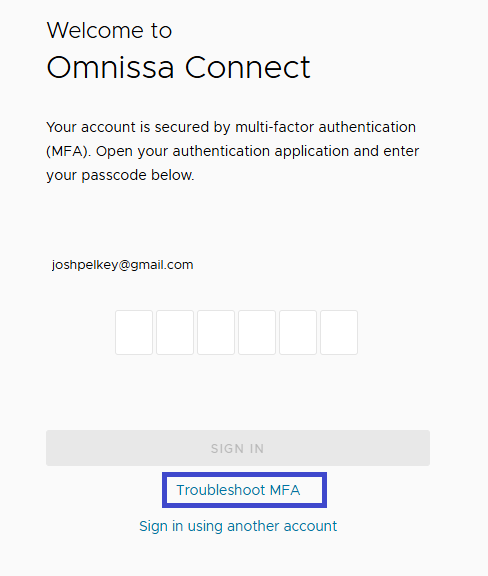
- Enter one of the recovery codes you stored during the setup of the MFA device.
- You can use each recovery code one time.
Deactivating the MFA device.
If you no longer want to use a third-party authenticator, follow these steps to deactivate the MFA device. Have your Omnissa Connect password so that you can enter it to confirm deactivation.
- In Omnissca Connect, go to Account Settings, choose the Security tab, and select the MFA device.
- Select the Deactivate MFA Device button.
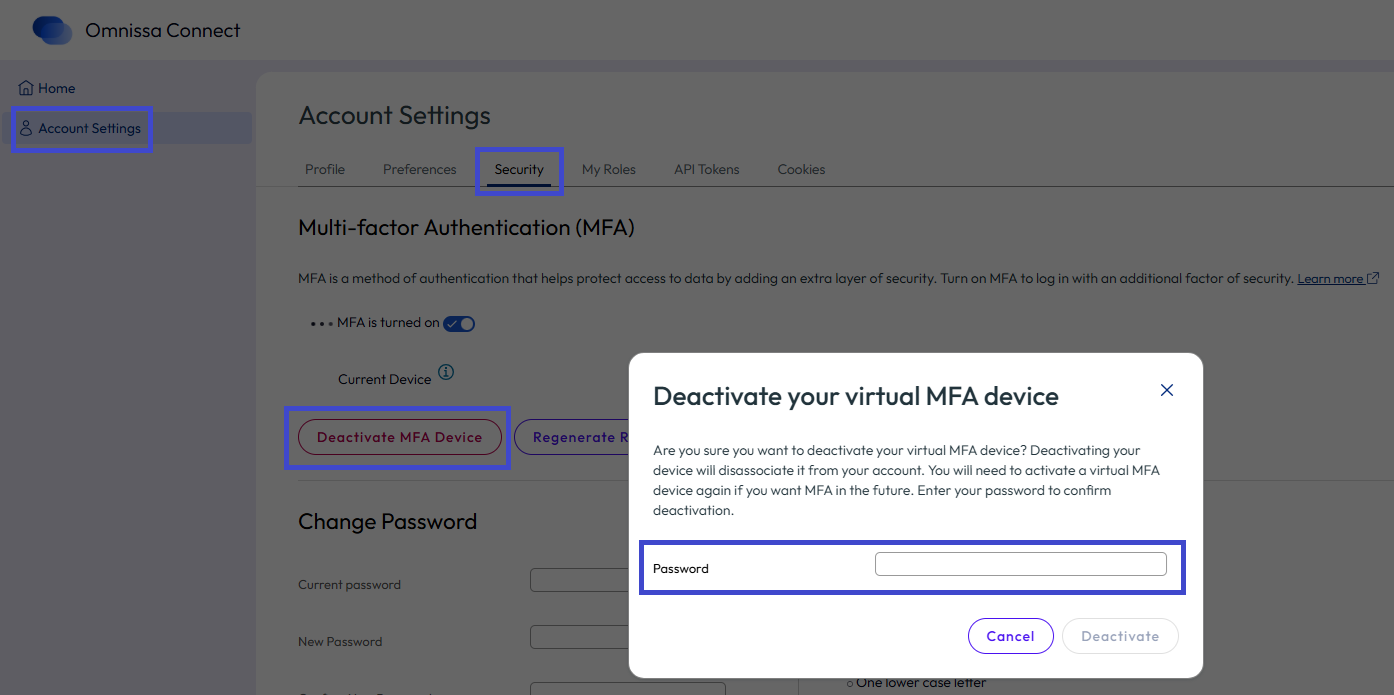
- Enter your Omnissa Connect password to confirm the deactivation and select Deactivate.
Was this page helpful?