Your Omnissa Connect account settings is where you manage your profile. From your profile you can select security settings and generate and manage API tokens. You can also view the roles you hold in your organization.
How do I view my profile
To access your account in Omnissa Connect, select the Account Settings menu item from the Omnissa Connect Home page. Your profile consists of the details you provided when you created your Omnissa account.
Note: You cannot change the email address with which you registered.
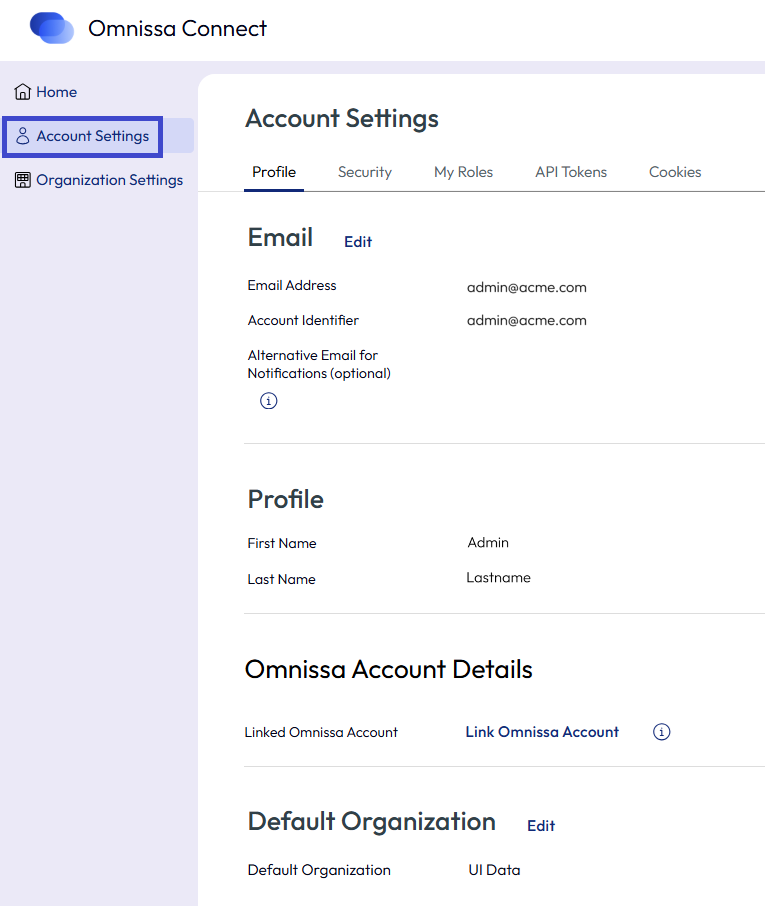
Note: For details about linking your federated account with your Omnissa account, see Federated Accounts, Omnissa Accounts, and How to Link Them .
How do I generate API tokens
You use API tokens to authenticate yourself when you make authorized API connections. An API token is exchanged for an access token and authorizes access per organization. You can generate API tokens from your account page in Omnissa Connect.
Token scopes
Tokens are generated using a special algorithm that picks up alphanumeric characters. Each token is a unique 65 character combination. When you generate a token, you determine its duration and scopes.
- A token's Time to Live (TTL) can range from several minutes to several months, or set to never expire. The default duration is six months.
- Scopes provide a way to implement control over what areas in an organization your token can access - specifically which role in an organization, what services, and the level of permissions.
Prerequisites
Have a secure and protected storage location for your API tokens.
Procedure
Notes:
- A non-expiring token can be a security risk if compromised. If it is compromised, revoke the token.
- Even if you assign All Roles access to your token, it will have only those access roles that your account supports.
- If you need the Organization roles or the Service roles assigned to you, use the My Roles tab from the Account Setting page.
- In the Omnissa Connect left navigation, select Account Settings > API Tokens.
- Select the Generate a New API Token link.
- Enter a name for the token.
- Specify the desired lifespan of the token in the Token TTL text field.
- Define scopes for the token. Your selection must be based on the roles supported by your account. If required, you can select All Roles and give your token access to all the Organization and Service roles.
| Scope | Description |
|---|---|
| Organization roles | Organization roles determine a user's access to the organization's resources. Select one or more Organization roles for your API Token. |
| Service Roles | Service roles are built in pre-defined sets of permissions that grant access to Omnissa service subscriptions. Use the arrow icon next to a service name to expand the roles available for that service, then select one or more Service roles for your API Token. |
| Permissions | Some services let you make a more granular selection by assigning a limited set of the permissions available for a service role. When you select a Service role, the available permissions are displayed in the right side of the table. Select the relevant Service permissions for your API Token. |
- (Optional) Select the Open ID check box to retrieve an Open ID compliant token with extended user details.
- (Optional) Set an email preference to receive a reminder when your token is about to expire.
- Select Generate.
- Save the token credentials to a safe place so you can retrieve them for use later on.
For security reasons, after you generate the token, Omnissa Connect only displays the name of the token on the API Tokens tab and not the token credentials. You can no longer reuse the token by copying the credentials from this page. - Select Continue.
Example: Using an API Token to Interact with Omnissa Connect APIs
You can use an API token to interact with our APIs by exchanging it for an authentication token.
- Generate an API token.
- Perform POST to https://connect.omnissa.com/csp/gateway/am/api/auth/api-tokens/authorize.
- In the header, include the following requests:
- accept:
application/json - content type:
application/x-www-form-urlencoded/
- accept:
- In the body, include the
refresh_token={token value}request. - Use the authentication token in the
csp-auth-tokenheader in your script's HTTP calls.
How do I manage my API tokens
As the sole owner of your API tokens, it is your responsibility to securely store, backup, and manage them.
To view and manage your API tokens in Omnissa Connect, go to Account Settings > API Tokens.
- To regenerate a token, select Regenerate. This replaces the existing token with a new one. In order to continue calling the APIs, you must update your token in the API calls.
- To deactivate a token, select Revoke. This revokes both the API token and the associated access token.
- To prevent unauthorized access to your organization's resources, keep the API tokens you generate in a secure and protected location. Omnissa Connect does not check for proof of possession, but captures token usage audit events in the listed scenarios.
- A user generates an API token.
- A user revokes one or all personal tokens.
- A user makes an unsuccessful attempt to generate access tokens by API token refresh.
Note: To view the audit event logs in Omnissa Connect, you must have an Owner role.
- To add an extra layer of security to your APIs, you can add multi-factor authentication (MFA) to your API tokens. For details, see Authentication Policies.
What happens when an API token is deactivated?
If your API token has been deactivated by an Owner for violating any policy set in the organization, or for not adhering to the organization's standards, you will receive an email notification from Omnissa Connect.
Go to Account Settings > API Tokens tab and find deactivated tokens are marked with the label Deactivated, which appears next to the API Token name.
Common tasks when using API tokens
View a list of the most common API token self-service management tasks.
| If you want to... | Do this... |
|---|---|
| Extend the validity of an API token that has expired. | You must regenerate your token. |
| Regenerate a valid API token. | You can regenerate a token at any time. If you regenerate a token, you revoke all instances of the previous token. If you have used the token, for example in one of your scripts, remember to replace it with the newly generated token. |
| Replace a compromised API token. | If you feel the token has been compromised, you can revoke the token to prevent unauthorized access. You generate a new token to renew authorization. |
| Destroy an API token that is still valid. | You destroy a valid API token by revoking it. |
| Recover a lost API token. | Lost tokens cannot be recovered. You must revoke the lost token and generate a new one. |
| Reactivate an API token deactivated by an Owner | If a deactivated token is still valid, you must contact the Owner and ask for its reactivation. |
How do I manage my roles in an organization
Roles are assigned by Owners and you typically have an Organization role and a Service role.
- For details about Organization roles, see Organization roles and permissions.
- For details about Service roles, see Service roles and permissions.
Use the Account Settings page to view and manage your roles.
- From the left navigation, select Account Settings.
- Select the My Roles tab.
- To delete a Service role or an additional Organization role you no longer need, select the service name to expand all roles you have for that service. After locating the Service role you want to remove, select Delete Role. In order to take effect, your role deletion request must be approved by an Owner.
- To view past role requests, scroll down to the My Request History section of the page.
- To request additional Service roles for services already available in your organization, select Request Roles and make a selection.
How do I set my cookie preferences
Omnissa uses tracking technologies for protecting and facilitating delivery of services, providing support and recommendations, improving the service and user experience, and other analytic purposes described in more detail in our Privacy Notice.
If you want to opt-out of cookies, configure your preferences.
- In the left navigation of Omnissa Connect, select Account Settings.
- Select the Cookies tab.
- Make your selections.
Was this page helpful?