Link your federated account and your Omnissa account to use Omnissa Customer Connect features like support and downloads.
If you do not link your accounts, you can still access the Omnissa Connect Organizations you are federated and entitled to, but you cannot use Customer Connect features like creating support tickets.
Federated accounts and Omnissa accounts
- You used the federated account to log in to Omnissa Connect when you set up federation for your company’s domain. The federation process uses your company's domain email address to log in to Omnissa Connect and it uses your company's authentication mechanism.
- The system creates an Omnissa account when you sign up while logging into Omnissa Connect or Omnissa Customer Connect. This account allows you to create support tickets, access downloads, and view subscription services.
Procedure
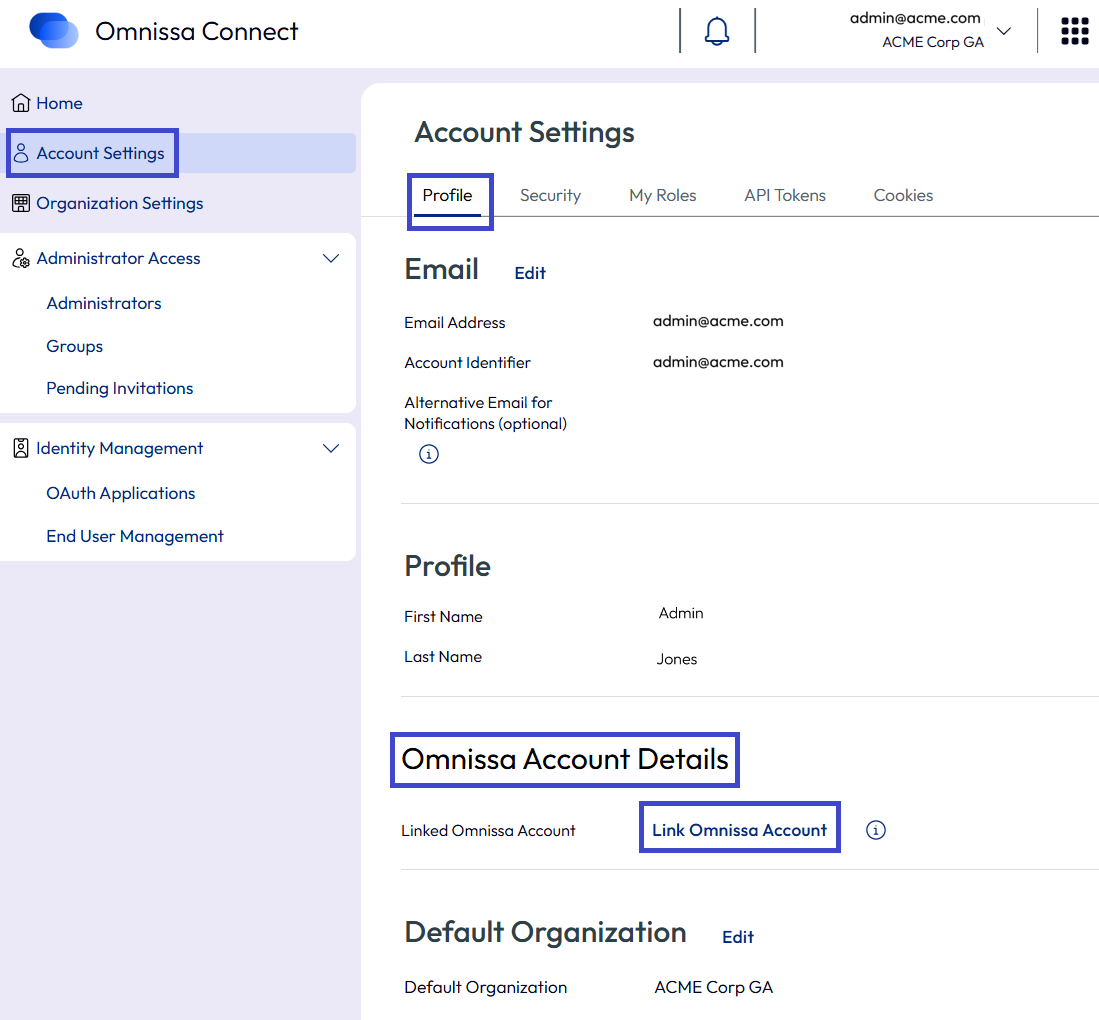
The system gives you an option to link your accounts when you first onboard. You can also link accounts later by accessing the Account Settings > Profile page in Omnissa Connect.
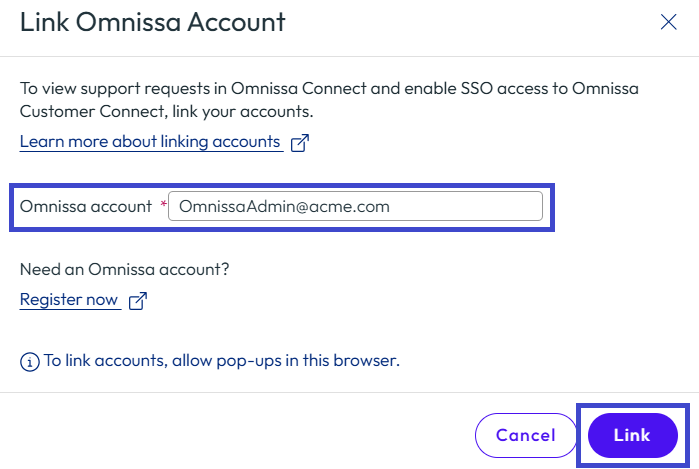
If you do not have an Omnissa account, you can create one during the linking process. Then, you can continue to link the accounts.
- In Omnissa Connect, go to Account Settings and select the Profile tab.
- In the Omnissa Account Details area, select Link Omnissa Account.
- Work in the Link Omnissa Account pop-up window, enter your registered Omnissa account email in the Omnissa account text box, and then select Link.
- If you do not have an Omnissa account, use the Register Now link to create an Omnissa account.
- The Create an account wizard prompts you for your name and the email address you want to use for your Omnissa account. It also prompts you to create a password.
- After you have an Omnissa account, return to this procedure to link your Omnissa account to your federated account.
Why link the accounts
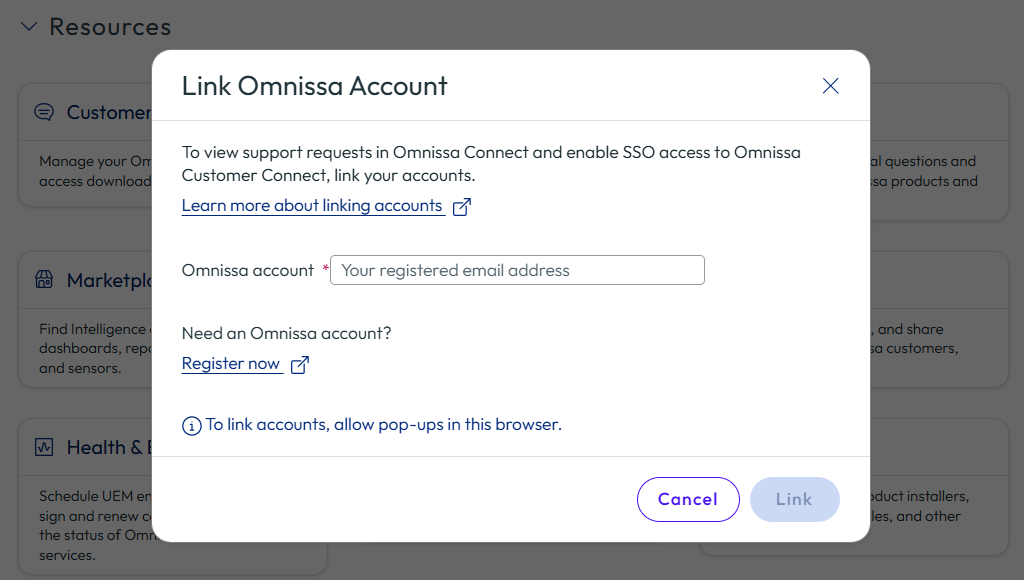
All federated users of Omnissa Connect must link the Omnissa account to their federated account so they can single sign-on (SSO) in to Customer Connect and use its features. If you did not link your federated and Omnissa accounts, selecting the Customer Connect or the Downloads tiles in the Resources section prompts you to link your accounts.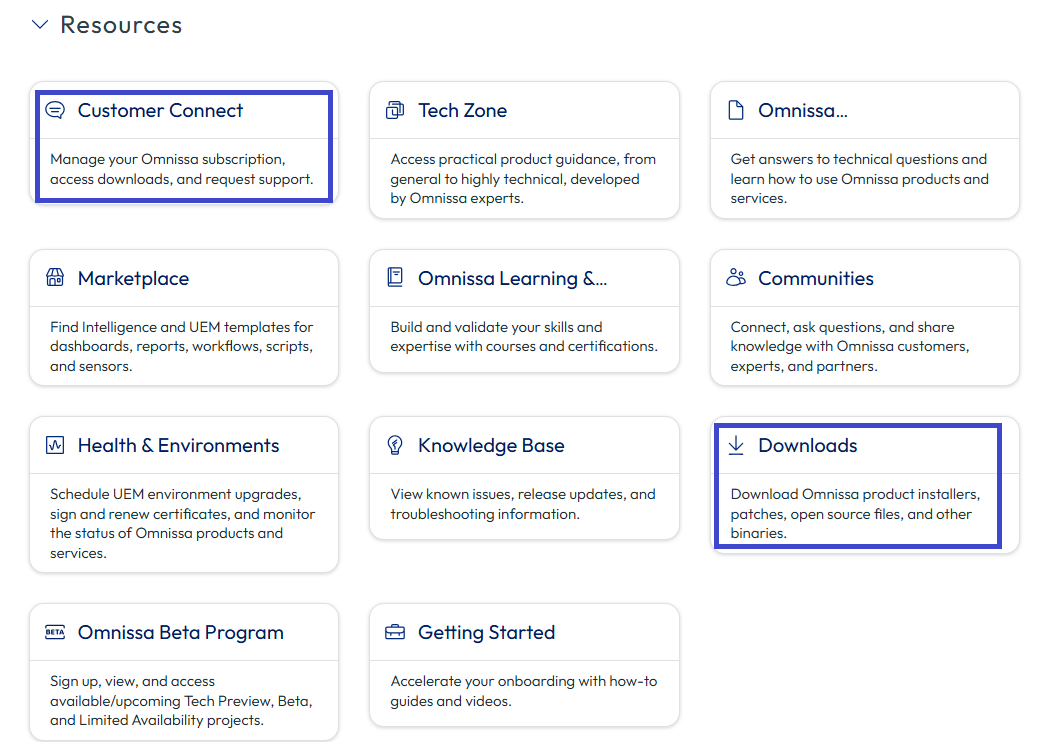
How do I move from using non-federated accounts to federated accounts?
Perhaps your enterprise decides to switch from using non-federated accounts to enterprise federation to better manage access. Here are the steps the system requires to perform this move.
- Set up enterprise federation with dynamic or connector-based federation.
- After the Enterprise Administrator activates federation, the authentication system uses SSO to authenticate existing administrators to their organizations and services.
- The authentication system identifies the new federated account as a separate identity from the non-federated account.
- Your admins must link the new federated accounts in their profiles in Account Settings.
- Instruct existing administrators to log in using their federated accounts and to link their federated accounts with the Omnissa account using the linking procedure.
- Consider setting up RBAC (roles-based access controls) using groups and applying roles and services to these groups.
- After you are satisfied that access, groups, and RBAC are working as desired, remove the non-federated accounts.
- Create an emergency "break-glass" account in Connect or in Omnissa Workspace ONE UEM in case your federation is unavailable.
Was this page helpful?