As an Owner in Omnissa Connect, create Groups to assign roles and permissions across a business unit rather than assigning to individuals. You can also edit Groups after creation, and as your organization expands and changes, add or remove members from your Groups.
Other services have Organization Groups
When you add admins or groups, the wizard sometimes prompts you to select an organization group. This behavior displays when the service uses organizations to group users and resources. You can select single or multiple organization groups.
Access the topic Organization Groups for an explanation of organization groups in UEM.
Create Groups in your organization
Create Groups in your organization and assign the group organization and service roles. These groups are called custom groups.
- In Omnissa Connect, go to Administrator Access > Groups.
- Select Add and select the method to add the group.
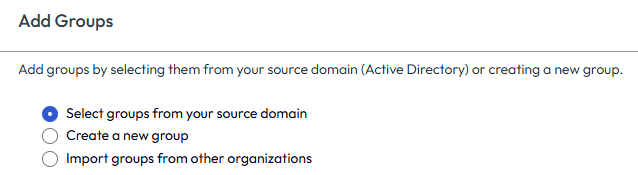
- Select groups from your source domain: Use this menu option if you use the Source Domain authentication policy.
- Create a new group: Use this menu option to create a new group from baseline. This menu option adds the tag Custom to the group.
- Import groups from other organizations: Use this menu option to select groups synced from your Active Directory or Identity Provider. This menu option adds the tag Shared with organizations to the group.
- Select Continue.
- Complete the Add Group widget.
- Enter the Group Details.
- Group detail menu options are different depending on the previous selection for adding the group.
- Enter a name and a description for the group, select the domain for the group, or select the organization you want to sync.
- In the Assign Organization Roles area, assign the group an Organization role.
- In the Assign Service Roles > All services area, assign the group Service roles that the system applies across all Omnissa services.
- The available Service roles that the system can apply across all Omnissa services are Super Admin and Read Only.
- If you assign the group the Super Admin role, you do not have to assign specific services because this role has access to all functions and services in the organization.
- In the Assign Service Roles > Specific services area, select each service and select the check boxes to all the service roles you want to assign to the group.
- For the Access tab, select the Access tenant in which you want to assign Service roles.
- For the UEM tab, select an Organization Group (similar to a business unit) that includes the UEM Service role configurations.
- In the Service roles expiration area, assign a set time for the group to have these Service roles or set No Expiration.
- In the Assign Custom Roles area, add custom roles to give occasional groups special roles.
- Select the Send emails to all members of this group notifying them of this role assignment to invite groups to your organization.
- Enter the Group Details.
- Select Create Group to send an invitation to the group.
Edit groups
You can edit the roles-based access assigned to groups in your organization.
Note: When you make changes to groups, it might take up to 30 minutes for the changes to take effect in the organization.
- In Omnissa Connect, go to Administrator Access > Groups.
- Select the double arrow next to the group you want to edit.
- Select Edit.
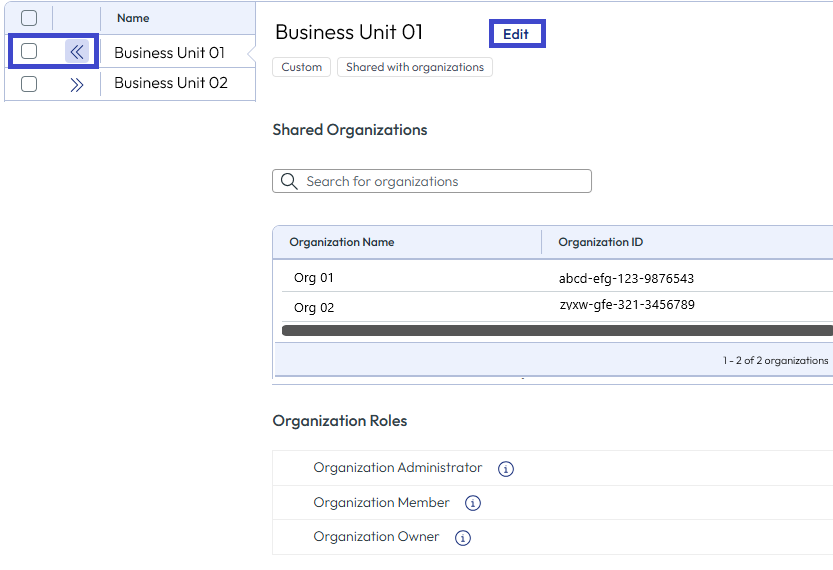
- In the Edit Group window, make the changes to the group details and to roles-based access.
- Select to Send email to all members of this group notifying them of this role assignment so that the admin knows their roles-based access has changed. In some cases, for example if a group is shared with other organizations, this check box is selected and you cannot change the selection.
- Save your edits and trigger the system to send the email notifications.
Remove groups
Remove groups from accessing your Omnissa services by removing them from the Groups list view.
- In Omnissa Connect, go to Administrator Access > Groups.
- Select the groups you want to remove.
- Select Remove to permanently remove the group or groups from your organization.
Group tags
Omnissa Connect classifies groups depending on how you add them and it appends tags to identify the method.
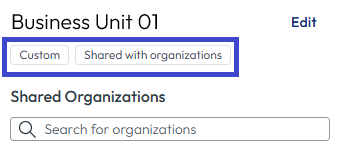
- Custom: A group gets this tag when you add it using the Create a new group method.
- Shared with organizations: A group gets this tag when you add it using the Import groups from other organizations method. This tag identifies that other Owners use this group, too.
Was this page helpful?