This page describes the use case of using Amazon WorkSpaces Core workspaces as the sources for a Horizon 8 manual farm. A Horizon 8 manual farm consists of Windows Remote Desktop Services (RDS) hosts, that then are used to deliver published desktops, published applications, and multi-session hosts.
The ability to use Amazon WorkSpaces Core as a source for manual farms debuted in Horizon 2412.
For an in-depth article that covers deploying Horizon with Amazon EC2 and Amazon WorkSpaces overall, see Tech Zone's Deploying Omnissa Horizon with Amazon EC2 and Amazon WorkSpaces.
OS Support
As of this writing, the Horizon 8 manual farm provisioning features can be used with:
- Windows Server 2019 Standard and Windows Server 2022 Standard instances of Amazon Workspaces Core
- AWS provided public WorkSpaces Core bundles (BYOP) for Windows Server 2019 Standard and Windows Server 2022 Standard, or create your own custom server OS bundle and image tailored to your requirements. This Windows Server 2019 and Windows Server 2022 support is available in AWS regions where Amazon WorkSpaces Core is available.
Terminology
Even though some of the terms used in Amazon WorkSpaces Core are different than the terms used in vSphere, much of the high-level principles are the same.
The following table is an example for a Windows Server 2022 based instance, comparing the terms used.
| Artifact | Amazon WorkSpaces Core process | vSphere process | WorkSpaces Example |
|---|---|---|---|
| A machine, the starting point for what will eventually become the golden image | Create image using the WorkSpaces UI | Create VM in the vSphere Admin UI | Image named winserver2022-byop |
| An image, a base image to be customized to become the golden image | Result from the Create image action in the WorkSpaces UI | Result from the Create VM action in the vSphere Admin UI | Image named winserver2022-byop |
| A bundle | Create a bundle from that image using the WorkSpaces UI | N/A - a bundle is an Amazon WorkSpaces construct | Bundle named hzn-byop, created from winserver-byop |
| Customized image with Horizon Agent paired to the Connection Server | Use the bundle to create an Amazon WorkSpaces instance into which the Horizon Agent is installed. Pair that installed agent with the Connection Server, and when complete, use the WorkSpaces UI's Create Image to clone to an image again. | Customize the starter VM, install the Horizon Agent, and create a snapshot in the vSphere Admin UI. | Golden image named winserver2022gp created from bundle hzn-byop, and this image has installed Horizon Agent |
| Custom bundle based on winserver2022gp, the golden image having Horizon Agent installed in it | Create a bundle from the winserver2022gp using the WorkSpaces UI, selecting the hardware type you want used for the farm's RDS hosts | N/A - a bundle is a WorkSpaces construct. | winsvr2022bundle |
Ultimately, when using Amazon WorkSpaces Core, it is a bundle that is an RDS host for the manual farm.
You might think of the custom bundle as the golden image married to a hardware profile. In WorkSpaces, a bundle is a collection of the operating system plus storage, compute, and software resources.
Prerequisites
The steps in each section below require the following items to be in place before starting the steps.
-
An existing or new AWS account that has access for Amazon WorkSpaces Core. If you don't have an account, you can create one using the Amazon Web Services home page.
-
The Amazon account must have Bring Your Own License (BYOL) enabled. Refer to the Amazon information at Bring Your Own Windows desktop licenses. In Amazon WorkSpaces, the license and protocol are under your control. When using Amazon Workspaces Core with Horizon 8, the supported protocol is the Blast Extreme protocol, which comes from installing the Horizon Agent.
-
A Horizon 8 deployment set up and configured that's supported for this use case. Starting with the 2412 release, the Connection Server can be installed on-premises or in one of the supported public clouds.
-
Ensure you have your Amazon WorkSpaces set up.
- Active Directory - Amazon recommends creating an Active Directory Connector (ADC) for all directories. Horizon 8 does not support Amazon Simple AD. Amazon has this AWS white paper about the role of the AWS AD connector with Amazon WorkSpaces.
- BYOL/BYOP images imported into your WorkSpaces.
-
Ensure you have set up an IAM role that has the appropriate permissions for Horizon 8 Connection Server to access the WorkSpaces resources. Refer to the Amazon information at Identity and management for WorkSpaces:
-
When using a Connection Server deployed in Amazon EC2, the IAM role must be added to the Connection Server's EC2 instance in Amazon EC2. The default is to use an instance profile to pass that IAM role to the Connection Server's EC2 instance (also referred to as an AWS service role for an EC2 instance). On the IAM role for the Connection Server the following policies provide the required permissions:
- AmazonWorkSpacesAdmin (AWS managed policy)
- AmazonSSMDirectoryServiceAccess (AWS managed policy)
- AmazonSSMManagedInstanceCore (AWS managed policy)
- Workspaces:DescribeWorkspaceImages (AWS inline policy)
-
When using a Connection Server deployed on-premises or in a public cloud outside of Amazon EC2, you'll need to provide an IAM User's AWS Access Key ID and Secret Access Key when adding Amazon WorkSpaces Core as a capacity provider. Set up an IAM user for this purpose and apply the IAM role with the required permissions to that IAM user, and establish the Access Key ID and Secret Access Key. On the IAM role for the Connection Server the following policies provide the required permissions:
- AmazonWorkSpacesAdmin (AWS managed policy)
- AmazonSSMDirectoryServiceAccess (AWS managed policy)
- AmazonSSMManagedInstanceCore (AWS managed policy)
- Workspaces:DescribeWorkspaceImages (AWS inline policy)
-
For general information about installing Horizon 8 environments, see the Horizon 8 Installation and Upgrade Guide. When you want to deploy a Horizon 8 infrastructure in Amazon EC2, you can find detailed information in Tech Zone at Deploying Horizon Infrastructure on Amazon EC2 Machines.
Add Amazon WorkSpaces Core as a Capacity Provider
In the Horizon 8 Administration Console's Servers UI, use the Capacity Providers tab to add Amazon WorkSpaces Core as a capacity provider.
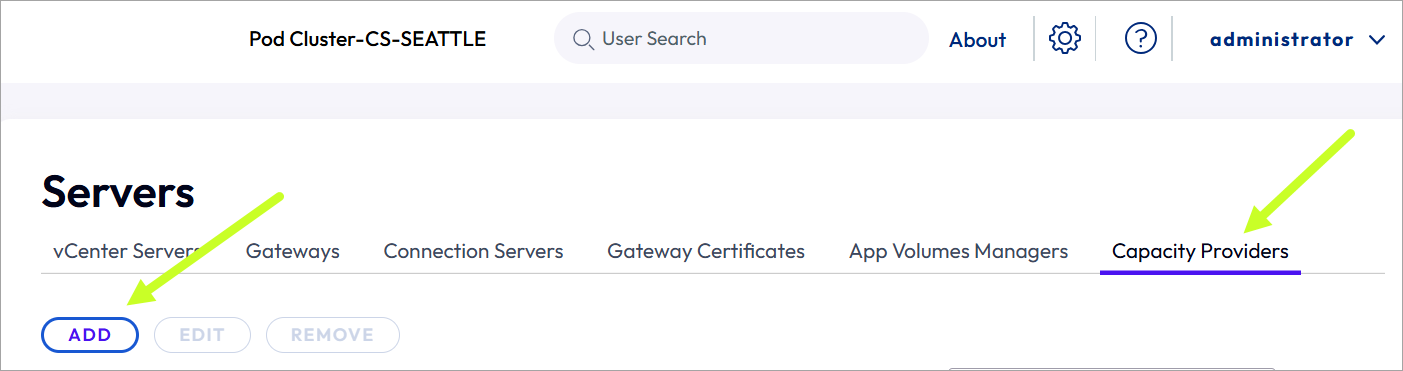
Click Add and complete the displayed UI by selecting Amazon WorkSpaces Core, entering a display name which the Administration Console will use when listing this provider, and selecting the Amazon AWS region where this capacity provider resides.
Note: When the Connection Server resides outside Amazon EC2, check the Use IAM Access Keys checkbox, and input the AWS Access Key ID and AWS Security Access Key that you set up as described in the preceding Prerequisites.
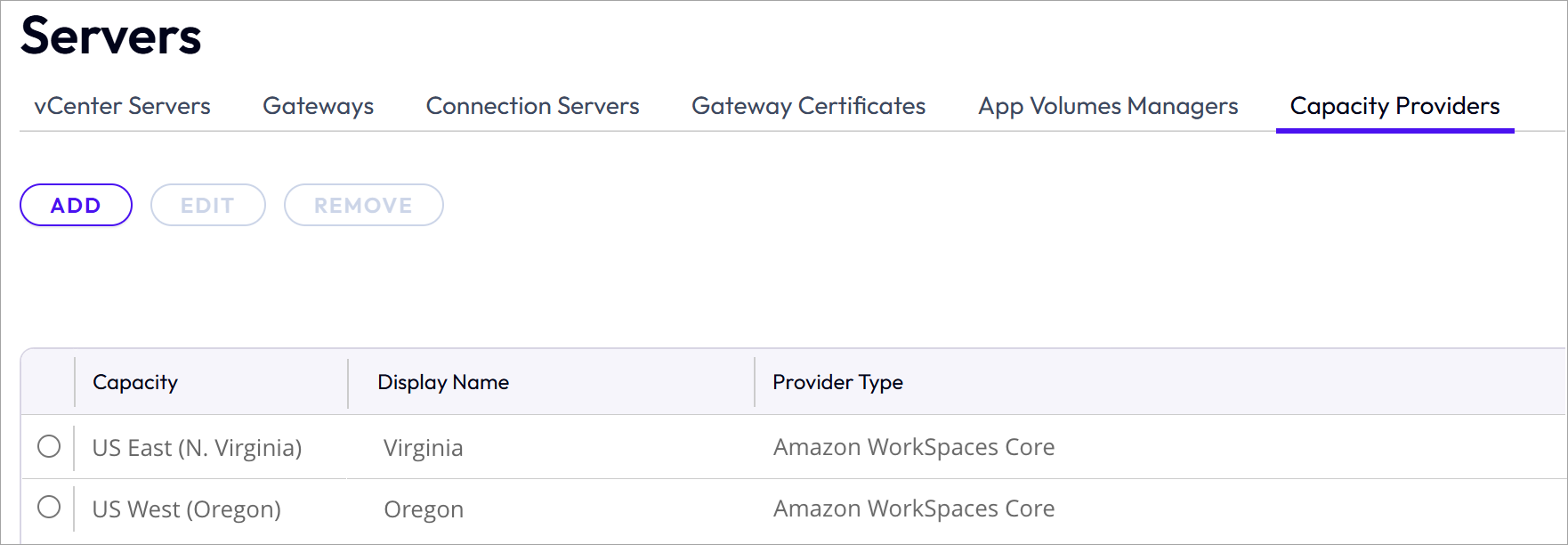
The following screenshot illustrates two providers added, one using AWS region US East (N. Virginia) and the other with region US West (Oregon).
Create the Golden Amazon WorkSpaces Core Bundle
When using Amazon WorkSpaces Core for Horizon 8 manual farms, a bundle is the source for the farm's RDS hosts.
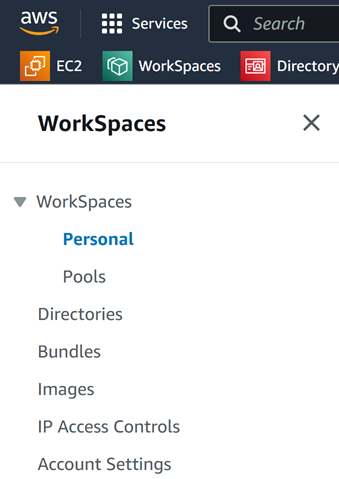
You create the bundle using the Amazon WorkSpaces UI (within the AWS console). The following screenshot illustrates the navigation side of that UI.
In the sequences below, you use the Amazon WorkSpaces UI to create the images using a Windows Server OS, build the WorkSpaces instances, install the Horizon Agent on every instance that you'll want to use in the manual farm, convert every instance into an image and creating the bundles from that image, to make the bundles that are needed for the Add Farm wizard in Horizon console. The first set of steps below is for creating custom bundles and the next set of steps is for using Amazon provided Windows Server Public BYOP bundles.
Custom Bundle - Golden Pattern Creation
- In the AWS WorkSpaces UI, create a Windows Server BYOL/BYOP image. (This step is equivalent to creating the VM in vSphere.) Note: Amazon recommends creating a new image (instead of importing an existing image). See the Amazon section Create a BYOL image using the WorkSpaces console.
- Use the imported image when creating your bundle.
- Use that bundle to create a WorkSpaces Core instance.
- RDP to that instance and set up the RDS host as described in Remote Desktop Services Hosts, including the step to install Horizon Agent on an RDS host.
Ensure that you install the latest version of the Horizon Agent.
The agent installer's final UI message will say that you must restart the system for the confiuration changes to take effect. Follow the on-screen prompts.
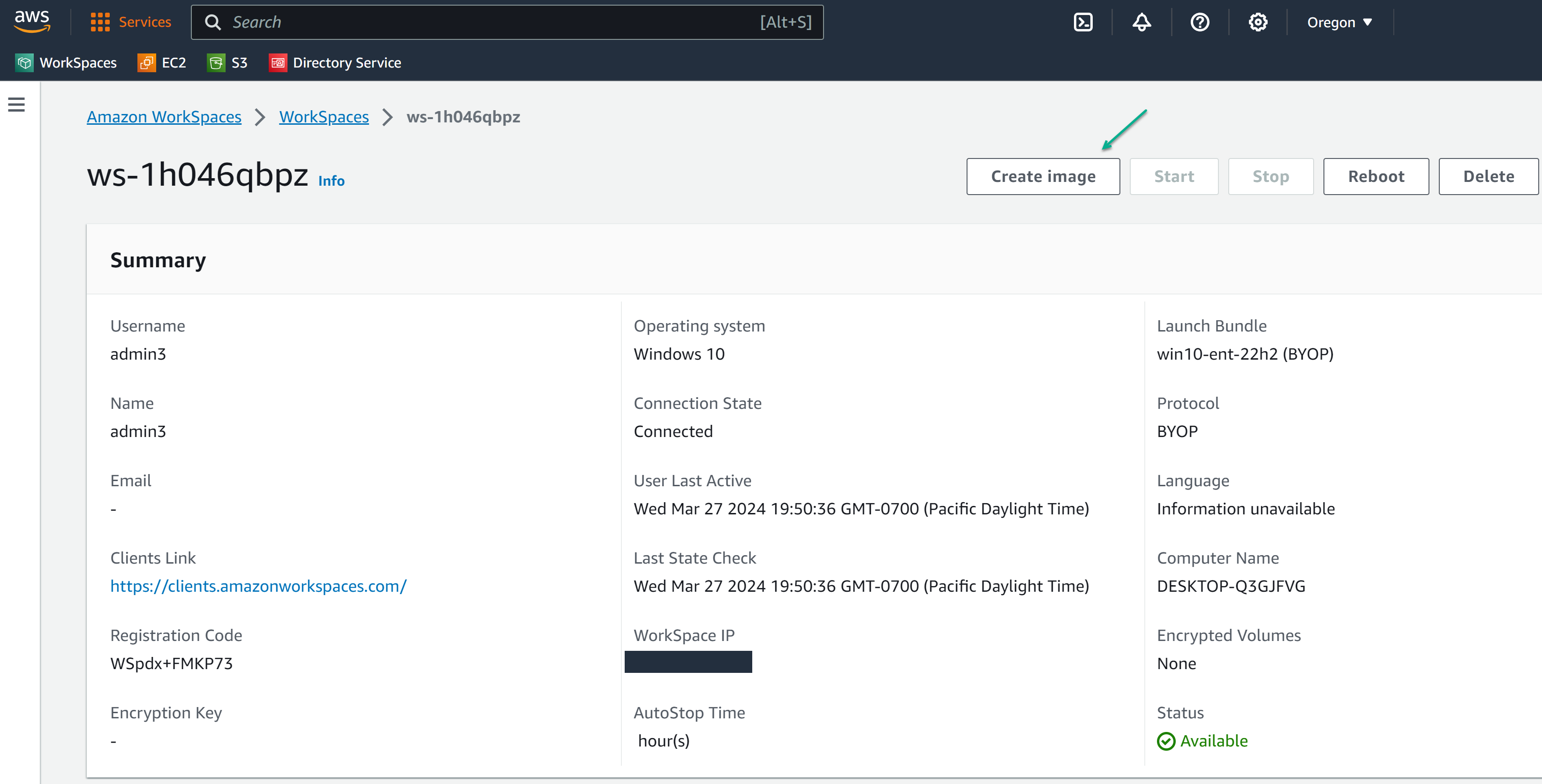
- In the WorkSpaces UI, navigate to that rebooted instance's details and then convert the instance to an AWS WorkSpaces image using the Workspaces UI's Create image action. (You're cloning the now-paired instance that has the Horizon Agent to a WorkSpaces image. The Amazon WorkSpaces UI uses the action Create image for this cloning process.)
The following screenshot illustrates the details UI for an instance named ws-1h046qbpz and the location of the Create image button. Some displayed values are redacted for privacy.
- When you see in the WorkSpaces UI that the image from Step 7 has available status, create a bundle from that image, which combines that image with your desired hardware type for the farm's machines.

The hardware type you select here is agnostic to the original hardware type you selected for the bundle created in Step 2. The hardware type chosen here is the one that the farm's machines will have.
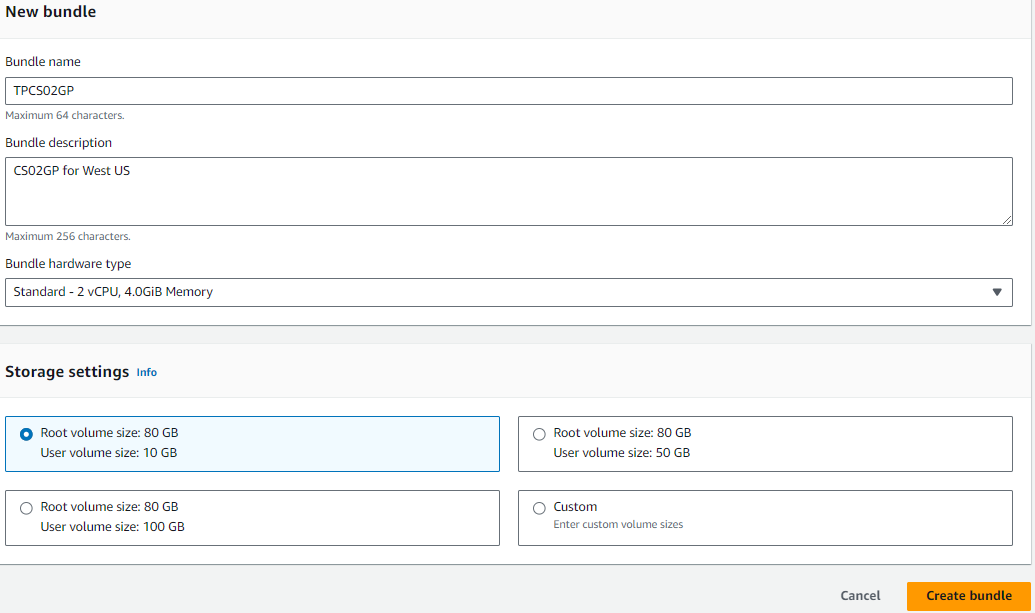
The following screenshot is an example of performing the Create bundle menu option on an image named TPCS02GP. In the New bundle UI, you select the hardware options for the bundle.
Tip: To help distinguish the bundles that have the Horizon Agent installed from the other bundles in the WorkSpaces UI's Bundles list, use the bundle's description to keep notes, like Horizon Agent installed.
After the bundle is created, verify that has Available status. The following screenshot illustrates the bundle with ID wsb-xttnbll2j is available.
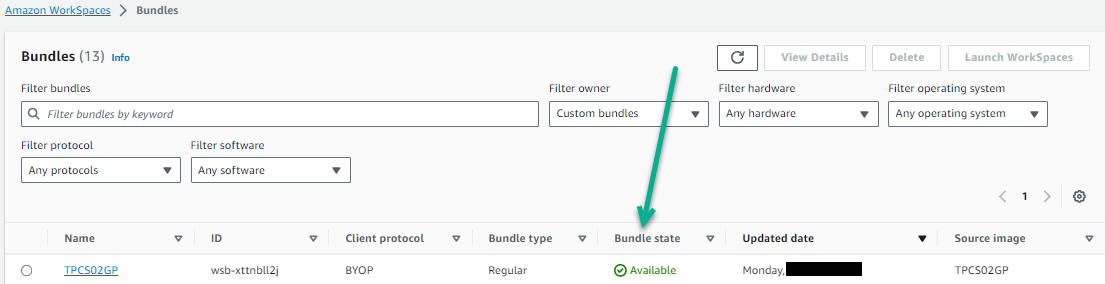
After that final step, a bundle exists which is the combination of the golden image with Horizon Agent and the hardware type you want for the manual farm. You will select that bundle in the Add Farm wizard as the source of the farms' RDS hosts.
Windows Server Public BYOP Bundle Golden Pattern Creation
Note: When you plan to use a Public Windows Server Amazon Workspaces Core bundle, review the AWS prerequisites for using a Public Bundle.
- In the AWS WorkSpaces UI, provision a Public bundle of Windows Server WorkSpaces Core instance as an Always On instance, or use the CLI to create a Manual instance.
The directory used for Server OS needs to be a shared directory (not dedicated for VDI).
Note: You can use the UI to launch an Always On instance or use cloudshell to launch a Manual (hourly billing) or decoupled (no user) instance to customize.
Example of cloudshell command: aws workspaces create-workspaces --workspaces DirectoryId=d-XXXXXXXX,UserName="'[UNDEFINED]'",BundleId=wsb-XXXXXXX,WorkspaceProperties={RunningMode=MANUAL},WorkspaceName=XXXXXXXX where
DirectoryIDis the directory in which you want to place the WorkSpace instanceBundleIDis the bundle you want to make a copy of (the Windows Server OS)WorkSpaceNameis customizable
-
RDP to that WorkSpace instance and and set up the RDS host as described in Remote Desktop Services Hosts, including the step to install Horizon Agent on an RDS host.
-
Follow the Horizon Agent's installation on-screen prompts to restart the machine.
-
In the WorkSpaces UI, navigate to that rebooted instance's details and then convert the instance to an AWS WorkSpaces image using the Workspaces UI's Create image action. (You're cloning the now-paired instance that has the Horizon Agent to a WorkSpaces image. The Amazon WorkSpaces UI uses the action Create image for this cloning process.)
-
When you see in the WorkSpaces UI that the image from Step 5 has available status, create a bundle from that image, which combines that image with your desired hardware type for the farm's machines.
The hardware type you select here is agnostic to the original hardware type you selected for the bundle created in Step 2. The hardware type chosen here is the one that the farm's machines will have.
The following screenshot is an example of performing the Create bundle menu option on an image named TPCS02GP. In the New bundle UI, you select the hardware options for the bundle.
Tip: To help distinguish the bundles that have the Horizon Agent installed from the other bundles in the WorkSpaces UI's Bundles list, use the bundle's description to keep notes, like Horizon Agent installed.
After the bundle is created, verify that has Available status. The following screenshot illustrates the bundle with ID wsb-xttnbll2j is available.
After that final step, a bundle exists which is the combination of the golden image with Horizon Agent and the hardware type you want for the manual farm. You will select that bundle in the Add Farm wizard as the source of the farm's RDS hosts.
What to read next
Was this page helpful?