By integrating AD FS with Omnissa Access, you can implement several beneficial use cases. The use cases include: Workspace ONE Intelligent Hub Login Using AD FS, Unified Application Catalog, and Mobile Device Trust.
The following sections describe the main use cases supported by AD FS integration, including the specific configuration procedures required to implement each use case. To realize the benefits of all three use cases, perform an end-to-end setup that includes all the integration procedures described in this guide.
Use Case 1: Workspace ONE Intelligent Hub Login Using AD FS
You can configure the Workspace ONE Intelligent Hub app and portal to use AD FS as a trusted identity provider. This configuration allows end users to log in to the Workspace ONE Intelligent Hub app and portal with their familiar Active Directory credentials. This use case also applies to Horizon® customers who are using the Hub portal to run Horizon apps and desktops, but have not yet deployed Workspace ONE UEM to manage devices.
To implement this use case, perform the procedures described in Integrating AD FS as a Federated Identity Provider for Omnissa Access.
Use Case 2: Unified Application Catalog
You can configure the Hub App catalog to publish applications federated through AD FS. These applications appear alongside other configured resources, such as virtual Horizon and Citrix applications and desktops, and native Workspace ONE UEM applications. End users can go to a single portal to discover, run, or download their enterprise apps from any device with a consistent user experience.
To implement this use case, perform the procedures described in the following topics:
- Creating a Omnissa Access Claims Provider Trust in AD FS
- Configuring AD FS as a Service Provider for Omnissa Access
- Test the Omnissa Access Authentication
- Integrating AD FS-federated Applications With Workspace ONE Intelligent Hub
Use Case 3: Mobile Device Trust
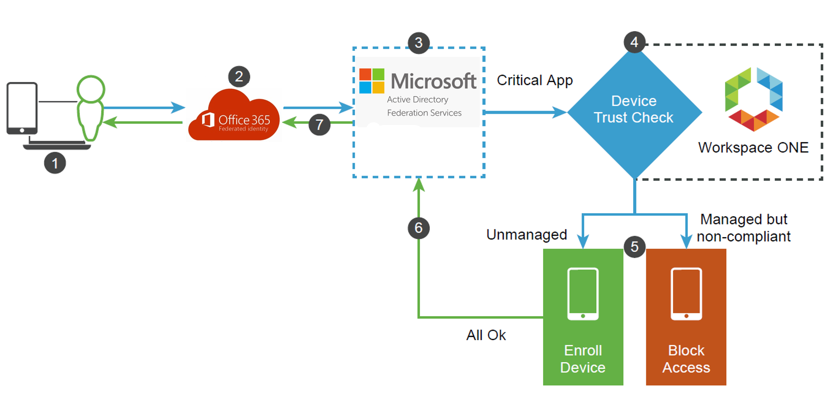
Integrating AD FS with Workspace ONE Intelligent Hub lets administrators establish mobile device trust by evaluating device posture before permitting access from end users to sensitive applications. Device posture can refer to the security status of the mobile device, such as whether it is managed and compliant with your organization's IT requirements. Device posture policies are established in Workspace ONE UEM and evaluated whenever a user signs in to a protected application.
For example, a device trust flow using Office 365 follows this sequence:
- Mobile user attempts to access the Office 365 tenant.
- Office 365 redirects to AD FS as the federated identity provider.
- AD FS processes the incoming request and routes the user to Omnissa Access as a trusted claims provider.
- As the identity component of the Workspace ONE platform, Omnissa Access challenges the user for authentication based on user access and device posture policies.
- Omnissa Access performs authentication steps based on the device posture:
- If the device is managed and compliant with IT requirements, Omnissa Access authenticates the user.
- If the device is unmanaged but compliant with IT requirements, Omnissa Access enrolls the device and authenticates the user.
- If the device is not compliant with IT requirements, Omnissa Access blocks the user from accessing the Office 365 application.
- Upon successful authentication with Omnissa Access, the user is redirected back to AD FS.
- AD FS issues the SAML assertion for Office 365 and grants the user access to the application.
Device Trust Flow
To implement this use case, perform the procedures described in the following topics:
- Creating a Omnissa Access Claims Provider Trust in AD FS
- Configuring AD FS as a Service Provider for Omnissa Access
- Test the Omnissa Access Authentication
- Redirect Mobile Users to Omnissa Access for Authentication
Note: Alternatively, you can configure Office 365 to authenticate directly with the Omnissa Access service, without using AD FS as an intermediary. For information on configuring this alternative use case, see the Omnissa Access Integration with Office 365 guide.
End to End Setup Covering All Use Cases
To set up the complete Workspace ONE Intelligent Hub and AD FS integration to cover all use cases, perform all the procedures described in the following topics:
Was this page helpful?