The Management Organization is a special Omnissa Connect organization that lets you manage resources and policies across organizations.
Each Omnissa Connect organization is managed individually by one or more Owners. To manage multiple organizations from a single place, you need to set up a Management Organization and add other organizations as members of the Management Organization. This configuration has the listed benefits.
- You can view statistics for users and services in the Member Organizations.
- You can set up and manage enterprise federation for your corporate domain.
- You can set and edit authentication policies for Member Organizations.
What do you need to know about access to the Management Organization
Access to the Management Organization's resources is determined by the role assigned to each user in the Management Organization.
| Organization role | Permissions |
|---|---|
| Owner | Has full administrative access to the Management Organization's resources. |
| Owner (Limited) | Has administrative access to a Member Organization's resources in the context of the Management Organization. |
| Member | Has read-only access to the Management Organization's resources. |
| Enterprise Administrator | Sets up and manages enterprise federation. Can access only the Enterprise Federation dashboard in the Management Organization. |
How to enroll an organization as a member of a Management Organization
Organizations can become members of the Management Organization in one of the following ways.
- Through invitation from the Owner of the Management Organization. An Owner from the invited organization must accept the invitation.
- An Owner attaches their organization to the Management Organization through a simple workflow in Omnissa Connect.
What can you do in the Management Organization
The Management Organization offers a set of features that allow you to manage resources and services across Member Organizations.
Prerequisites
- You must have the Owner role in the Management Organization.
- Your Management Organization has one or more Member Organizations.
- Your enterprise domain is federated with Omnissa Connect.
Procedure
- Log in to the Omnissa Connect console.
- Make sure you are in the Management Organization.
- Look for the shield icon in front of the organization name displayed in the header and includes the word
Management.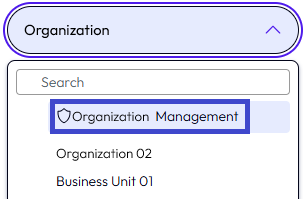
- Look for the shield icon in front of the organization name displayed in the header and includes the word
- From the main menu, open the Home > Overview page.
The Overview page displays a dashboard of tiles with information about users, attached organizations, federation and policy status. - On the Overview page of your Management Organization, you can take the following actions.
| To... | Do this... |
|---|---|
| View a summary of users in the Management Organization. | - In the User Summary tile, select View Details. - This opens the Insights & Overview page. |
| View details for Member Organizations. | 1. In the left navigation, select Organization Management. 2. View details for the attached organizations, such as organization name, ID, and member status. 3. Invite Member Organizations to join the Management Organization. |
| Invite a Member Organization to your Management Organization | 1. In the left navigation, select Organization Management. 2. Select Invite Organization. 3a. To invite an organization which is not linked to your corporate identity provider, enter its organization ID and select Send. 3b. To invite an organization which is already linked to your corporate identity provider, select the Select from linked organizations button, select the drop-down menu to locate the organization, and then select Send. - The Owner of the organization receives an invitation. - After the invitation is accepted, the organization you invited becomes attached to your Management Organization. |
| Set MFA in a Member Organization | 1. In the IAM Policy Settings tile, select View Details. This selection opens the Authentication Policy page. 2. From the list of Member Organizations, select one or more organizations for which you want to activate multi-factor authentication (MFA). 3. Select Edit Policies. 4. In the Multi-Factor authentication tab of the Authentication Policy for Member Organizations page, select Activate. 5. Select OK to confirm the setting. - MFA is now enforced and all members of the Member Organizations you selected will be required to register an MFA device and provide an MFA token at login. -After this policy is enforced, the MFA setting cannot be modified by the Member Organization. Note: It might take up to 30 minutes for the policy to take effect in your organization. |
| Modify the Enterprise Federation setup | - To perform this task, you must have Enterprise Federation role in the Management Organization. 1. In the Federation tile, select View Details. This opens the Enterprise Federation dashboard. 2. Make the desired changes to Synced Users and Groups, Domains, Organizations Linked to Corporate IdP, Identity Providers, or User Identification Preference. |
How do you create a Management Organization
Documentation
For details about the creation process, access Create the Management Organization
Description
The Management Organization is automatically created as part of the self-service enterprise federation workflow. The user who initiated the federation setup becomes the organization Owner of the Management Organization.
The Owner can invite Enterprise Administrators to complete and manage the enterprise federation setup and assign Organization roles to other members of their enterprise.
The Management Organization cannot be used as a regular organization. Its purpose is to complete and manage the enterprise federation setup and to manage Member Organizations.
When a Member Organization joins the Management Organization, the Owners of the Management Organization are automatically assigned Owner access to the attached organization.
How do you attach your organization to the Management Organization
As an Owner user with a federated domain, you either receive an invitation from the Owner of the Management Organization to join, or attach your organization through the Omnissa Connect console.
Prerequisites
- You must be an Owner in the organization you want to attach to the Management Organization.
- Your corporate domain must be federated with Omnissa Connect. If your corporate domain is not federated with Omnissa Connect, the UI does not display the option to Attach to Management Organization.
Procedure
- Log in to the Omnissa Connect console.
- From the main menu, open the Identity Management > Enterprise Federation page, then select the Management Organization tab.
- Select Attach to Management Organization.
The page refreshes to display the Management Organization details: name and Organization ID. - Select Attach.
Results
Your organization is now a member of the Management Organization for your enterprise.
What is the impact of detaching my organization from the Management Organization
As an Owner in a Member Organization, you can detach your organization from the Management Organization at any time.
Detaching a Member Organization impacts the Management Organization in several ways.
- The Management Organization cannot access information about the Member Organization's resources and services.
- The Management Organization cannot set policies or perform any other actions in the Member Organization.
- Any Organization and Service roles inherited from the attached organization are removed.
Detaching your Member Organization requires the listed steps.
- Log in to the Omnissa Connect console.
- From the main menu, open the Identity Management > Enterprise Federation page, then select the Management Organization tab.
- Select Detach Organization.
- Acknowledge the consequences of detaching your Member Organization, then select Detach.
After your organization is detached, you can attach it to another Management Organization or run it independently of the organization hierarchy.
Was this page helpful?