Limited Availability
Horizon 8 offers Nutanix integration with limited availability. For more details on the functionality available in this limited availability release, see Horizon 8 Support for Nutanix AHV Limited Availability.
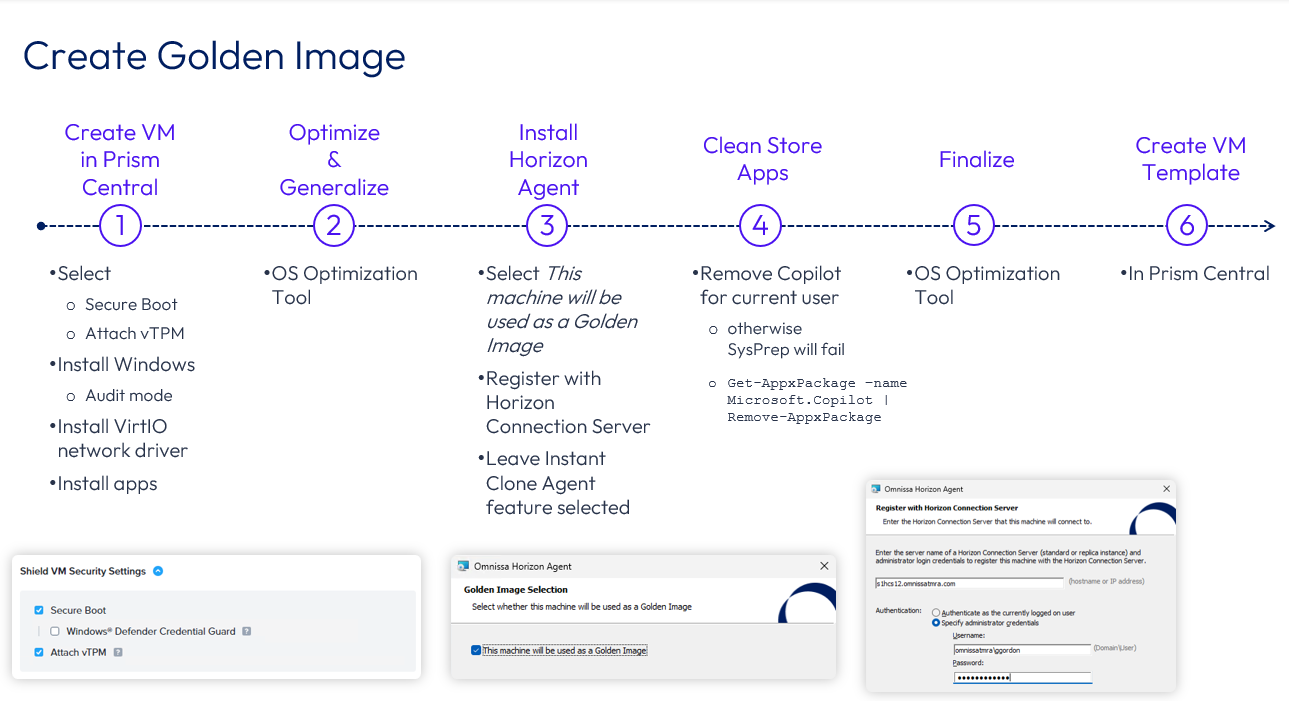
If you are a current Omnissa customer and you would like to request access to this feature, contact your sales representative or partner. If you are not a current Omnissa customer and you would like to request access to this feature, contact getHorizon8NutanixLA@omnissa.com.Use this information to create a Golden Image. Before starting, review the process flow for creating a Golden Image. For detailed instructions on the best-practice process for creating a Golden Image, see Manually creating optimized Windows images for Horizon VMs.
Important
The snapshot selected during pool creation must point to the active version of the Golden Image template in Nutanix.
The Golden Image VM must:
-
Use a SCSI disk bus type.
-
Windows 11 must have Secure Boot enabled.
-
The snapshot selected during pool creation must point to the active version of the Golden Image template in Nutanix.
Download and Run the OS Optimization Tool
-
Enter Audit mode into your Desktop OS VM.
-
Download the following from Omnissa Customer Connect:
-
Omnissa Horizon OS Optimization Tool (OSOT)
-
Horizon 2506 Agent (if not already downloaded)
-
-
If applicable, disable BitLocker.
-
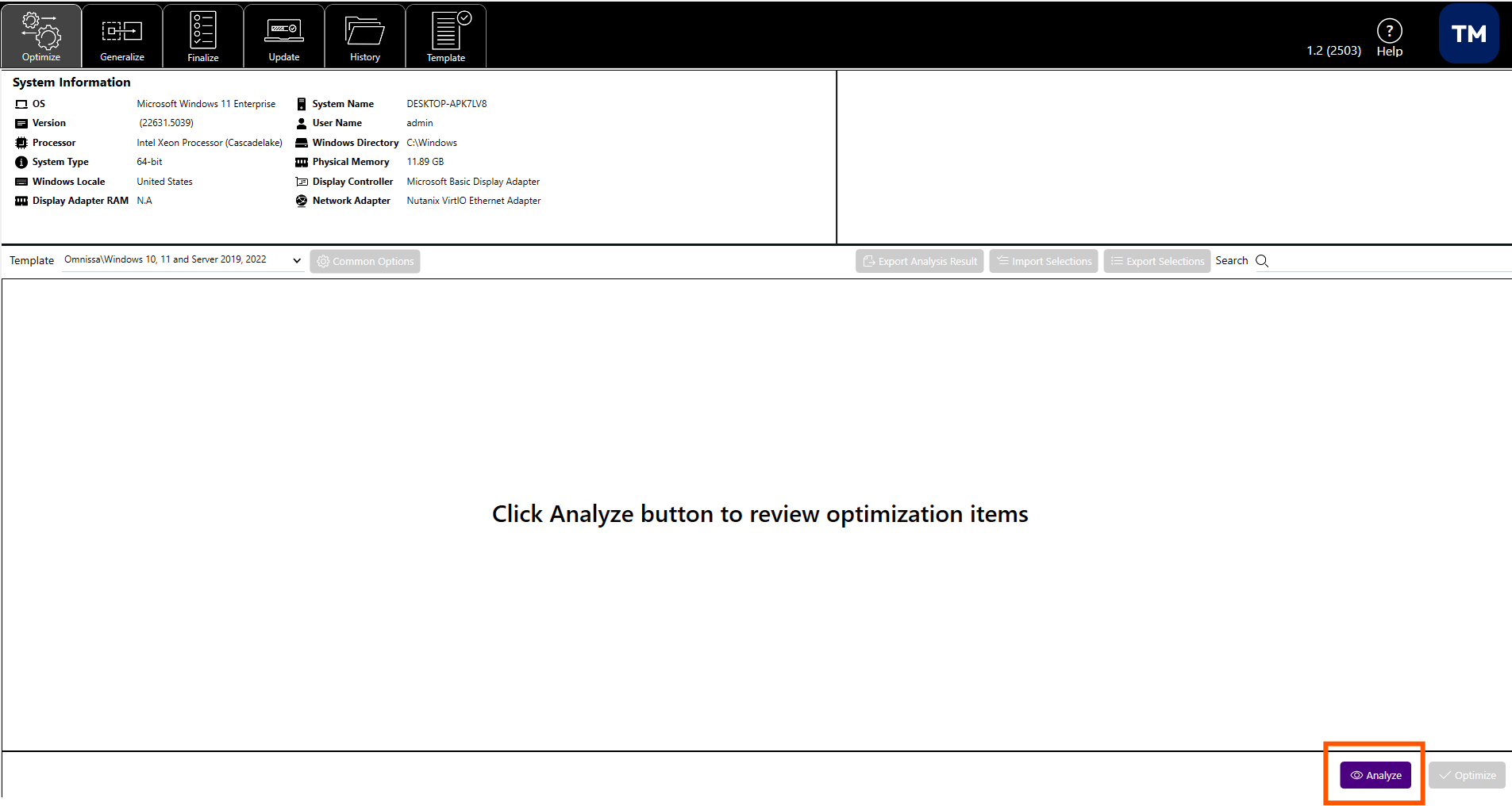
Run the OS Optimization Tool.
-
Click Analyze.
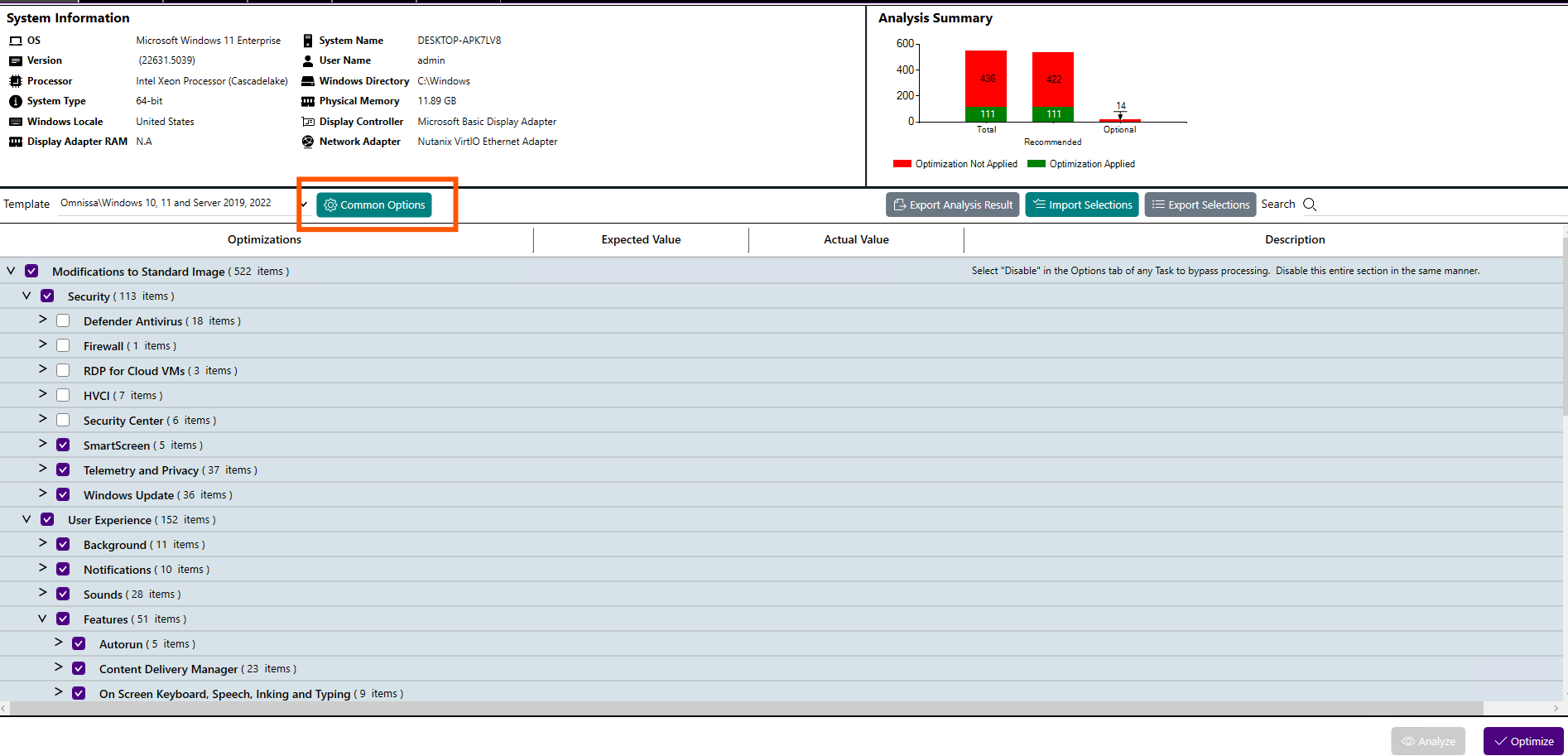
- Once analysis completes, click Optimize.
Run the Horizon Agent Installer
-
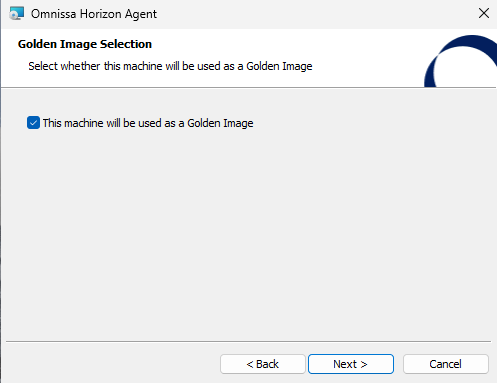
During installation:
-
Check the This machine will be used as a Golden Image box.
-
Specify the correct Connection Server.
-
-
Go back to the OSOT tool
-
Generalize and reboot.
-
Enter back into Audit mode
-
Remove Co.pilot by running Get-AppxPackage -AllUsers -name Microsoft.Copilot | Remove-AppxPackage.
-
Finalize everything.
-
Once optimization is complete, exit OSOT.
Important: Take a snapshot (recovery point) of the VM in case rollback is needed.
-
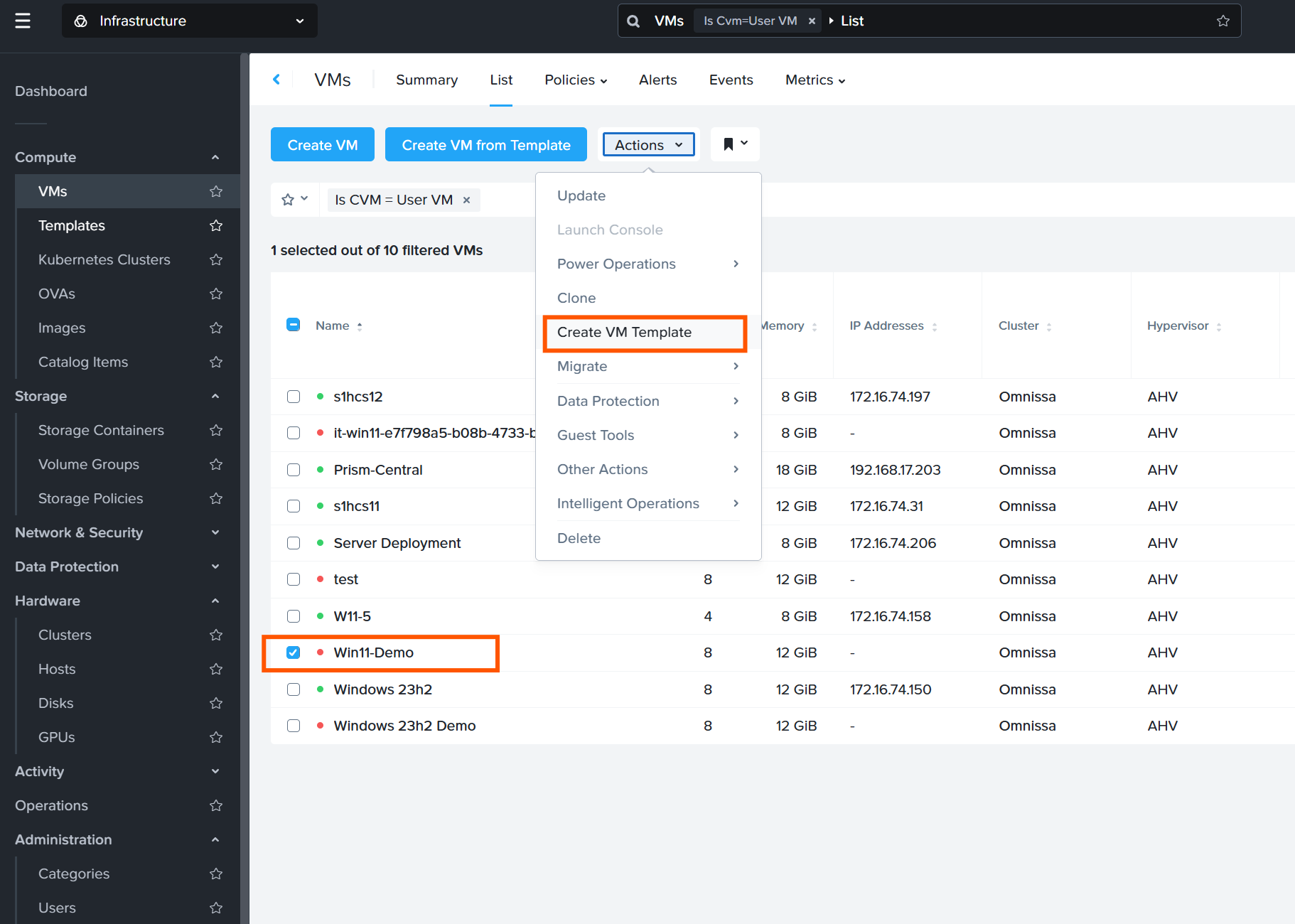
Go to Prism Central Console > Compute > VMs.
-
Select the VM with the installed Horizon Agent.
Create a Nutanix Template from a Golden Image
- Under Actions, select Create VM Template.
-
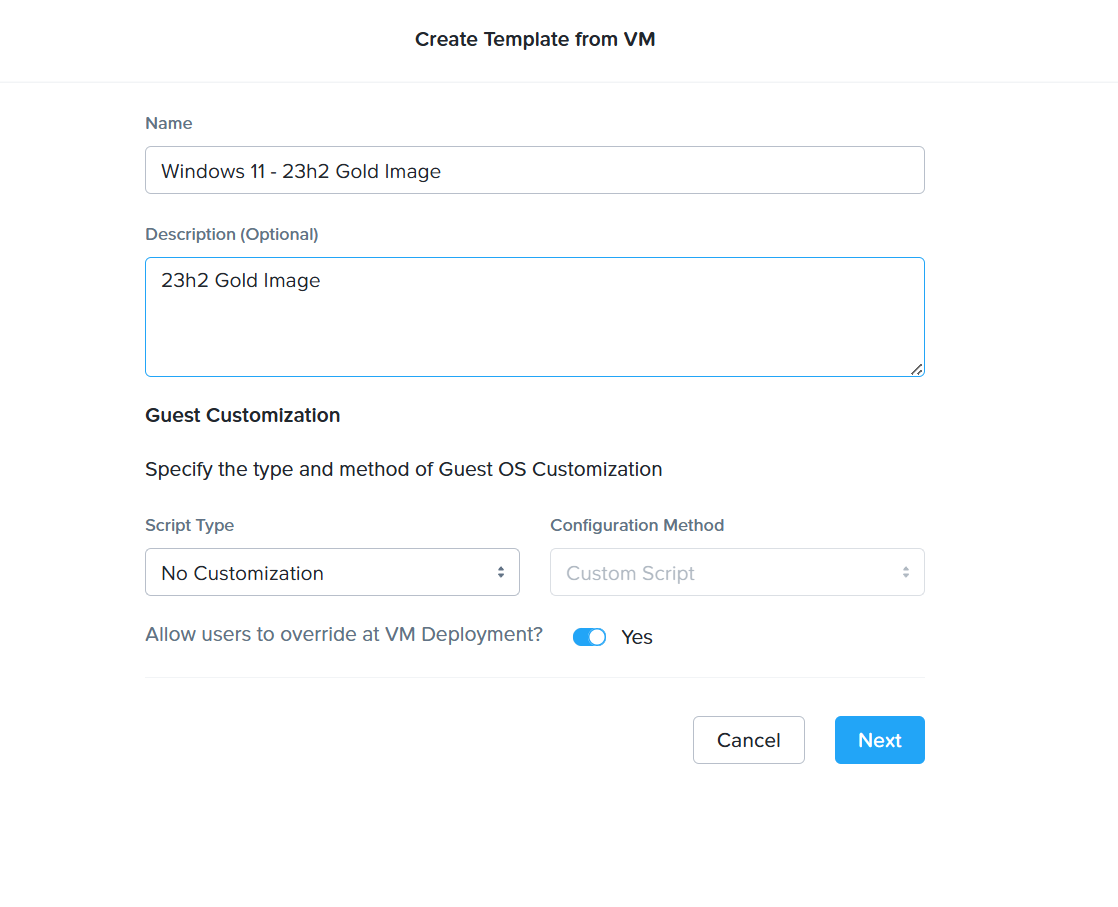
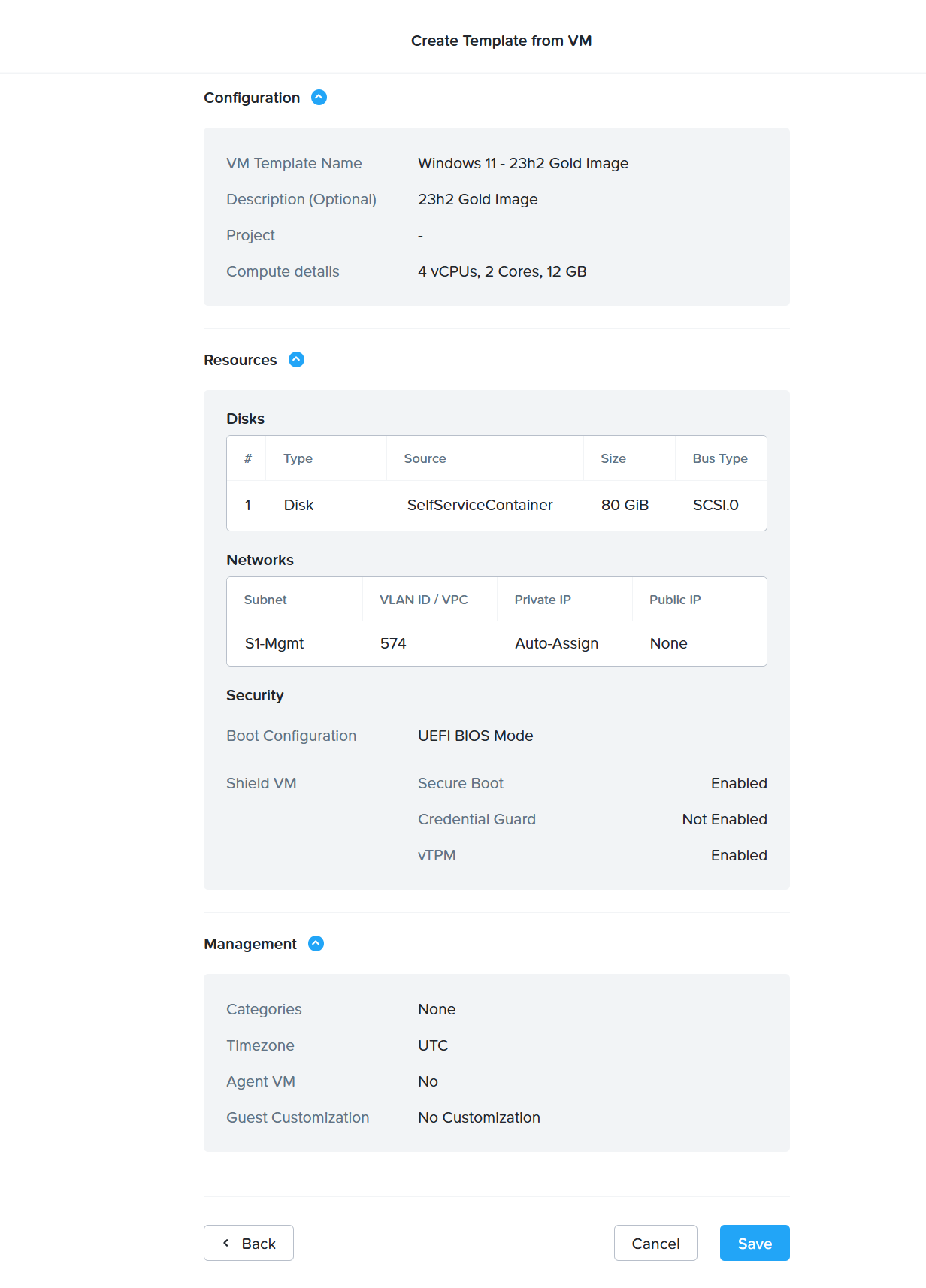
Fill out the template information.
Tip: Include "Gold Image" in the name for easy identification.
-
Click Next, then Save.
Was this page helpful?