Adding an AD FS-federated application to the catalog makes it possible for end users to access the application alongside other enterprise applications from the Hub portal. You must repeat this procedure for each application that you want to add to the catalog.
Prerequisites
- Enable the RelayState Parameter in AD FS
- Obtain the Relying Party Identifier for an AD FS-federated Application
Procedure
-
Log in to the Omnissa Access console with full administrator privileges.
-
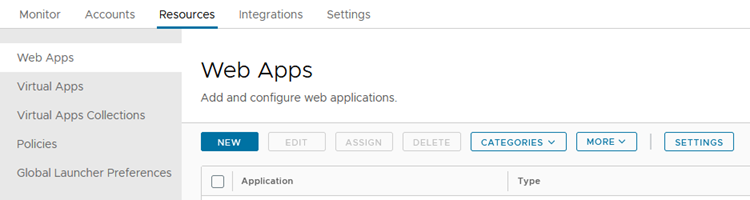
In the Resources tab, select Web Apps.
-
Click New.
-
On the New SaaS Application Definition page, enter the following information.
Option Description Name Enter a name for the application. Description (Optional) Enter a description of the application. Icon (Optional) Upload an icon. Category (Optional) To add the application to a category, select it from the drop-down menu. 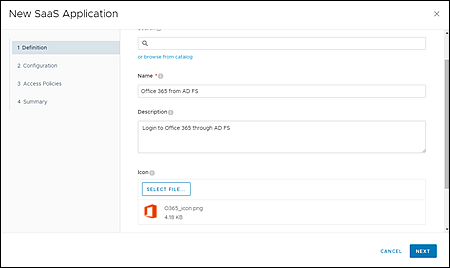
-
Click Next.
-
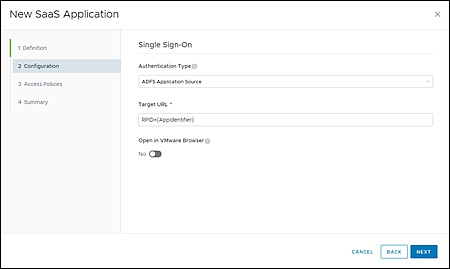
On the Configuration page, enter the following information.
Option Description Authentication Type Select ADFS Application Source. Target URL Enter the URL of the application in this format: RPID={AppIdentifier}, where{AppIdentifier}is replaced with the application's relying party identifier that you obtained previously from the AD FS Management console.Open in the Browser Set to No.
-
Click Next.
-
On the Access Policies page, select the access policy that you want to use for the application, and then click Next.
For more information about access policies, see the Managing Omnissa Access User Authentication Methods guide .
-
Review your selections and click Save, or click Save & Assign to assign the application to users and groups.
If you do not assign the application to any users and groups now, you can do so later by selecting the application on the Catalog > Web Apps page and clicking Assign.
-
Verify that the application is added to the catalog.
-
Repeat this procedure for each application that you want to add to the Workspace ONE Intelligent Hub catalog.
What to do next
Using a test user account, navigate to your organization's Hub portal. From the application catalog, issue an IdP-initiated authentication request by opening the target AD FS-federated application. Verify that you are successfully redirected to the application's login portal.
For more information about IdP-initiated authentication flows, see IdP-initiated and SP-Initiated Authentication Flows.
Was this page helpful?