You can create Horizon Cloud administrative users and assign them roles. The roles grant the administrative users specific permissions in the Horizon Universal Console.
Each role gives create, read, update, and delete permissions to the specified area, and read permissions only to everything else.
| Horizon Roles | Area of Permissions |
|---|---|
| Administrator | Access to entire UI and API. The Administrator role grants a user the ability to generate perpetual license keys in their Horizon subscription. Only users who have been granted the Administrator role are able to generate keys. Note: Assigning the Omnissa Intelligence Administrator role also grants Administrator roles privileges in Horizon Cloud. |
| Read-Only Administrator | Read-Only access to UI and API Note: Assigning the Omnissa Intelligence Basic role also grants Read-Only Administrator role privileges in Horizon Cloud. |
| Pool Administrator | Pools and VMs |
| Deployment Administrator | Horizon Edges, Unified Access Gateways, Providers |
| Pool Group Administrator | Pool Groups |
| Entitlement Administrator | Entitlements |
| Image Administrator | Images |
| Help Desk Administrator | Virtual Machine Power Operations and User Session Operations |
To provide administrative users with access rights to the Horizon Universal Console, you use the Omnissa Connect console to first assign those users an organization role. You can then assign Horizon Cloud roles to those users.
You must be an organization owner or an organization administrator to add new users.
Procedure
-
Log in to Omnissa Connect.
-
In the left pane navigation, select ADMINISTRATOR ACCESS > Administrators and then click ADD.
Note: The ADMINISTRATOR ACCESS and IDENTITY MANAGEMENT options are only available to organization owners and organization administrators.
-
In the Type User Emails section, enter the email addresses of people you want to assign administrative roles.
-
In the Assign Organization Roles section, select the Organization Administrator role for the administrative users that you added.
These roles are not required to access the Horizon Cloud Universal Console.
-
In the Assign Service Roles > All services section, optionally select Super Admin or Read only role if you want specified administrators to have Administrator or Read-Only access across all services, such as Horizon Cloud, Intelligence, and so on.
-
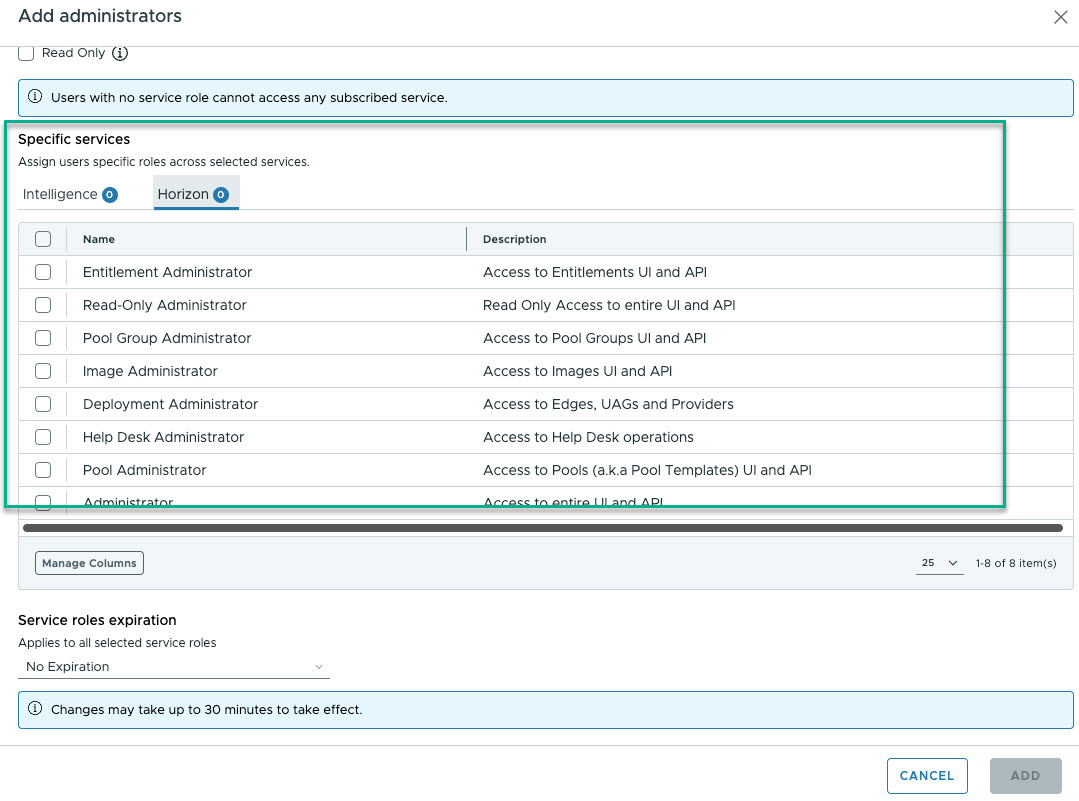
In the Assign Service Roles > Specific services section, select Horizon and add the required roles under the Horizon tab to the administrators.
-
In the Service Roles expiration section, if applicable, provide an expiration date.
-
Use the Send emails... checkbox to specify whether to send notification email to users informing them of their role assignments.

-
When you have completed the form, click Add.
Other Available Actions on the Administrators Page
After you use the Omnissa Connect console to add users, you can use the ADMINISTRATOR ACCESS > Administrators page to perform the following actions.
| Action | Description |
|---|---|
| Search the active-users list. | Enter a text string in the Search text box to search the list of active users. |
| View the role-related information of a selected active user. | Click the double arrow next to an active user's name to display the following information.
|
| Edit a user's role. | Select a user and click Edit Roles. The editing roles procedure is similar to the adding roles procedure. |
| Remove users. | Select one or more users and click Remove Users. |
Was this page helpful?