Using Horizon Cloud, you can manage images for the vSphere provider type.
Note that the term base VM may also be referred to as Golden image in this and related documentation.
Prerequisites
Prior to creating and publishing images for a vSphere Edge, you must create the vSphere Edge and prepare a Golden image (base VM) for the Edge.
- To create the Edge, see Add and Deploy a Horizon Edge for vSphere.
- To prepare the Golden image, use the following procedures.
After you have performed these prerequisites steps, you can move on to registering, adding, and updating the image as described in Add and Publish an Image for vSphere Provider.
Create the Golden Image
Use the following multi-sequence steps to prepare the Golden image.
Create the base VM (parent VM) to be available on the target vCenter. Make sure the needed tools are installed, current, and running inside the base VM.
Download the Latest HAI Agent
Before starting the Golden Image creation process, you must download the latest version Horizon Agent Installer (HAI). The latest HAI version is listed at the top of the Horizon Cloud Release Notes.
Note: The Horizon Agent Installer (HAI) is not the same as the Horizon 8 Agent installer. Be sure to use the latest Horizon agent installer (HAI). Do not use the Horizon 8 Agent installer.
You will install and use this agent in subsequent steps.
-
Open the All Products Downloads page from Customer Connect.
-
With the By Category tab selected, locate the Omnissa Horizon Service row and click View Download Components.
-
For the Omnissa Horizon Cloud Service next-gen row, click Go to Downloads.
-
Select the most current listed version of Horizon Cloud, note the file name of Horizon Agents Installer 64-Bit on the Product Downloads tab, and click Download Now.
A sample HAI agent downloads page is shown below.
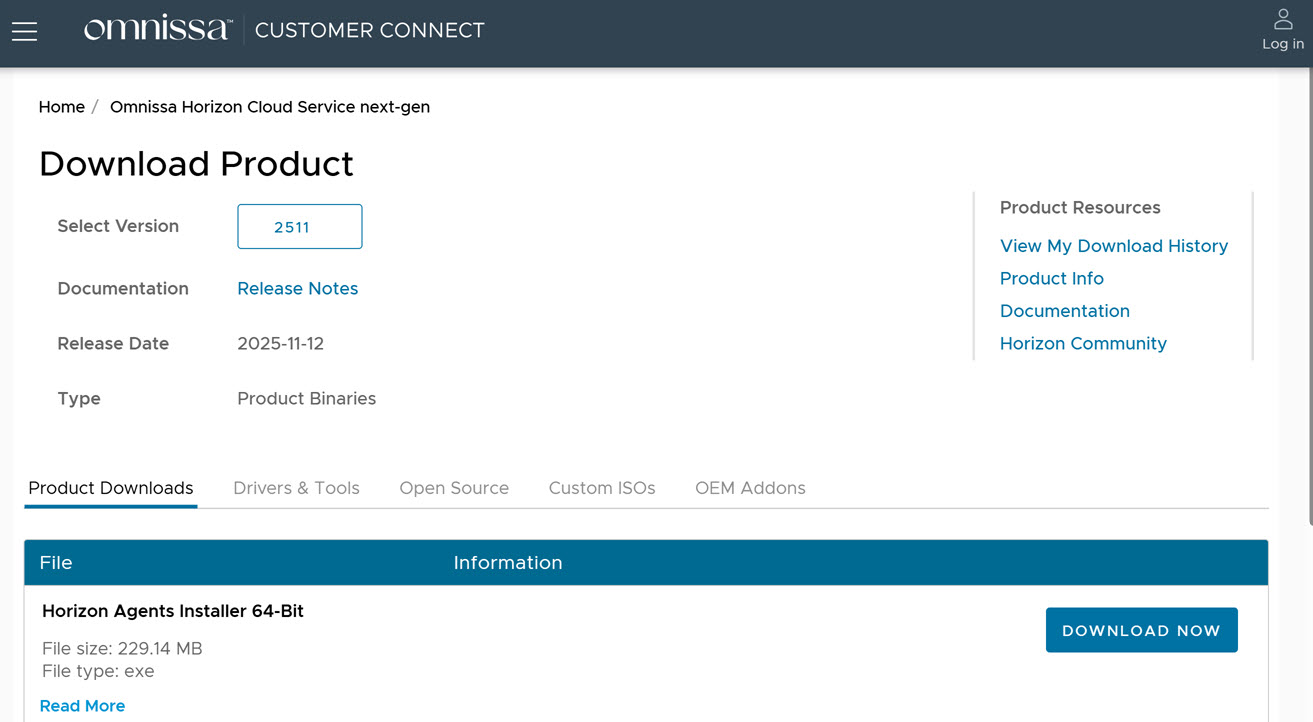
Use this HAI agent wherever the term agent is referred to in this set of instructions.
Create a Virtual Machine for Cloning
The first step in the process of deploying a pool of cloned desktops is to create a virtual machine in vSphere and install and configure the operating system. You'll accomplish that by completing the following actions.
Be sure to use the correct version product documentation when using the following links. For example, if you are using Horizon version 2512, use the version selector to display that version of the product documentation page.
-
Create a Windows virtual machine (VM) in vSphere from scratch or by cloning an existing VM. This page describes creating a VM from scratch. For instructions, see Create a Windows Virtual Machine in vSphere in Horizon product documentation.
-
Create a virtual machine in vSphere to use virtualization-based security (VBS). Using a virtual machine enabled with VBS provides better protection from vulnerabilities within and malicious exploits to the operating system. For instructions, see Create a Windows Virtual Machine with Virtualization-Based Security in Horizon product documentation.
-
After you create a virtual machine, you must install a guest Windows operating system. For instructions, see Install a Guest Windows Operating System in Horizon product documentation.
-
Prepare the guest Windows operating system for remote desktop deployment. For instructions, see Prepare a Guest Windows Operating System for Remote Desktop Deployment in Horizon product documentation.
-
Use the operating system optimization tool to optimize guest Windows operating system performance for remote desktop deployment. While optimization is optional, taking some or all of these steps will improve your performance and VM consolidation significantly, leading to a lower cost-per-desktop. For instructions, see Optimize Guest Windows Operating System Performance in Horizon product documentation.
-
To use a supported Windows Server virtual machine as a single-session virtual desktop (rather than as an RDS host), you must perform certain steps before you install Horizon Agent in the virtual machine. You must also configure Horizon Console to treat Windows Servers as supported operating systems for Horizon desktop use. For instructions, see Prepare Windows Server Operating Systems for Desktop Use in Horizon product documentation.
-
For published desktops and applications, and for virtual desktops that are deployed on single-user virtual machines that run Windows Server, scanner redirection requires that you install the Desktop Experience feature on the RDS hosts and the single-user virtual machines. For instructions, see Install Desktop Experience on Windows Server in Horizon product documentation.
-
Install the HAI agent that you downloaded in the Download the HAI Agent procedure early on this page.
The instant clone agent is not selected by default when you install the HAI agent. Ensure that you select the Instant Clone Agent option when preparing the Golden Image for instant clone pool.
Prepare the Virtual Machine as a Golden Image for Instant Clone Pools
When using a golden image for instant clone pools, ClonePrep is the supported customization mechanism; SysPrep is not supported with instant clones.
Perform the following tasks, using the linked instructions from Horizon product documentation. Be sure to use the correct version product documentation when using the following links. For example, if you are using Horizon version 2512, use the version selector to display that version of the product documentation page.
-
Create a Virtual Machine for Cloning as described above.
-
Increase the Timeout Limit for ClonePrep Customization Scripts on a Windows Machine.
-
Optimize the OS by removing packages that are not needed. See Omnissa Horizon Windows OS Optimization Tool in Horizon product documentation.
-
Generalize the Windows VM and restart the VM to verify that the Windows boot and load process is working as expected. Ensure that no updates, configurations or other such actions are pending.
-
Shut down the VM and take a snapshot.
Prepare a Virtual Machine as a vSphere Template for Full Clone Pools
Perform the following tasks, using the linked instructions from Horizon product documentation. Be sure to use the correct version product documentation when using the following links. For example, if you are using Horizon version 2512, use the version selector to display that version of the product documentation page.
-
Create a Virtual Machine for Cloning as described above.
-
Optimize the OS by removing packages that are not needed. See Omnissa Horizon Windows OS Optimization Tool in Horizon product documentation.
-
Generalize the Windows VM and restart the VM to verify that the Windows boot and load process is working as expected. Ensure that no updates, configurations or other such actions are pending.
-
Create a new local administrator account (other than the built-on Administrator account) for the VM.
-
Shut down the VM and take a snapshot.
-
Create a vSphere customization spec. For instructions, see Create and Manage Customization Specifications for Windows and Linux in vSphere product documentation.
-
Clone the prepared VM using the customization spec and then validate the customization's success.
Note: If customization fails, review the sysprep logs at the following location and refer to appropriate documents to resolve any failures:
C:\windows\system32\sysprep\panther\setuperr.log -
Shut down the newly cloned VM and convert this VM to template. For instructions, see Creating Virtual Machine Templates for Full-Clone Virtual Desktops in Horizon product documentation.
Obtain Licensing for Microsoft Windows Operating Systems
The final step in preparing the Golden Image is to obtain your own licensing for the Microsoft Windows operating systems. The required licensing depends on your required use.
Horizon Cloud does not provide any guest operating system licensing, which is required for the Microsoft Windows operating systems that you use with the Horizon Cloud workflows.
You must have valid and eligible Microsoft licenses that entitle you to create, perform workflows on, and operate the Windows-based desktop VMs and RDSH VMs that you choose to use in your Horizon Cloud tenant environment.
What to do next
The next step in the process is to add the image. See Add and Publish an Image for vSphere Provider.
Was this page helpful?