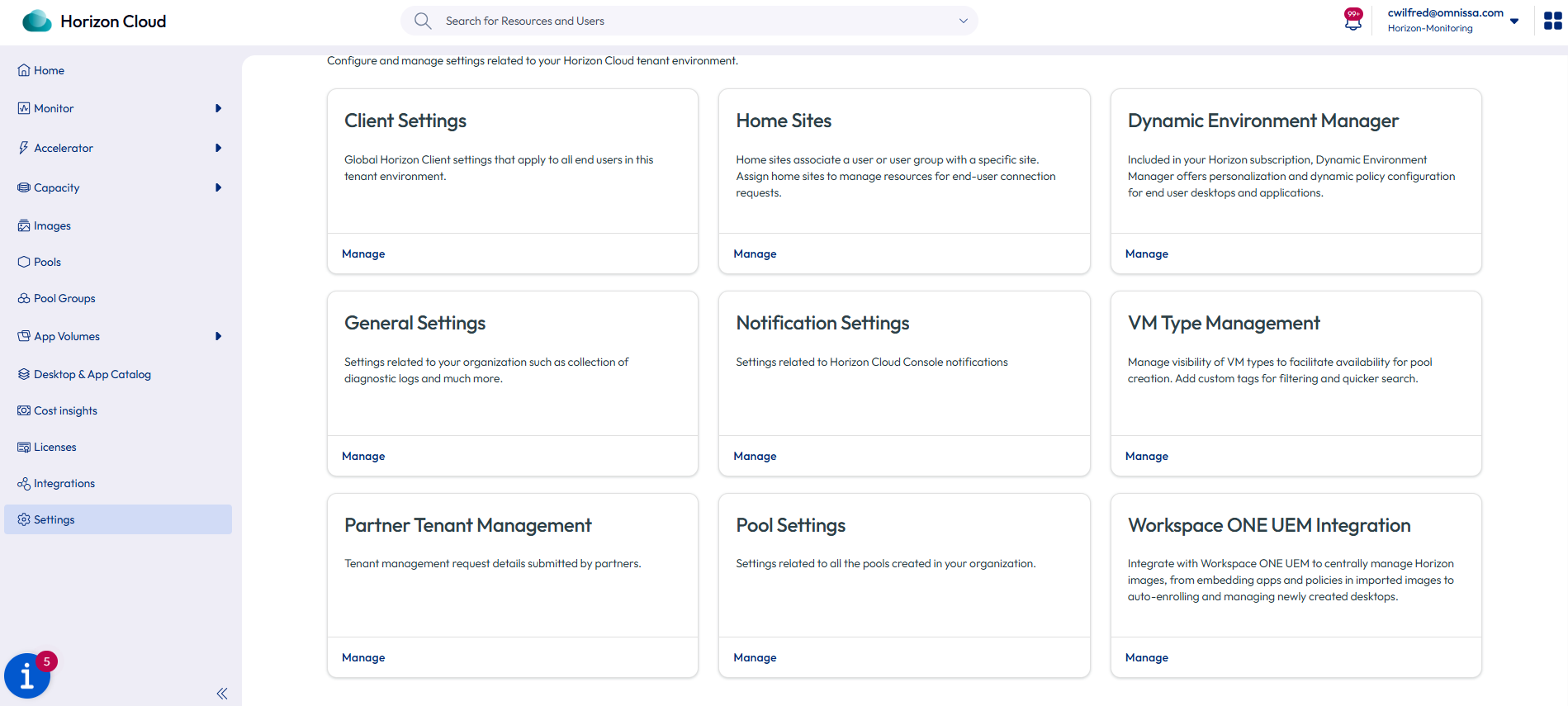
You can configure Workspace ONE Unified Endpoint Management (UEM) integration to enable centralized management of virtual desktops. To access UEM integration settings, in the Horizon Universal Console, select Settings and then click Manage in the Workspace ONE Unified Endpoint Management (UEM) Integration Settings tile.
Configure UEM Environment Settings
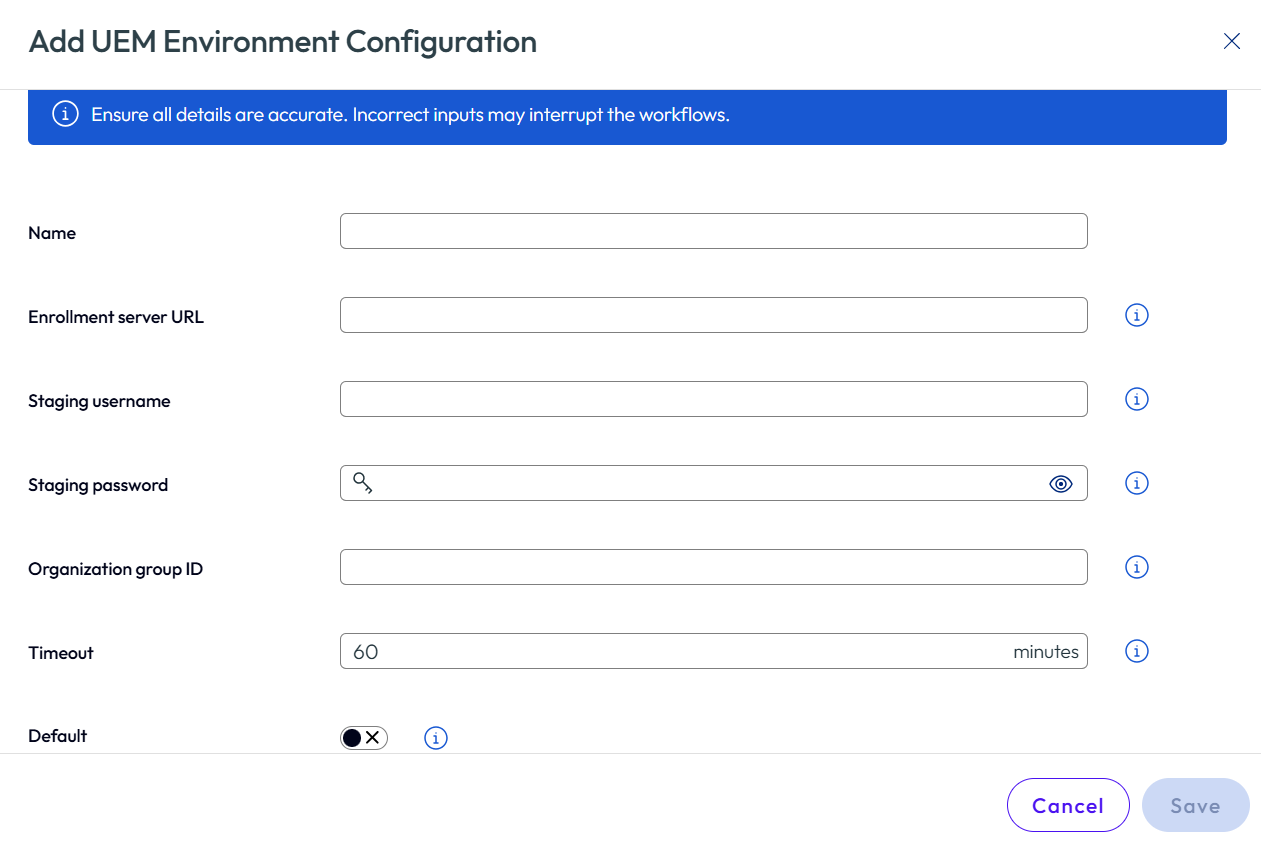
UEM Environment settings define the enrollment configuration that will be used during image workflows.
-
Select the UEM Environments tab.
-
Click Add.
-
Provide the required configuration details.
-
(Optional) If multiple UEM environments are configured, select Default to designate one as the default environment.
-
Click Save.
The configured UEM environments are available for selection during the image creation workflow.
Configure UEM OAuth Configuration Settings
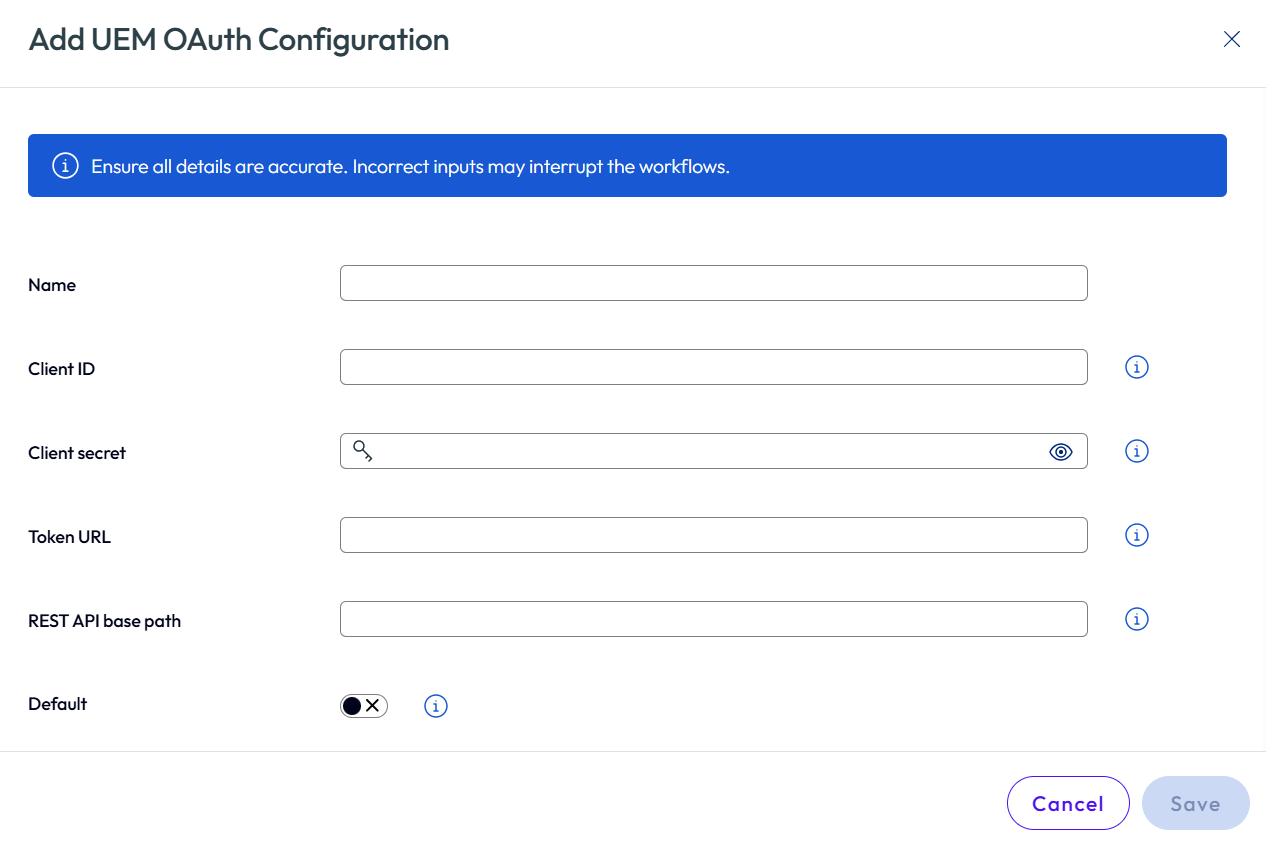
OAuth configuration settings are required to authenticate and authorize communication with UEM.
Procedure
-
Select the OAuth Configurations tab.
-
Click Add.
-
Provide the required configuration details.
-
(Optional) If multiple OAuth configurations are configured, select Default to designate one as the default configuration.
-
Click Save.
The configured OAuth settings are available for selection during the image creation workflow.
Note:
- UEM environment and OAuth configurations are typically set up once.
- The values entered here are reused during image creation when the Manage with UEM option is selected.
- If multiple configurations exist, the default configuration is preselected in the image workflow.
- When you add a version to an existing UEM-managed image, the configurations used by the previous version are preselected instead of the default configurations. You can select different ones.
IMS Integration Role — Required Permissions
Create a new IMS integration role in UEM with the following permissions.
| Category | Permission Level |
|---|---|
| API > REST > Apps | Read |
| API > REST > Devices > REST API Devices Write | Edit |
| API > REST > Devices > REST API Devices Execute | Edit |
| API > REST > Devices > REST API Devices Read | Read |
| API > REST > Groups | Read |
| API > REST > Profiles | Read |
| Apps & Books > Internal Apps | Read |
| Apps & Books > Public Apps > Public Applications View | Read |
| Apps & Books > Purchased Apps > Purchased Applications View | Read |
| Device Management > Device Details > Device Wipe | Edit |
| Device Management > Device Details > Workflows | Read |
| Device Management > Profiles > Baselines | Read |
| Device Management > Profiles > View > Profiles View | Read |
| Device Management > Profiles > View > Profile Read Only | Read |
| Device Management > Scripts | Read |
| Device Management > Sensors | Read |
| Freestyle | Read |
Troubleshooting
Validate OAuth Token Configuration
If you encounter authentication issues, run the following cURL command with the correct values for TOKEN_URL, CLIENT_ID, and CLIENT_SECRET. A successful response will return an access_token.
curl --location '<TOKEN_URL>' \
--header 'Content-Type: application/x-www-form-urlencoded' \
--header 'Authorization: Basic Og==' \
--data-urlencode 'grant_type=client_credentials' \
--data-urlencode 'client_id=<CLIENT_ID>' \
--data-urlencode 'client_secret=<CLIENT_SECRET>'
Example: TOKEN_URL = https://na.uemauth.workspaceone.com/connect/token
Was this page helpful?