You can use the Horizon Universal Console to manage general settings, which are settings related to your organization. To do so, click Settings from the Horizon Universal Console and then click Manage in the General Settings section of the Settings page.
Configure the Horizon Cloud Console Timeout Period
Since many tasks take longer than the default Horizon Cloud Console timeout period, you can configure the console timeout period to suit the needs of your organization.
-
In the Horizon Universal Console, select Settings > General and then select Manage from the General Settings tile.
-
On the General Settings page, specify a value of between 30 and 180 minutes in the Horizon Cloud Console timeout field.
Allow or Disallow Omnissa Operations to Collect Diagnostic Logs
When you log in to the Horizon Universal Console or you perform the initial onboarding to Horizon Cloud, you are presented with a dialog box explaining the purpose of this feature. Providing your acknowledgment opts you in to the feature, allowing Omnissa Operations to collect diagnostic logs from your VMs. You can choose to opt-out of the feature at any time.
Before proceeding, review the background information about diagnostic logs. Refer to Obtaining Diagnostic Logs.
-
On the General Settings page, turn on the Enable access to diagnostic logs option.
-
Click I Understand to the Omnissa Operations team to generate and access diagnostic logs on VMs as required to help resolve a specific issue.
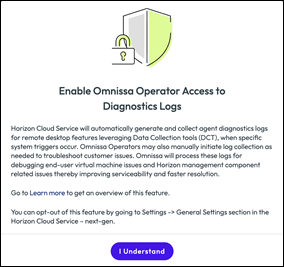
After you click I Understand, if you decide to disallow Omnissa Operations from generating and collecting diagnostic logs, you can select to disallow access.
Note: For Microsoft Azure Edges, creating a pool, by default, allows Omnissa Operations access to diagnostic logs on VMs, unless you opt out. You are notified by email and by notification. Notifications are available by selecting the bell icon in the Horizon Cloud banner.
Configure Microsoft Azure Key Vault Settings
For Microsoft Azure Edges, you can configure the Microsoft Azure Key Vault Settings.
Azure Key Vaults are created when disk encryption is turned on for a pool in a Microsoft Azure Edge. By configuring Azure Key Vault Settings, you can enable the following Azure Key Vault settings:
- Soft delete (cannot be changed unless your tenant contains legacy Key Vaults. Once turned on, soft delete cannot be turned off.)
- Purge protection
- Retention period
- Enhanced Security Setting (If you turn on the recommended settings, the selections become read-only and cannot be turned off.)
- Permission model
- Azure role-based access control (RBAC)
- Vault access policy
- Allow network access
- Allow public access from specific networks and IP addresses
- Allow public access from all networks
- Permission model
-
In the Horizon Universal Console, select Settings > General and then select Manage from the General Settings tile.
-
On the General Settings page, configure the Microsoft Azure Key Vault Settings to suit the needs of your organization.
- Purge protection: Toggle on this option to retain keys for the configured retention period.
- Retention period: Define the number of days from 7 to 90.
- Permission model: Pools created in Horizon Cloud release 2601 or later use RBAC as the mandatory permission model. To migrate pool key vaults pre-existing the 2601 release to RBAC, select the Azure role-based access control option:
- Azure role-based access control (Recommended):
This permission model uses Azure IAM Access with assigned roles. If this is the only option available, it is selected and listed. The permission
Microsoft.KeyVault/vaults/secrets/deleteis mandatory for migration to this model. - Vault access policy: In this model, access is defined directly on the vault and managed separately from Azure RBAC. This option appears if any existing pool key vaults have Vault access policy enabled.
- Azure role-based access control (Recommended):
This permission model uses Azure IAM Access with assigned roles. If this is the only option available, it is selected and listed. The permission
- Allow network access:
- Allow public access from specific networks and IP addresses (Recommended)
- With this option, the key vaults have the Horizon Edge subnet whitelisted in the key vault firewall.
- The delete key vault secret is performed through the Horizon Edge.
- Allow public access from all networks
- Allow public access from specific networks and IP addresses (Recommended)
-
Click Save.
Migrate Pools Previously Created Without Azure RBAC
For Horizon Cloud pools without Azure RBAC created prior to release 2601 that you want to migrate to Azure RBAC, two options exist as follows:
-
If available, you can add the following permission:
Microsoft.Authorization/roleAssignments/writeIf you can view the preceding permission, you can add the permission in Microsoft Azure and save it to enable RBAC. Refer to To Use a Custom Role for Horizon Cloud App Registration in the Getting Started with Horizon Cloud guide and add
Microsoft.Authorization/roleAssignments/writeas an optional permission for Azure Custom Role. -
You can, instead, manually update the existing key vaults in the Microsoft Azure portal and select the model as RBAC here.
Was this page helpful?