If a newer version is available for your deployed Horizon 8 Edge Gateway, you can manually upgrade to the new version by following a sequence of steps shown in the Horizon Universal Console. You can determine if a new version is available for a deployed Horizon 8 Edge Gateway and use a sequence of steps that are described in the Capacity section of the Horizon Universal Console to upgrade to that new version.
If upgrade to a newer version of your Horizon 8 Edge Gateway fails, retry the upgrade as prompted and ensure that you do not delete the Horizon 8 Edge Gateway through the Horizon Universal Console.
Note: If you delete your Horizon 8 Edge Gateway through the Horizon Universal Console and if the Horizon 8 Edge Gateway has images created using the Horizon Cloud then those images will not be deleted automatically. You must manually remove those images from your private data center environment.
This workflow is available for non-federated Horizon Edges that are deployed on vSphere.
For federated Horizon Edges, check the Horizon 8 edge details to get the latest download link. Follow the note below and deploy the newer version of the edge by following the deployment guidelines available for federated edges in this guide.
Note: If the Edge to upgrade is a connected Edge, turn off the older VM where the Edge is deployed and then proceed with the upgrade as described below. If upgrade is successful, you can discard the older version VM. If upgrade fails, retry the upgrade as prompted. If you do not want to retry, then power back on the VM so that Edge is live again and no data is lost.
Procedure
Use this procedure to upgrade to a new version Horizon 8 Edge Gateway.
-
Log in to Horizon Cloud. See Log in to Horizon Cloud.
-
From the Horizon Universal Console, click Capacity and from the resultant Capacity page click the Summary tab and review the information for the selected Edge; specifically the information in the Edge Gateway area of the page.
All edges that are available for upgrade are listed in the Maintenance tab in the Available Upgrades section. Upgrade information is also available on the details page for each individual Edge.
If a new version for the Edge Gateway is available, a message appears in the Edge Gateway area of the page stating that a new version n.n is available for upgrade for this Edge Gateway.
-
For the Pairing code option, click Retrieve code. Copy and paste to save the retrieved code to a safe place for future retrieval. You will need this pairing code in a subsequent step.
-
For the OVA Appliance option, click Download. Take note of the OVA download name and location for future retrieval. You will need this OVA appliance in a subsequent step.
-
To proceed with upgrade for the specified Edge Gateway, click the Maintenance tab on the Capacity page and then click Upgrade for the specified Edge Gateway.
-
Follow the on-screen instructions to access the OVA appliance, deploy the Edge Gateway appliance, and connect to Horizon Cloud as shown in the following sample screen.
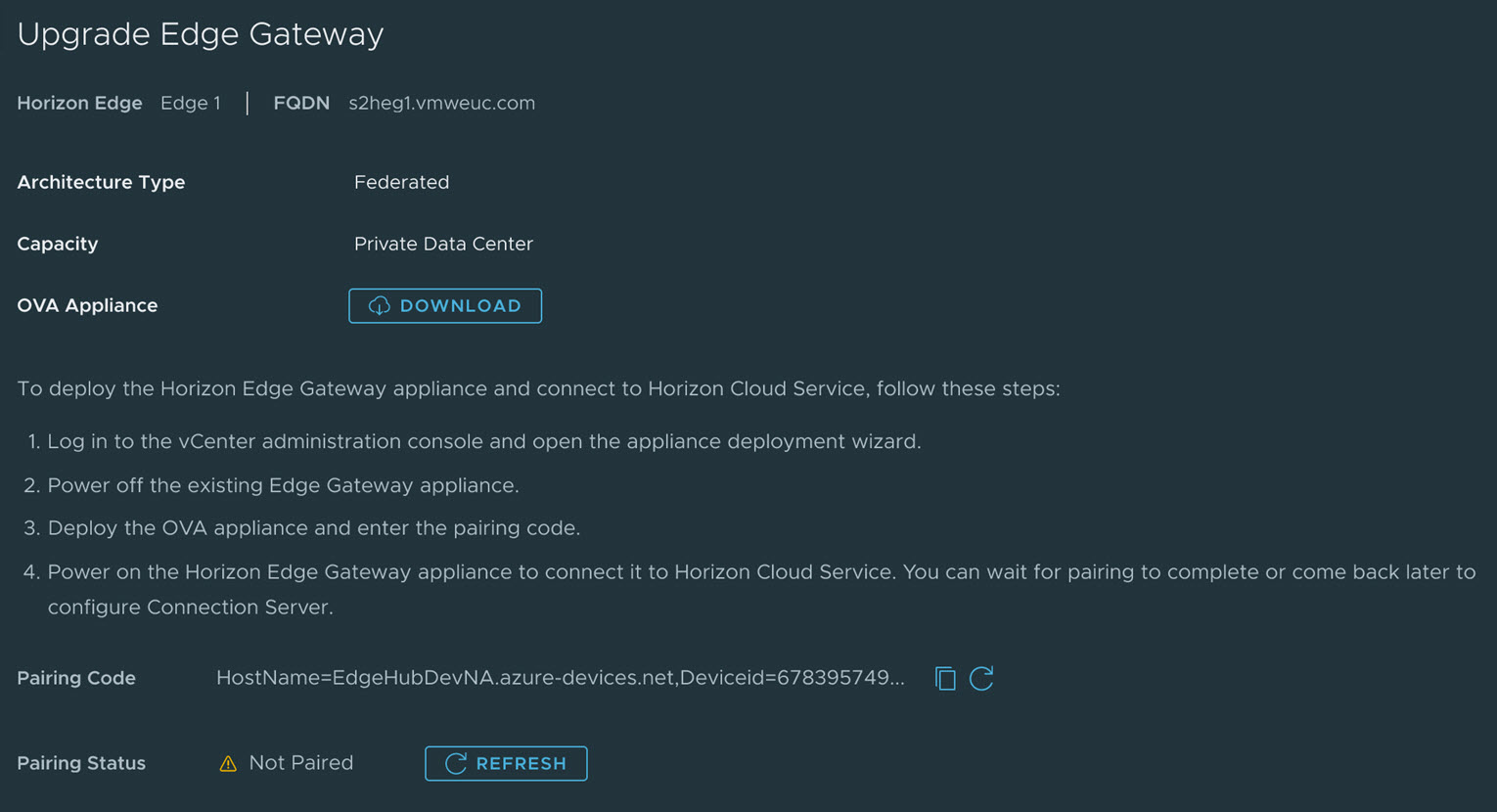
-
When upgrade is complete, the edge is no longer shown as available for upgrade on the Maintenance tab and the upgrade banner message is no longer visible.
As stated earlier, if upgrade is successful you can discard the older version VM. If upgrade fails, retry the upgrade as prompted. If you do not want to retry after a failed upgrade, then power back on the VM so that the Edge is live again and no data is lost.
Was this page helpful?