When you complete the Add Pool workflow to create a pool for the specified edge type, the system starts provisioning VMs for that pool. You have many ways that you can then manage the provisioning of VMs for that pool in the Horizon Universal Console. For example, if you realize that you made an error in how you configured the pool, you can cancel the pool instead of waiting for provisioning to complete. Other options are available, too.
Enable Pool Provisioning
-
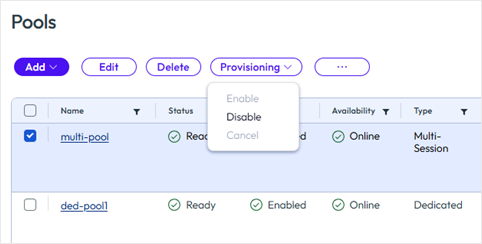
Why Perform This Task: To allow a pool to expand or shrink. This option allows you to explicitly allow VM provisioning to occur on a pool for expanding and shrinking as needed.
-
How to Perform This Task: On the Pools page, when pool provisioning is listed as Disabled, you can activate pool provisioning to allow a pool to begin to expand or shrink, select Provisioning > Enable.
-
Result: The pool starts to expand or shrink depending on demand.
Disable Pool Provisioning
-
Why Perform This Task: To stop new VMs from being provisioned on a specific pool. This option allows you to explicitly prevent the provisioning of VMs on that pool until provisioning is activated again with the Enable option.
-
How to Perform This Task: On the Pools page, when pool provisioning is listed as Enabled, select Provisioning > Disable.
-
Result: The provisioning of new VMs stops and the status of the pool changes, such as to Partially Provisioned, Ready, or Error. When you implement this option, the VMs that are in a provisioning or customizing state continue processing.
Cancel Pool Provisioning
-
Why Perform This Task: To save time by stopping the pool provisioning process, which can sometimes take a very long time. You might realize that you made a mistake in how you provisioned a pool. You can cancel pool provisioning, attempt to fix the configuration issue, and re-provision the pool.
-
How to Perform This Task: On the Pools page, while a pool displays the status of Expanding, select Provisioning > Cancel.
-
Result: The provisioning of VMs stops immediately and the status of the pool changes, such as to Partially Provisioned, Ready, or Error. The VMs that are in a provisioning or customizing state are deleted.
Retry Pool Provisioning
If a single-session or multi session pool provisioning fails, the pool might have encountered one or more errors during the provisioning process. You can resolve the errors and retry the provisioning of the pool. For a specific example of a pool provisioning error, refer to Pool Details in Horizon Cloud.
Procedure
-
From the Horizon Universal Console, select Pools from the left menu.
-
Locate the Pool that shows an Error status. Click the tooltip beside the Error status of the failed pool on the Pools page.
-
Select View All to view the complete list of errors. The View All button is shown when there are more than two errors.
-
Resolve the errors and click Retry.
-
Click View Logs to navigate to the Activity Log page.
Manage Workspace ONE UEM Enrollment for Pools
When you enable Manage with UEM during pool creation, Horizon Cloud attempts to automatically enroll newly provisioned VMs into Workspace ONE UEM when an end user logs in for the first time. The enrollment status of each VM is displayed in the Horizon Cloud console and is updated asynchronously.
The following enrollment states can appear in the user interface:
- Yes: The VM is successfully enrolled and managed by Workspace ONE UEM.
- No: The VM is not enrolled in Workspace ONE UEM.
- Enrolling: Enrollment has been initiated and is currently in progress.
- Enrollment failed: Enrollment was attempted but did not complete successfully.
Enrollment failures can occur for various reasons, such as temporary network issues, incorrect UEM credentials, or inability to reach the Workspace ONE UEM server. Horizon Cloud allows administrators to retry enrollment for such VMs directly from the console.
Note: Floating single-session desktops are deleted and recreated at each logout, stale records may remain in the Workspace ONE UEM console. Administrators should implement a process to periodically remove these inactive records to maintain environment hygiene.
Re-enrollment Considerations for Workspace ONE UEM Pool Enrollment
If one or more VMs fail to enroll in Workspace ONE UEM, you can retry enrollment without recreating the pool or the virtual machines. Re-enrollment can be initiated by using the Pool UI. The following behaviors apply to re-enrollment of VM for pools:
-
If you select a mix of VMs (enrolled, not enrolled, and enrollment failed), Horizon Cloud processes only the failed VMs. Other VMs are ignored.
-
If UEM settings were added to a pool after initial creation, VMs that were not previously enrolled can be enrolled using the same workflow, provided all prerequisites are met.
-
If a VM is already enrolled in Workspace ONE UEM, the re-enrollment option is disabled or ignored for that VM.
-
Stale records of Floating desktops may remain in the Workspace ONE UEM console. Administrators should implement a process to periodically remove these inactive records to maintain environment hygiene.
-
There is no fixed limit on the number of re-enrollment attempts. Administrators can retry enrollment after correcting issues such as credentials or network connectivity.
-
Detailed enrollment activity and device-level information are available in the Workspace ONE UEM console. Horizon Cloud logs show high-level enrollment actions and progress.
-
Re-enrollment does not remove an existing UEM enrollment. Removing enrollment must be done from the Workspace ONE UEM console.
-
Enrollment status updates in Horizon Cloud are asynchronous and may take time to refresh.
-
Editing UEM settings in a pool affects only newly created VMs and does not retroactively change existing VMs.
-
All prerequisites for UEM enrollment must still be met (Horizon Agent, Intelligent Hub, correct versions, and valid UEM credentials).
-
For bulk re-enrollments, the re-enrollment action applies only to VMs with an Enrollment failed status.
-
For bulk re-enrollments, VMs that are already enrolled (Yes) or currently enrolling (Enrolling) are ignored, even if selected.
Note: For bulk enrollments, you can use the VM tab to enroll the VMs that were not enrolled earlier, as long as all specified prerequisites are met.
Re-enrolling Failed VMs from the Pools Page for Workspace ONE UEM Enrollment
Use the following procedure in the Horizon Universal Console under Pools to re-enroll failed VMs.
-
From the Horizon Universal Console, select Pools.
-
Click on the Pool Name to open the Pool Overview.
-
Click the VMs tab.
-
Locate VMs with the Enrollment failed status in the UEM Managed column.
-
Select one or more failed VMs. You can select additional VMs with other statuses, but only failed VMs will be processed. VMs that were not enrolled earlier will also be enrolled as long as all specified prerequisites are met.
-
Click More and then select Enroll to Unified Endpoint Management. A confirmation dialog box will open and list only the VMs that are eligible for re-enrollments (VMs with enrollment failures).
-
Review the list and click Enroll to proceed.
After confirmation, the following occurs:
- Selected VMs will move to the Enrolling status.
- Horizon Cloud will display enrollment progress.
- Enrollment is typically completed within a few minutes, but may vary based on network conditions.
Bulk Re-enrollment from the Pools Overview Page for Workspace ONE UEM Enrollment
For environments with many failed VMs, Horizon Cloud provides a bulk re-enrollment option.
-
From the Horizon Universal Console, select Pools and then click on the Pool Name to open the Pool Overview.
-
On the Overview tab, scroll to locate the Manage with UEM section.
-
Click Re-enroll failed VMs. This option automatically targets all VMs with Enrollment failed status in the selected pool. This option does not include VMs that are already enrolled, enrolling, or not enrolled. A confirmation dialog appears showing the list of failed VMs that will be re-enrolled.
-
Click Enroll to start the bulk re-enrollment process. Once initiated, each VM transitions to the Enrolling status. Enrollment results will be reflected in the UEM Managed column.
Was this page helpful?