The Overview tab of a pool group serves as the centralized location for managing the pool group and its associated resources.
Accessing the Pool Group Overview Tab
-
From the Horizon Universal Console, select Pool Groups in the left menu.
-
Select the name of a pool group to see an overview of the details.
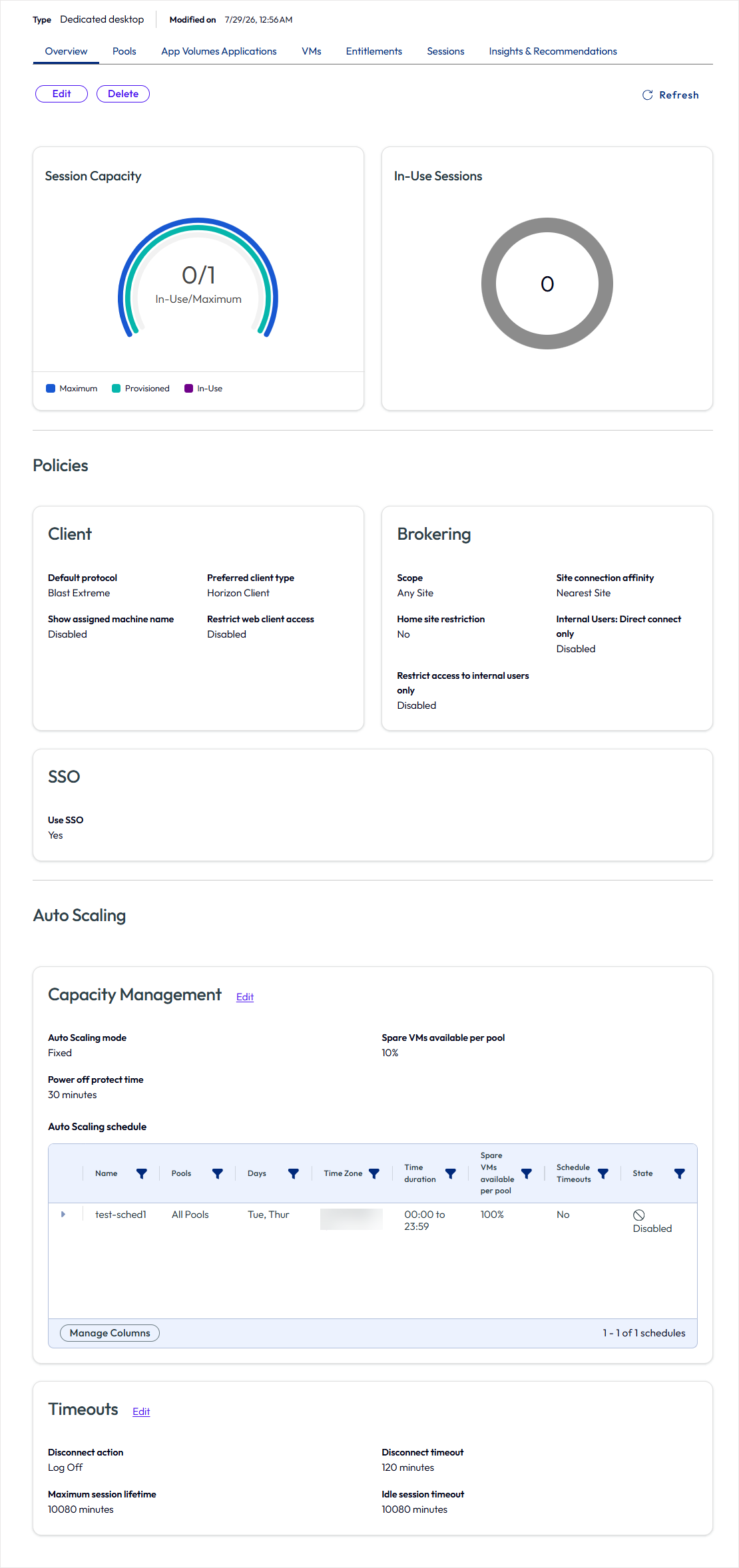
Pool Group Management Capabilities
The specific tabs and management options available within a pool group vary based on the pool group type (e.g., Desktop, Published Application, or Published Desktop & Application).
| Tab | Management Actions and Information |
|---|---|
| Overview | View high-level metrics and configurations, including Session Capacity, In-Use Sessions, Policies, Power Management, and Timeout Handling. |
| Pools | View, add, or remove pools from the group. |
| Applications / App Volumes Applications | (If applicable) View, add, or remove applications associated with the pool group. |
| VMs | (If applicable) Perform operations on virtual machines, such as: • Export, view, assign, or unassign VMs. • Reinstall or re-pair the agent. • Select a VM Name to open its unique VM Card for granular management. |
| Entitlements | View entitlements by user or user group, assign desktops and applications, or remove existing user permissions. |
| Sessions | Monitor active user sessions. Use the checkboxes to Log Off (end the session) or Disconnect (close the connection while maintaining the session). |
| Insights & Recommendations | Shows the same cost, savings, consumption-trend, and recommendation data for that pool group that you would otherwise find in Cost insights page, scoped to just that pool group. |
Edit or Delete a Pool Group
The Edit and Delete options within the Horizon Universal Console allow you to manage the lifecycle and configuration of existing pool groups.
Selecting a pool group and choosing Edit opens a set of configuration options consistent with the initial creation process. For detailed descriptions of these settings, refer to Create or Edit a Pool Group.
Note: For specific instructions on configuring direct connect and internal user options, refer to Configure a Pool Group Client as Direct Connect Only.
When you select a pool group and choose Delete, you must specify when the deletion should occur:
- Immediately Delete: Initiates the deletion process for the pool group and its resources right away.
- Delete After active sessions end: Waits for all current user sessions to terminate before finalizing the deletion.
Note:
- The pool group remains visible in the console with a Pending Deletion status until the process is complete. This duration varies based on the chosen deletion timing and the number of active sessions.
- When the pool group is deleted, its ID name will remains visible in the Pool Groups dropdown so that you can continue to view historical cost data for that group.
You can also control how and when resources are powered on or off by following the guidance in Managing Power Options for Pools and Pool Groups.
Was this page helpful?