This documentation page describes the steps for adding an SSO configuration that configures use of the True SSO feature with a Horizon Edge. You use the Horizon Universal Console to add the SSO configuration and associate that SSO configuration with the Horizon Edge.
Add an SSO configuration for each domain forest from which users will launch desktops that use SSO.
You perform these steps using the Horizon Universal Console.
You can create multiple True SSO configurations for the same forest. A domain can be associated with only one True SSO configuration (or in other words, added to only one True SSO configuration).
In this scenario, when a user launches a desktop or remote application, the system chooses the True SSO configuration to use based on the following criteria in preference order:
- A True SSO configuration that contains the user's domain.
- A True SSO configuration from the same forest as the user's domain.
Note: As described in Supported CA Types for Using SSO with a Horizon Edge, for the True SSO feature, the Horizon Universal Console uses the label Microsoft CA. When you see the label Microsoft CA, take note that label is associated with the True SSO feature.
Prerequisites
Verify that you or your team has completed the following tasks.
- Create domain enrollment accounts in the Active Directory domains that you intend to select in this SSO configuration. As described in the page Setting up your Active Directory Domain, a domain enrollment account is an enrollment service account that the True SSO feature uses to obtain short-term certificates from Microsoft AD CS (Active Directory Certificate Services). True SSO uses the certificates for authentication, to avoid prompting users for Active Directory credentials. You might see the console using the terms domain enrollment account, enrollment service account, and domain enrollment service account interchangeably.
- Ensure that you have at least two domain joined Enterprise CAs configured and available for True SSO.
- Create a Universal Security Group in the Active Directory domains and add those domain enrollment accounts to that group, as described in Set Up the Required Certificate Templates for True SSO with Horizon Cloud.
- Complete the steps to create the required templates in your Microsoft Enterprise Certificate Authority, as described in Set Up the Required Certificate Templates for True SSO with Horizon Cloud.
- For the Active Directory domains that you intend to select in this SSO configuration, specify the enrollment accounts within the Domain Enrollment Service Account section in the Active Directory domain registration, as described in Setting up Your Active Directory Domain.
- Decide which Horizon Edges you want to apply this True SSO configuration to. You will select the Horizon Edges within the console's Add SSO Configuration UI flow, described in the following steps.
Procedure
-
Click Integrations in the navigation bar.
-
Click Manage on the Identity and Access tile.
-
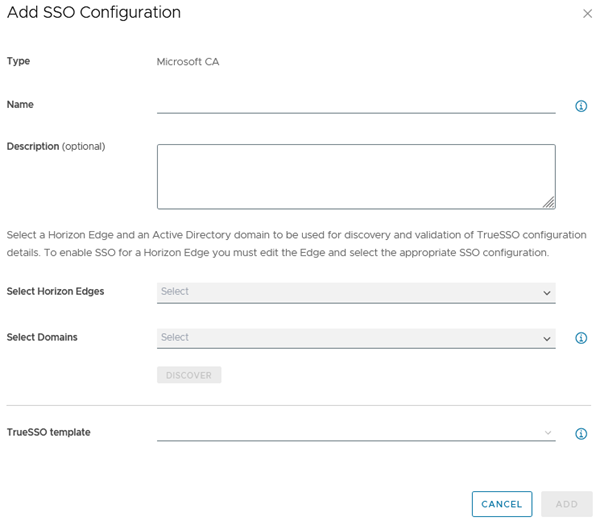
Click SSO Configurations, then select Add > Microsoft CA to navigate to the Add SSO Configuration page.
-
Add a unique Name for your SSO configuration.
-
Select a Horizon Edge from the Select Horizon Edges drop-down menu.
You must select at least one Horizon Edge.
-
Select the domains for your SSO configuration from the Select Domains drop-down menu and click Add.
You can add multiple domains for your SSO configuration. Domains must belong to the same AD forest.
In this menu, the console lists all of the domains that are registered to the environment (displayed on the console's Identity & Access page's Domains tab).
However, each domain you select for this new SSO configuration record must not already be used within another SSO configuration already saved to the system.
You must select a domain that is not already specified in another SSO configuration. The UI will validate on this fact when you click Discover, as shown in the following example.

-
Click Discover to validate your selections.
When you click Discover, the system validates on a number of the prerequisites described at the top of this page, such as:
- Are any of the selected domains already in use in another SSO configuration?
- Do the selected domains have enrollment service accounts specified in their domain registrations (registrations as listed the console's Identity & Access page's Domains tab)?
- Can the system locate the required certificate templates in the Microsoft Enterprise Certificate Authority that you or your team configured according to the requirements for True SSO? If the system's validation is successful for all of the domains, the UI makes available the following menus for your selections.
-
For the TrueSSO template and Enrollment agent template drop-down menus, either accept the default selection or select another template from either or both of the menus.
Note: If the two selected templates have any Certificate Authority instances in common, they are listed in the Certificate authorities drop-down menu.
-
Click Add to complete saving the new SSO configuration in the system.
Results
The system sends the SSO configuration to your selected Horizon Edges.
Note: Regarding the SSO Configurations page, True SSO configurations are listed on the page with "Microsoft CA" as the value for the Type column. Also, for Microsoft CA configurations, certificate authority mode and certificate expiry time do not apply, therefore, the "Certificate Authority Mode" and "Certificate Expiry Time" columns are left blank.
What to do next
Now that your SSO configuration is complete, you can associate that SSO configuration with a specific Horizon Edge. Select Capacity > Horizon Edges, select a Horizon Edge with which to associate your newly added SSO configuration, and click Edit. In the Edit Horizon Edge wizard, click Next for each step of the wizard until you reach the Horizon Edge Gateway section and select the Use SSO toggle to activate it. Select the name of your newly added SSO configuration and click Next as required to complete the wizard.
You can specify use of True SSO for the end-user desktops and remote applications that those Horizon Edges provide. Specifying use of SSO for desktops and remote applications is set at a pool-group level. Use the Horizon Universal Console to navigate to the relevant pool groups, and then edit the relevant pool groups to enable SSO on each pool group.
To use the console to verify the SSO configuration set on a specific Horizon Edge, view its details page by navigating to Capacity > Horizon Edges and selecting the Horizon Edge's name.
Was this page helpful?