You can edit the agent settings of an existing provisioning policy by changing individual agent settings or reverting agent settings back to their original defaults. When you edit an existing provisioning policy, applicable agent features are reinstalled.
For related information, see Customize default agent features for new provisioning policies for integrated Windows 365.
-
From the Horizon Universal Console, click Integrations > Windows 365 and then click View on the Windows 365 tile.
-
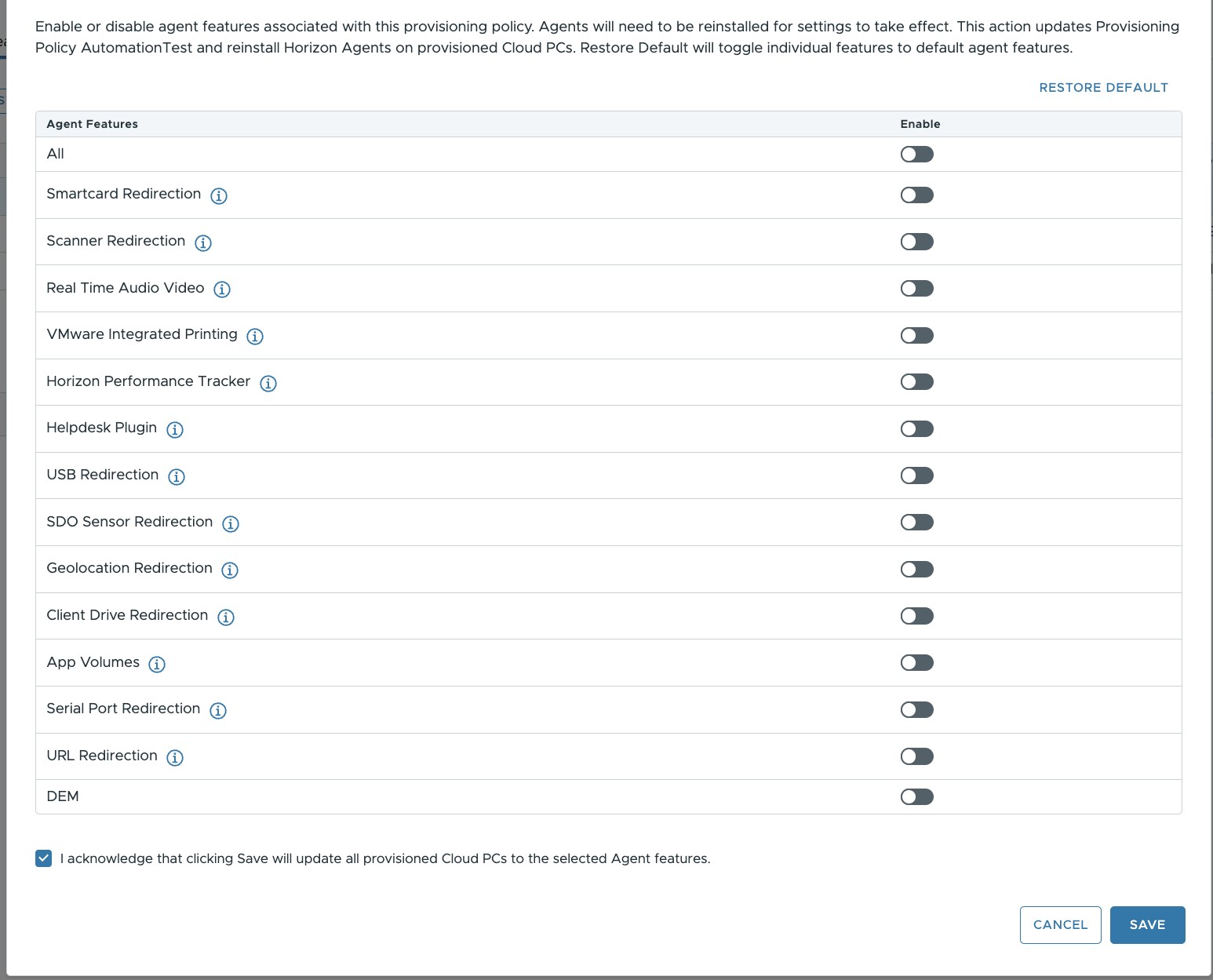
Click Default Agent Features. A sample page is shown below.
Note: After you have completed the Windows 365 integration, you can also use this page to edit the assigned agent features for a specific provisioning policy.
-
Use the Edit Provisioning Policy page toggles to specify the agent features that you want configured, and then click Save.
Alternatively, you can revert back to the default agent features settings by clicking Restore Defaults > Save.
Was this page helpful?