The reinstall feature allows you to uninstall the existing agent from the VM and reinstall the latest agent software. The reinstall feature provides a recovery mechanism for agent-update failures by forced installation and in special situations where you need to uninstall and reinstall the agent software, as described in the following use cases.
The following use cases illustrate when you might perform an agent reinstall.
- If the agent update on VMs, as described in Update Horizon Agent Software on Dedicated Desktops VMs, fails consistently.
- If you have an agent that you want to uninstall and reinstall because of operating system updates or device driver issues.
Note: When your Horizon Cloud environment has a first-gen migration that is not yet finalized, the system prevents running this reinstall agent procedure. After you click Agent > Reinstall, a message displays about finalizing the migration.
Procedure
-
In the Horizon Universal Console, navigate to the Pool Groups page.
-
Select VMs.
-
Select one or more VMs from the list.
-
Select Agent > Reinstall.
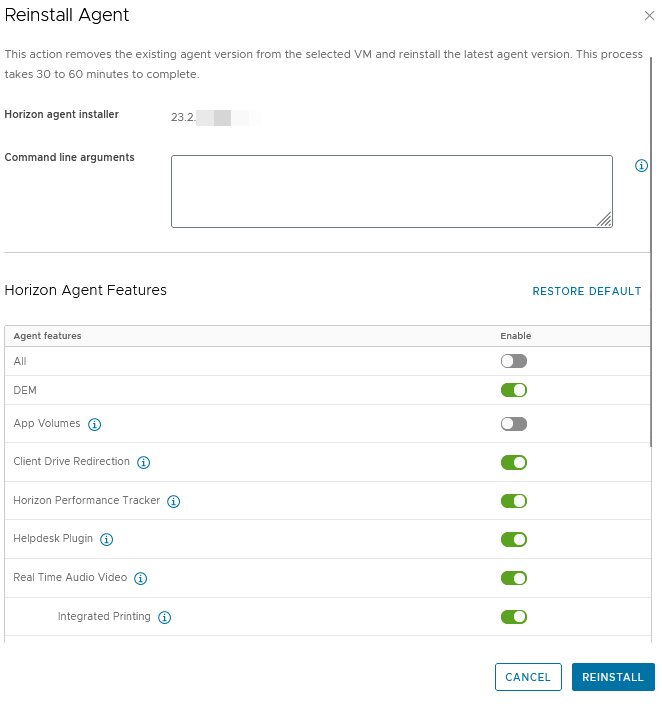
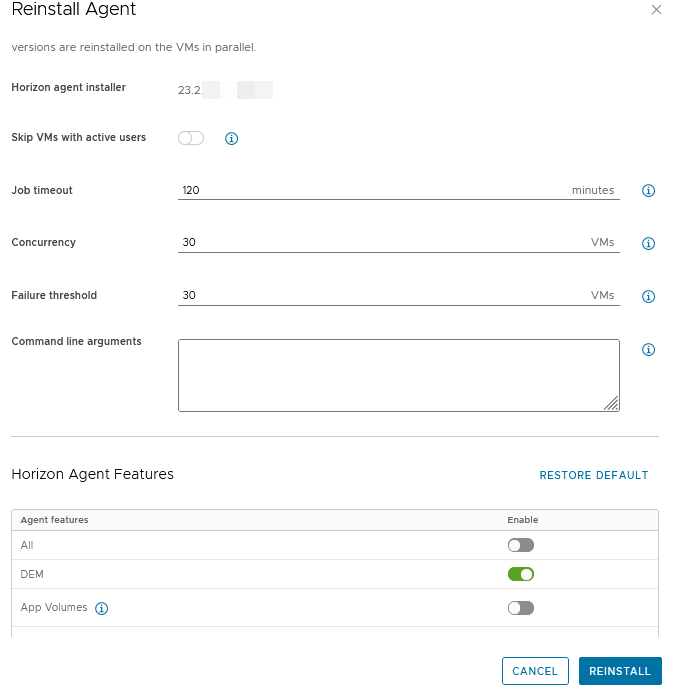
The Reinstall Agent page opens. The page prompts you for information. The prompts differ depending on if you selected one VM or multiple VMs.
-
Reinstall the Agent Page with a Single VM Selected
-
Reinstall the Agent Page with Multiple VMs Selected
-
-
Complete the Reinstall Agent form and click Reinstall.
Provide the appropriate responses to the following prompts that apply. The Command Line Arguments applies whether you selected a single agent or multiple agents. All other options apply only when you selected multiple agents.
Option Description Skip VMs with Active Users Select to skip the Horizon Agent reinstall for active or disconnected sessions. If this option is not selected, users logged in to VMs when the reinstall begins will receive a 5-minute warning and then be forcibly logged off. Job Timeout Set the time period over which you want the system to continue trying automatically to reinstall agents. If you want to run reinstalls only during a specific period, you can set a short time period even if you select multiple templates and VMs. One batch of VMs can take 20-60 minutes depending on the VM state and any other wait time and retries in process. For example, if you have more than 600 VMs to reinstall with 30 VMs as concurrency, then you would calculate the time period as follows: - Number of batches: 600/30 = 20 batches
- Job timeout: 20*60 = 1200 minutes
Concurrency Set a limit to the number of VMs that the system attempts the agent reinstall on simultaneously. This setting works in parallel with the Failure Threshold setting. Ideally, keep the Concurrency setting lower or equal to the Failure Threshold setting. Failure Threshold The number of VMs for which the agent reinstall is allowed to fail before the reinstall process is stopped. Setting this threshold prevents mass failures from occurring. When the reinstall process stops due to failed VM agent reinstalls, you might observe a number of failed VMs that is higher than the set Failure Threshold value. If you need to ensure that there will be fewer failures than the number specified for theFailure Threshold setting, then set the Concurrency value to 1. This also means that the agent reinstall process will take a long time as it will be reinstalling one VM at a time. It is recommended to set Concurrency and Failure Threshold appropriately for optimal results. Command Line Arguments In the Command Line Arguments text box, add any command-line options that might be relevant for this reinstall.
What to do next
The agent reinstall process runs in the background. You can view the progress of the process on the Activity Log page. See Monitoring Administrator and End User Activity from the Activity Log Page
.
Was this page helpful?