This documentation page describes how the Horizon Universal Console enables you to obtain license keys for your enterprise infrastructure products.
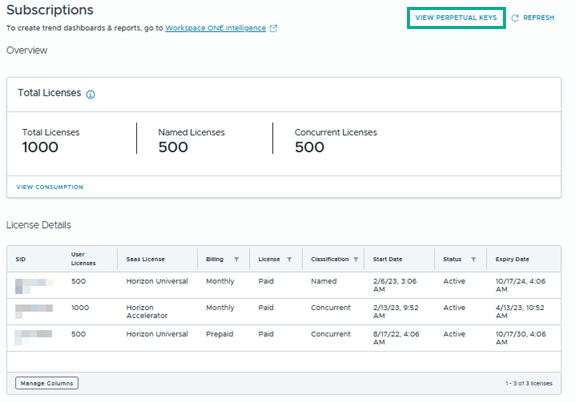
If your Horizon Cloud subscription includes Omnissa Enterprise products such as App Volumes Enterprise or ThinApp Virtual packager, and you log in to the Horizon Universal Console with the Administrator role, the console provides a link the Enterprise Infrastructure License Keys page from the Subscriptions page.
If you do not meet the preceding requirements, the console does not display the View Perpetual Keys link.
- Have the Administrator role
- Be an Omnissa Customer Connect user
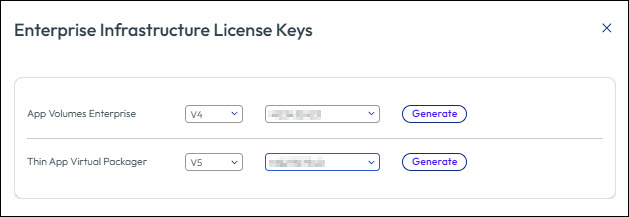
To generate a license key for a specific product, on the Enterprise infrastructure License Keys screen, select a version from the drop-down menu for that product, select the appropriate subscription identifier (SID), and click Generate. The key for that product appears.
Viewing or Copying a Key
Clicking View Perpetual Keys opens the Enterprise infrastructure License Keys screen, which allows you to view previously generated license keys. To view license keys, you must have the Administrator or Read-Only Administrator role.
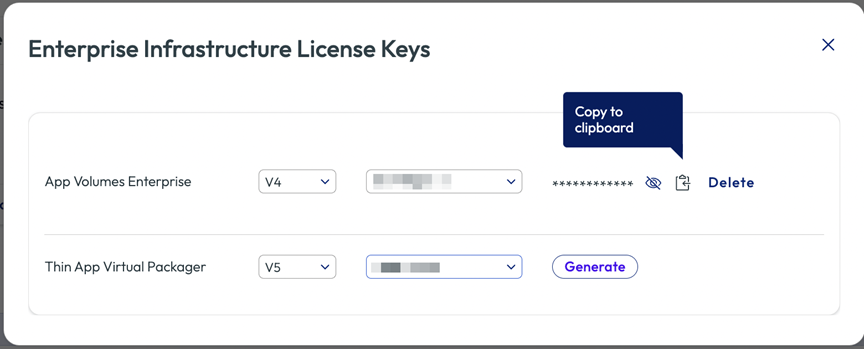
To view a generated key, click the eye icon next to the license key. To copy a generated key, click the Copy icon next to the license key.
Resetting a Key
When you generate a key, that key is valid up to the subscription end date at the time of generation. If you renew your subscription, you can no longer use that key because it has expired. You must reset the key and generate a new key.
To reset the key, click Delete next to the license key. The Generate button appears. See the above Generating a Key section.
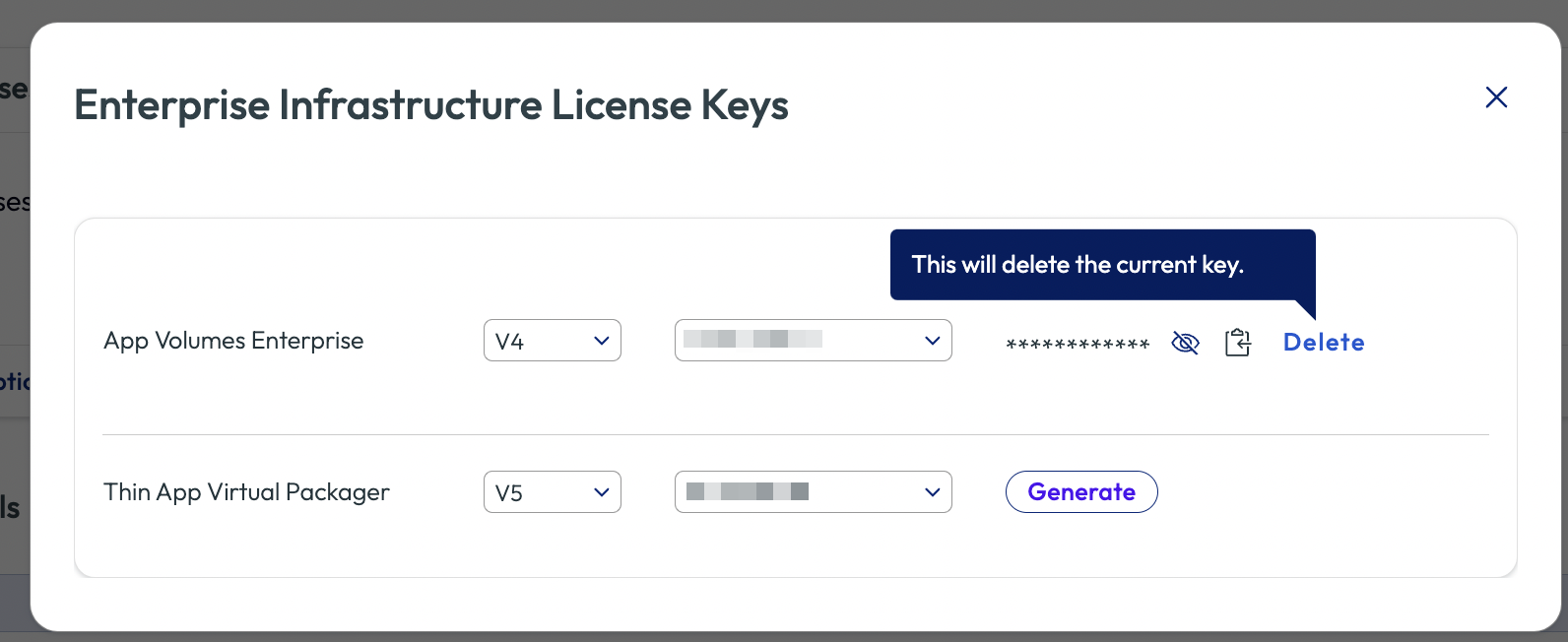
To view a license key, click the eye icon next to the license key. To copy the license key, click the Copy icon next to the license key. If the license key is not available, clicking View Docs opens KB article 6000014, which defines the process to obtain license keys.
Was this page helpful?