The following procedure describes how to Configure fault tolerance for a Horizon Edge that uses a Horizon 8 pod as its resource provider, where that pod is in a vSphere environment (an on-premises or all-in-SDDC deployment).
This procedure requires you to use vSphere Client to configure fault tolerance on the Horizon Edge Gateway appliance within the vSphere infrastructure.
Prerequisites
- Use a 10 Gigabit Etherent (10GbE) as a WAN transport.
- Deploy a Horizon Edge. See Deploy a Horizon Edge for Use with Horizon 8 Deployments and the Horizon Cloud Control Plane.
Procedure
-
Using vSphere Client, navigate to the Horizon Edge Gateway appliance VM and select Fault Tolerance > Turn On Fault Tolerance.
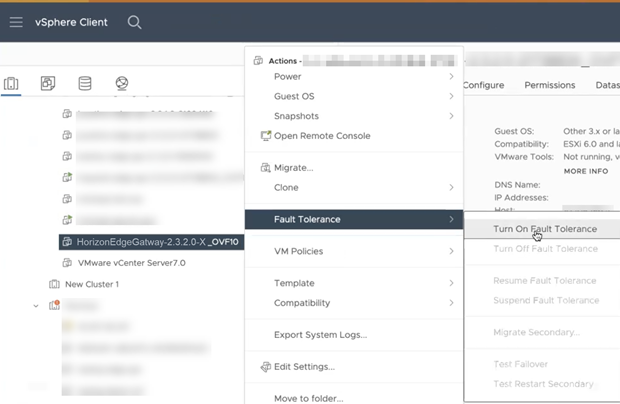
-
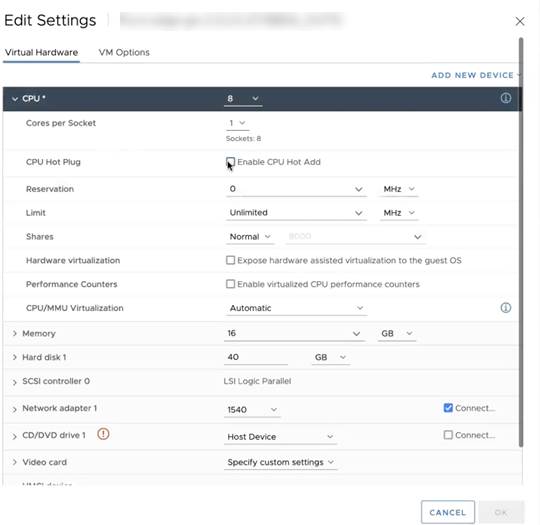
If an error appears about the hot CPU hot plug not being supported for the VM, turn the VM off and in the Edit Settings dialog box, select the Virtual Hardware tab to edit the configuration of the VM as follows.
-
Deactivate the CPU Hot Plug.
Expand the CPU node and, in the CPU Hot Plug section, deselect the Enable CPU Hot Add checkbox to deactivate it.
-
Deactivate the Memory Hot Plug.
Expand the Memory node, and, in the Memory Hot Plug section, deselect the Enable check box.
-
Select the Host Device for CD/DVD drive 1.
In the CD/DVD Drive 1 section, in the drop-down menu, select Host Device.
-
Click OK.
-
-
-
Enable Fault Tolerance for the VM by selecting the secondary datastore and clicking Next, selecting the secondary host and clicking Next, and then reviewing your selections and clicking Finish.
CAUTION:
Select a different datastore than you selected when you deployed the VM. Selecting the same datastore results in an error.
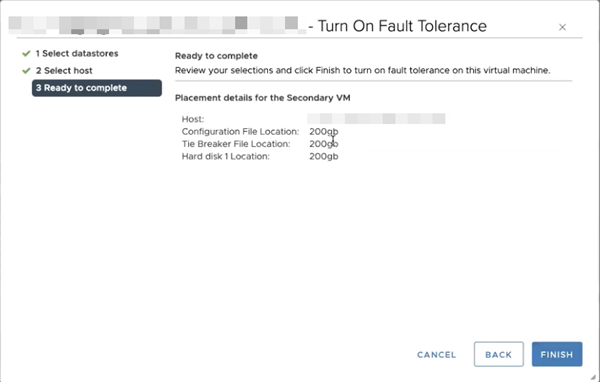
Fault tolerance is successfully enabled for the Horizon Edge VM.
-
Use vSphere Client to verify that fault tolerance applies across the hosts in the cluster.
-
In the left pane, select the host where you deployed the primary VM and in the right pane with Virtual Machines selected, confirm that the Horizon 8 Edge VM appears as a primary VM.
The name includes "primary" in parentheses. For example, the name might appear as "Example-2.3.2.0-XXX_OVF10 (primary)".
-
In the left pane, select the host where you deployed the secondary VM and in the right pane with Virtual Machines selected, confirm that the Horizon 8 Edge VM appears as a secondary VM.
The name is the same as for the primary VM, except the word "secondary" is in parentheses. For example, "Example-2.3.2.0-XXX_OVF10 (secondary)".
-
-
Power on the VM, enable SSH to it, and wait until all the pods come up and all the services start.
For information about enabling SSH, see Enable SSH Access for Horizon Edge
Results
With fault tolerance properly configured, the secondary VM takes over if the primary host becomes unavailable. Therefore, without any downtime, the switch occurs and all services continue running without issue.
If the host that contains the primary VM fails naturally, or you force the failure in a test environment, the following behavior applies.
- When you select the host where you deployed the primary VM, the Horizon 8 Edge VM now appears as a secondary VM. The name includes "disconnected" and "secondary" in parentheses. Based on the examples used previously in this procedure, the name appears as "Example-2.3.2.0-XXX_OVF10 (disconnected, secondary)"
- When you select the host where you deployed the secondary VM, the Horizon 8 Edge VM now appears as a primary VM. The name includes "primary" in parentheses. Based on the examples used previously in this procedure, the name appears as "Example-2.3.2.0-XXX_OVF10 (primary)"
Was this page helpful?