Horizon Cloud uses notifications to inform you of important events to be aware of.
Viewing Notifications
You can review notifications using Omnissa Connect. However, when you act on the notifications, use the Horizon Universal Console.
If you click View All Notifications from the bell icon located in the upper-right corner of any page, you are redirected to the My Notifications page in the Omnissa Connect console.
The My Notifications page displays all of your notifications, including notifications generated from other services.
To view only Horizon Cloud notifications, and remain within the Horizon Universal Console, click View Horizon Cloud Notifications to open the Notifications page in the Horizon Universal Console.
The following options are available on the Notifications page.
-
The History tab displays a list of notifications based on the notification filters. The filter settings are located above the notification list. You can filter notifications by type and time period (up to 90 days).
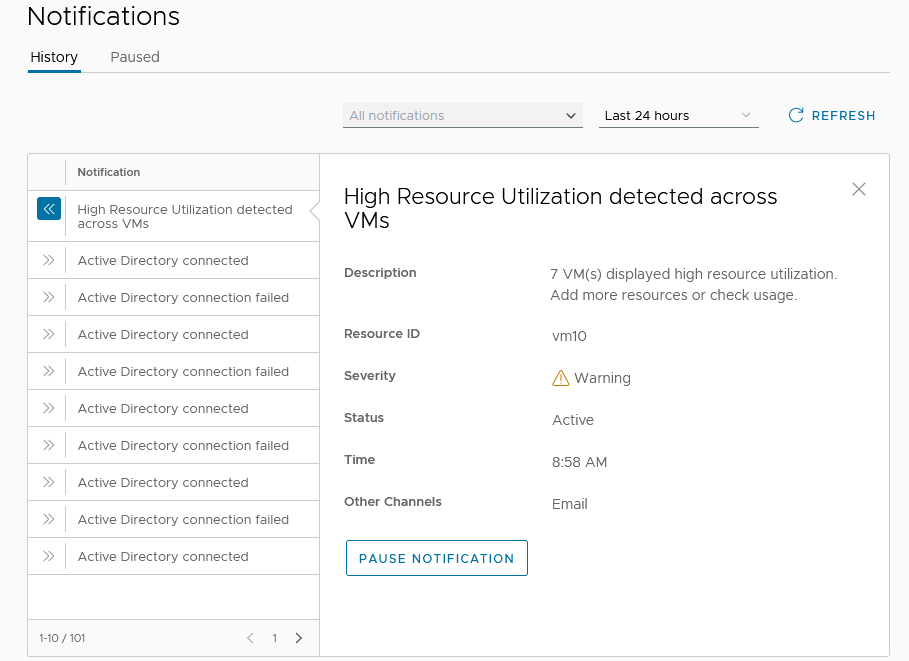
You can view details of a notification by clicking the double arrow left icon for that notification. The following information applies to the Notification Details pane.
-
The details include Description, Resource ID, Severity, Status, Time, and Other Channels (which consists of email notifications).
-
The following statuses apply.
Notification Type Description Active Notifications that an administrator has not yet addressed Dismissed Notifications that an administrator has determined need no further attention
-
For certain types of high-frequency notifications, such as High Resource Utilization detected across VMs a Pause Notification option is available, with which you can pause that notification type for up to 72 hours across all channels. The Pause Notification option enables you to address the cause without repeated warnings.
For these notification types, you receive an email message.
You have two ways of pausing these types of notifications.
- Starting from the email message and clicking Temporarily pause notifications, which brings you directly to the notification in the Horizon Universal Console – Notifications History page, where you can click Pause Notification.
- Starting directly from the Horizon Universal Console and navigating to the Notifications History page, where you can click Pause Notification.
Expiring Active Directory Domain Account Credentials - Notifications
In addition to an in-app notification in the console, the system sends an email notification if one of the following listed service account credentials is about to expire or has already expired.
These emails are indications that you should take the steps needed to ensure that your Horizon Cloud environment's operations that rely on the service accounts can continue uninterrupted.
- Domain bind
- Domain join
- True SSO Enrollment Service Accounts - primary and auxiliary
Expiring Azure Service Principal Credentials - Notifications
In addition to an in-app notification in the console, the system sends an email notification when your service principal for the primary or secondary provider is about to expire or has already expired. The trigger is based on the expiry date that you provide during service principal onboarding.
Note that if you did not specify an expiry date in the Service Principal section of the Edge definition page when you created the Horizon Edge in Horizon Cloud, you will not receive expiry notices for the service principal application ID or application key.
These email messages are indications that you should take the steps needed to ensure that your Horizon Cloud environment’s operations that rely on the Azure service principal can continue uninterrupted.
- Update the application key for the primary or secondary provider that is expiring or has expired.
If you receive a notification that your application key is expiring or has expired for a particular Microsoft Azure service principal, see Update the Application Key for Expiring Azure Service Principal Credentials.
Managing Email Notification Preferences
As a Horizon organization administrator, you can configure Horizon Cloud email notification preferences for other Horizon administrators and groups in your organization. By changing the notification preferences, you can control the recipient list for all Horizon-linked email notifications.
By default, the email notifications will be sent to Horizon org-owners, org-admins and org-members. You can change this default setting by opting-out specific groups from receiving Horizon-related email communications. For example, you can opt-out the org-members and org-admin roles from receiving emails.
You cannot opt-out org-owners from the email recipient list, as this role needs to receive Horizon-linked notifications to effectively monitor and manage the Horizon deployment.
Use the following steps to control email notifications for users and groups in your organization.
-
Log in to Horizon Cloud. See Log in to Horizon Cloud.
-
From the Horizon Universal Console Home page, click Settings in the left pane navigation.
-
From the Notification Settings tile, click Manage to open the Notification Settings page..
-
In the Email Recipients section of the page, click EDIT.
-
Select the the roles of the target notification recipients and then click SAVE
Was this page helpful?