If you have a Horizon Plus license, you can integrate a Splunk Enterprise configuration with one or more of your Horizon 8 Edges. You can then use Splunk Enterprise to monitor your Horizon 8 Edges.
Attention: This Horizon Cloud feature is solely for Horizon 8 Edge Gateway for the Horizon Plus license.
The Horizon Plus license supports the Splunk Enterprise monitoring of Horizon 8 Edges option instead of the Workspace ONE Intelligence monitoring option.
You can integrate multiple Splunk Enterprise instances with your Horizon 8 Edges, but the Splunk Enterprise instances do not need to communicate with each other. Each Splunk Enterprise instance functions as a hub, while the Horizon 8 Edges in this analogy function as spokes.
Therefore, you can have multiple Horizon 8 Edges assigned to a single Splunk Enterprise instance, feeding data to that Splunk instance. The communication between Horizon Edges and the Splunk Enterprise instance is one directional from the Horizon 8 Edges to the Splunk Enterprise instance.
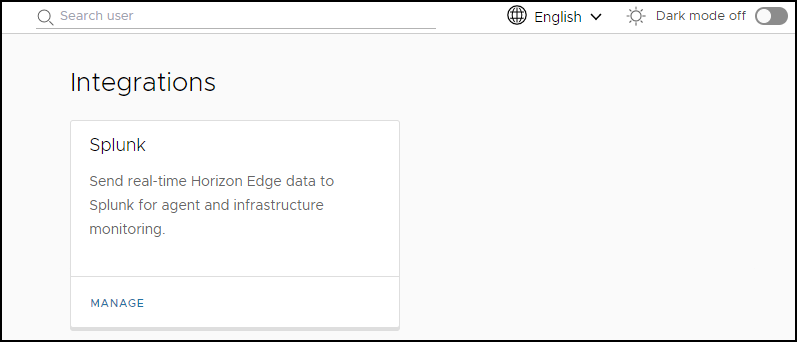
To use the Horizon Universal Console to add, assign, or delete a Splunk Enterprise configuration, access the Splunk page by clicking Integrations in the navigation bar and then Manage in the Splunk integrations tile.
Add the Configuration of a Splunk Enterprise Instance
You can use the Horizon Universal Console to add a Splunk Configuration.
Prerequisites
Have the following information available from the Splunk Enterprise instance with which you wish to integrate your Horizon Edges.
-
The IP address of your Splunk Enterprise host.
-
The port number of your Splunk Enterprise instance.
-
The secret token from your Splunk Enterprise instance.
You can copy this token from your Splunk Enterprise instance when you are ready for the integration.
-
Though not recommended that you use a self-signed certificate, if you ultimately decide to use as self-signed certificate, have that certificate available to upload
Procedure
-
Click Manage in the Splunk integrations tile.
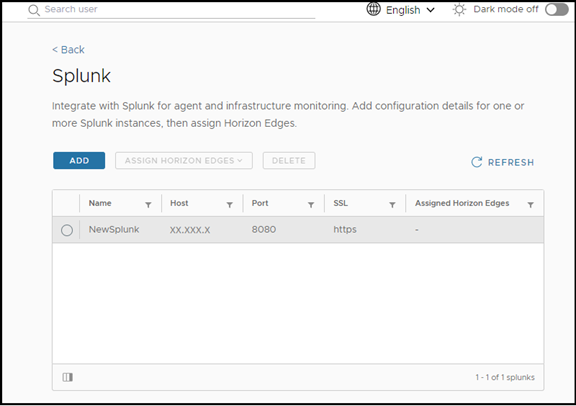
The Splunk page opens.
-
To add configuration information for an existing Splunk Enterprise instance, click Add.
-
Enter the information that you gathered as a prerequisite to this task and click Save.
Assign a Horizon Edge to a Splunk Enterprise Configuration
After you use the Horizon Universal Console to add one or more Splunk Enterprise configurations, perform the following steps to assign a Horizon Edge to a Splunk Enterprise configuration.
Procedure
-
On the Splunk page, select a Splunk Enterprise configuration.
-
Select Assign Horizon Edges > Add.
-
Select one or more Horizon Edges to assign to the Splunk configuration and click Add.
Results
The assigned Horizon Edges are now integrated with Splunk. You can use Splunk to monitor the assigned Horizon Edges.
You can find many of the same details in the summary page of the assigned Horizon Edge.
Unassign a Horizon Edge from a Splunk Enterprise Configuration
After you assign a Horizon Edge to a Splunk Enterprise configuration, you can at any time unassign that Horizon Edge.
Procedure
-
On the Splunk page, select a Splunk Enterprise configuration.
-
Select Assign Horizon Edges > Remove
-
Select one or more Horizon Edges to unassign from the Splunk configuration and click Remove.
Edit a Splunk Enterprise Configuration
You can edit the configuration information of your Splunk Enterpirse instance, such as the secret token from your Splunk Enterprise instance, the SSL certificate, and the host IP address.
After you edit a Splunk Enterprise configuration that is assigned to one or more Horizon Edges, the updated configuration is updated to those assigned Horizon Edges, as well as to the database.
When you edit a Splunk Enterprise configuration that is not assigned to any Horizon Edges, the Splunk Enterprise configuration is updated solely to the database.
Prerequisites
Have the information ready that you want to change, such as one or more of the following:
- A new IP address of your Splunk Enterprise host.
- A new port number of your Splunk Enterprise instance.
- A new secret token from your Splunk Enterprise instance.
- The location on your host of a new self-signed certificate.
Procedure
-
On the Integrations > Splunk page, select a Splunk Enterprise configuration to edit.
-
Click Edit.
-
Change the configuration information that you want to update and click Save.
Delete a Splunk Enterprise Configuration
After you unassign all of the Horizon Edges from a Splunk Enterprise configuration, you can delete the configuration.
Procedure
-
On the Splunk page, select the Splunk Enterprie configuration to delete.
-
Click Delete.
The Confirm Delete dialog box appears.
-
Click Delete.
Was this page helpful?