The details page of a pool group is a centralized location from which you can manage that pool group.
How to Access the Details Page of a Pool Group
-
Log in to Horizon Universal Console.
-
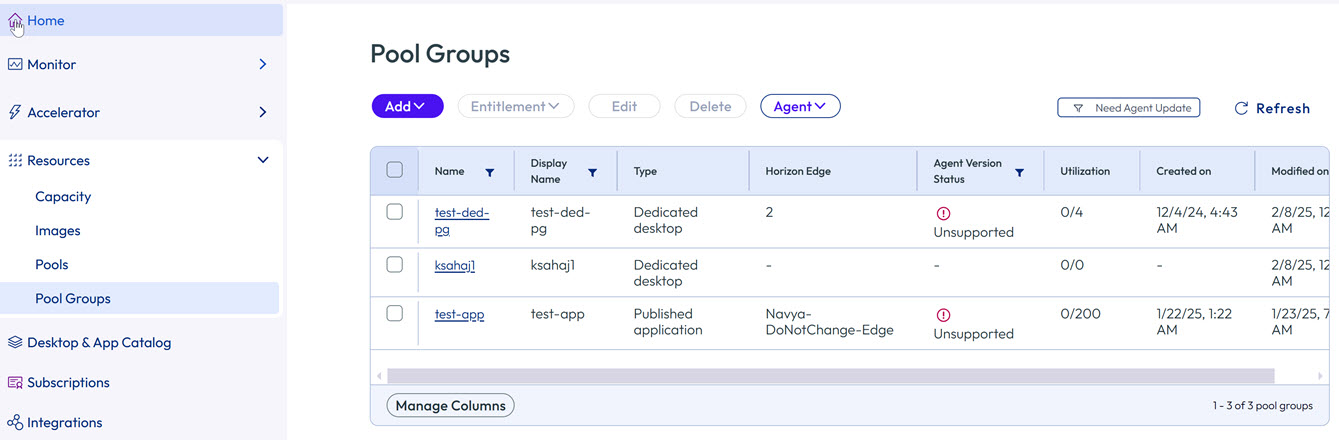
On the Home page, click Pool Groups.
-
Click the name of a pool group.
The details page opens for that pool group.
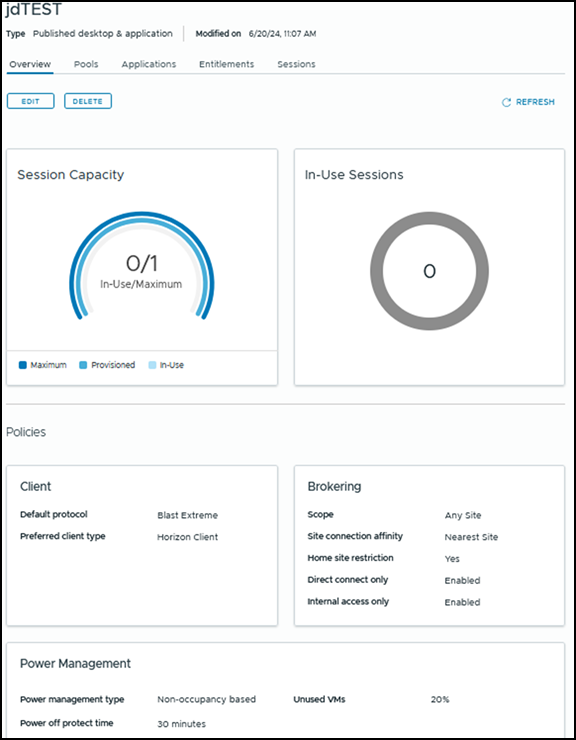
A sample pool group details page for a Published application pool group is shown below.
What You Can Do from the Details Page of a Pool Group
What you can do from the details page of a pool group varies based on a few factors, but especially on the pool group type.
The tabs that are available vary, as well as the information on those tabs, depending on the pool group type. For example, the Applications tab is only available for the Published application and Published desktop & application pool group types.
The following list describes some of the actions you can take across the various tabs on the details page. Depending on the specifics of your deployment and the pool type, some options listed below are not applicable:
- Click Overview to view details, such as Session Capacity, In-Use Sessions, Policies, Power Management, and Timeout Handling.
- Click Pools to view, add, or remove pools.
- Click Applications or App Volumes Applications (as applicable) to view, add or remove applications.
- Click VMs (as applicable) to perform operations on the VMs, such as to export, view, assign, and unassign VMs, and to reinstall or re-pair the agent.
- To view a specific VM in a pool group and perform other operations on that VM, click the name of the VM, which displays the card for that VM. You can also access the VM card using the VM card search feature. For details about what you can view and do in a VM card, see Using the Horizon Cloud VM Card Search Feature.
- Click Entitlements to view a list of entitlements per user or user group, or to entitle desktops and applications to those users, or to unentitle those users from the pool group.
- Click Sessions to view a list of sessions. In the Sessions tab, select the checkboxes you need. To end the sessions, click Log Off. To close your connection without ending the sessions, click Disconnect.
Edit or Delete a Pool Group
You can also edit or delete a pool group by using the Edit and Delete options.
When you select a pool group and then select Edit, multiple options are made available as described in Create or Edit a Pool Group.
Note: For information about using direct connect and internal user options for the pool group, see Configure a Pool Group Client as Direct Connect Only.
When you select a pool group and then select Delete, you are prompted to choose either Immediately or After active sessions end.
Note that the pool group remains visible in the UI with a pending deletion status until the pool group is fully deleted. This can take some time, especially if selecting the After active sessions end option.
Was this page helpful?