When you complete the Add Pool workflow to create a pool for the specified edge type, the system starts provisioning VMs for that pool. You have many ways that you can then manage the provisioning of VMs for that pool in the Horizon Universal Console. For example, if you realize that you made an error in how you configured the pool, you can cancel the pool instead of waiting for provisioning to complete. Other options are available, too.
Retry Pool Provisioning
You can perform this task when, on the Pools page, a pool displays the status Error.
-
Why Perform This Task
To allow the Horizon Universal Console to assist you in resolving a pool-provisioning error, so you can attempt to provision the pool again.
-
How to Perform This Task
Cancel Pool Provisioning
-
Why Perform This Task
To save time by stopping the pool provisioning process, which can sometimes take a very long time. You might realize that you made a mistake in how you provisioned a pool. You can cancel pool provisioning, attempt to fix the configuration issue, and re-provision the pool.
-
How to Perform This Task
On the Pools page, while a pool displays the status of Expanding, select Provisioning > Cancel.
-
Result
The provisioning of VMs stops immediately and the status of the pool changes, such as to Partially Provisioned, Ready, or Error. The VMs that are in a provisioning or customizing state are deleted.
Disable Pool Provisioning
-
Why Perform This Task
To stop new VMs from being provisioned on a specific pool. This option allows you to explicitly prevent the provisioning of VMs on that pool until provisioning is activated again with the Enable option.
-
How to Perform This Task
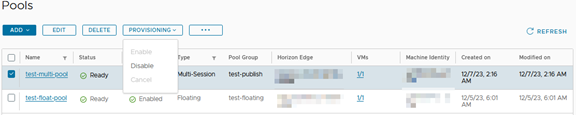
On the Pools page, when pool provisioning is listed as Enabled, select Provisioning > Disable.
-
Result
The provisioning of new VMs stops and the status of the pool changes, such as to Partially Provisioned, Ready, or Error. When you implement this option, the VMs that are in a provisioning or customizing state continue processing.
Enable Pool Provisioning
-
Why Perform This Task
To allow a pool to expand or shrink. This option allows you to explicitly allow VM provisioning to occur on a pool for expanding and shrinking as needed.
-
How to Perform This Task
On the Pools page, when pool provisioning is listed as Disabled, you can activate pool provisioning to allow a pool to begin to expand or shrink, select Provisioning > Enable.
-
Result
The pool starts to expand or shrink depending on demand.
Was this page helpful?