Synchronize Microsoft provisioning policies for the Windows 365 pool group with your specified default agent features before you entitle users and groups and begin onboarding existing Microsoft Azure VMs. You will also map your Windows 365 pool to Microsoft provisioning policies now, before onboarding users and VMs.
Prerequisites
Before performing the steps in this task, complete the following prerequistes in the workflow:
-
Create a pool for use in the Windows 365 pool group. See Create a pool for use with integrated Windows 365.
-
Specify default agent features for provisioning polices to be applied to all Microsoft Azure VMs as they are onboarded. See Customize default agent features for new provisioning policies for integrated Windows 365.
For related information about the sequence of steps for getting started with integrated Windows 365 in Horizon Cloud, see Configuring Windows 365 Integration.
Procedure
-
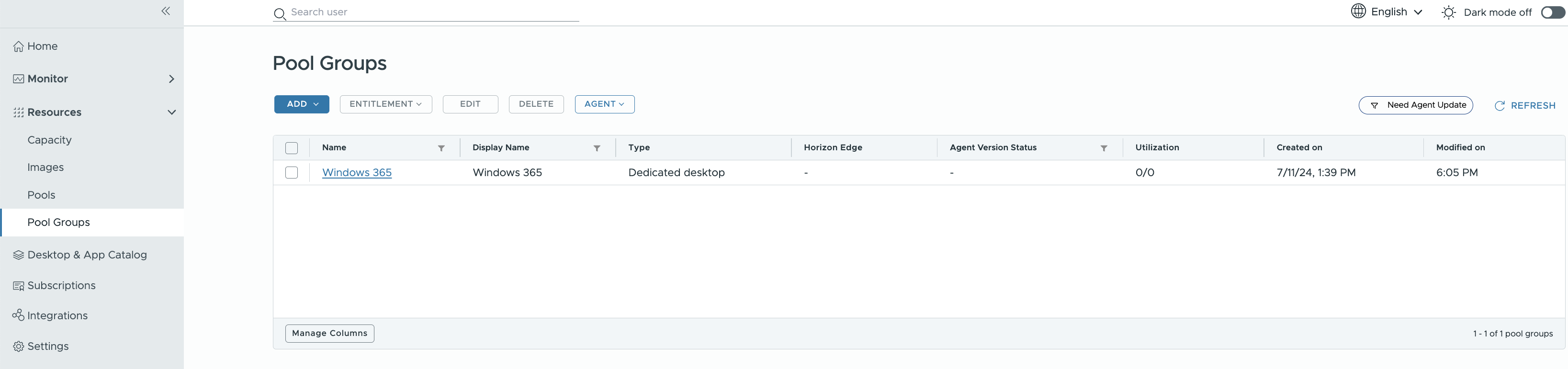
Open the Windows 365 pool group from the Horizon Universal Console by clicking Pool Groups and selecting the Windows 365 pool group.
-
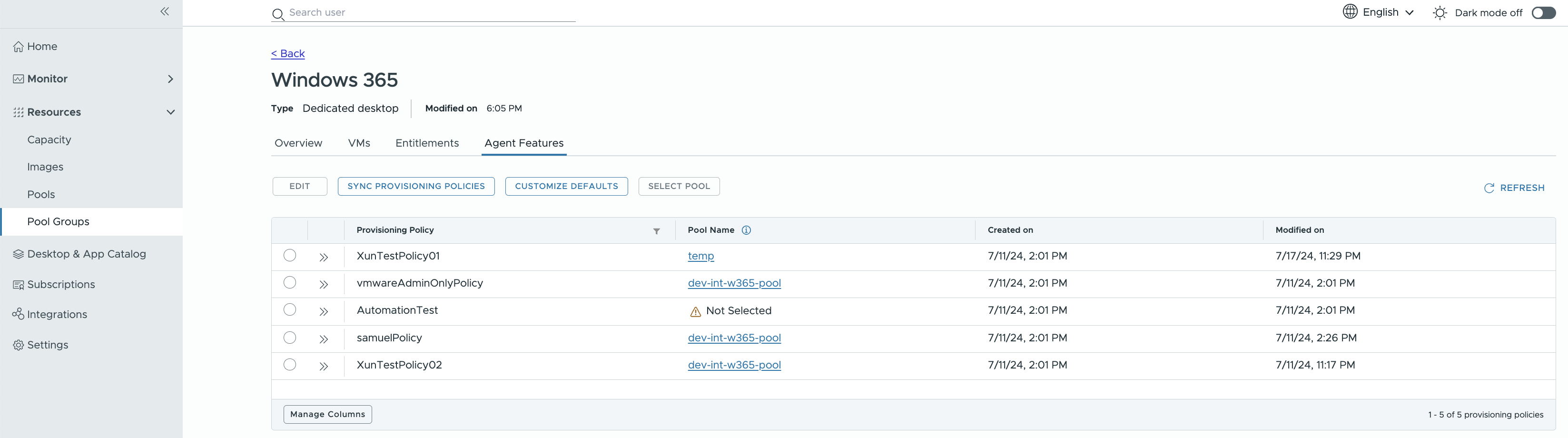
Click the Agent Features tab and click Sync Provisioning Policies.
-
Click Sync from the Sync Provisioning Policies information window.
The sync action gets the latest provisioning policies from Microsoft and populates the provisioning policies table. When a new provisioning policy is detected, the agent features are set to the defaults that have been configured on the Customize Default Agent Features for Windows 365 page.
-
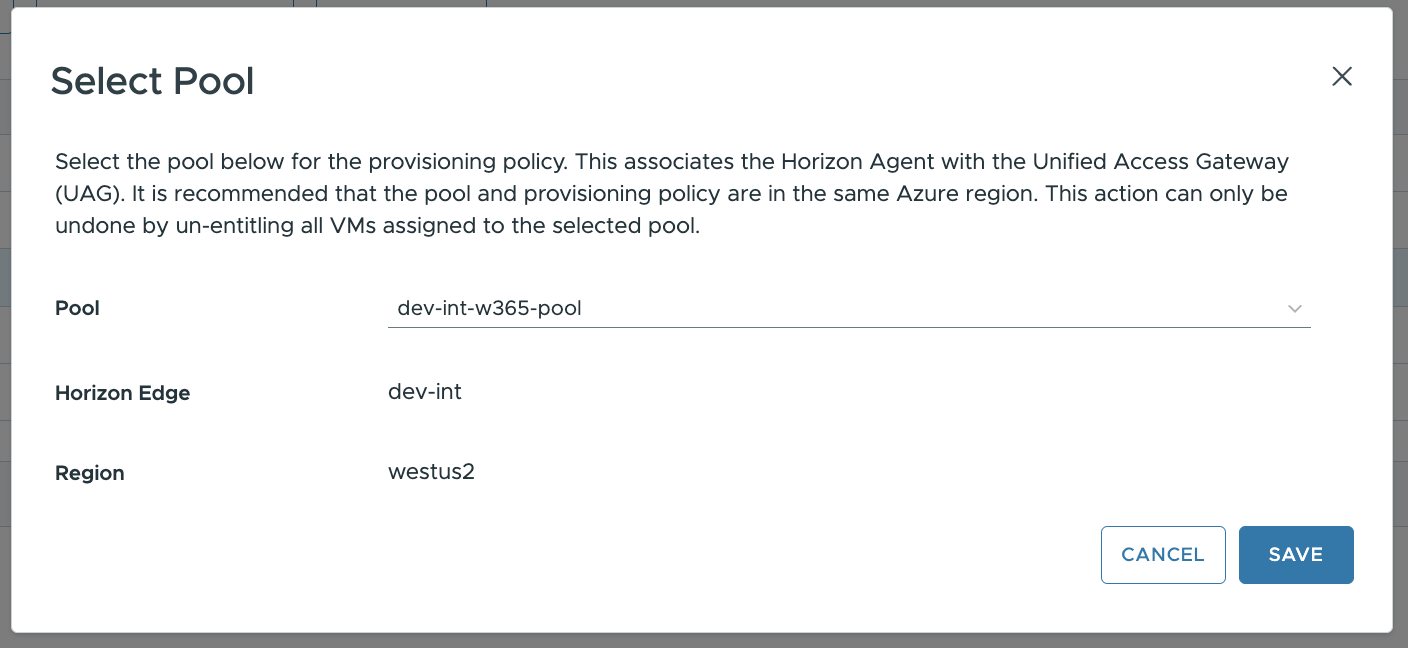
To associate your Windows 365 pool to each listed provisioning policy, select one of the provisioning policies in the list shown on the Overview tab, select the pool that you created in the earlier workflow step from the drop-down menu, and then clcik Save.
-
Repeat the above mapping step for each of the listed provisioning policies.
-
Proceed to the next step in the process at Entitle users for integrated Windows 365.
Was this page helpful?