Enabling your users to access desktops and applications is a critical aspect of being an Administrator. Use the information in this section to entitle users to desktops, to application access, and to launch functions.
Administrators now have the ability to better control and communicate with end users on global client restrictions from the Horizon Universal Console. Select Settings from the left menu. All Global Settings related to your tenat environment are here with options to Manage each one.
Client Settings & Restrictions
In the console and under Settings > Client Settings, click Manage. Across the top of the Client Settings page, there are tabs for different settings:
- Custom Messages: This is where any Pre-login message should be enabled, disabled, and/or placed.
- Branding: Configuration for the Custom Client Access Subdomain and the Custom Client Access URL options.
- Client Restrictions: Restrictions to block or warn end users, Native Client Messages, and Web Client access options.
- Network Ranges: Add any Public IP address ranges of the networks your internal end users will connect from (up to 64 network ranges).
- Private Brokering: Enable and define private brokering and brokering endpoints to be used by end users when their Horizon client does not have internet access. A private brokering endpoint makes the Universal Broker accessible through an ExpressRoute or VPN connection to Microsoft Azure.
Client Restrictions Tab
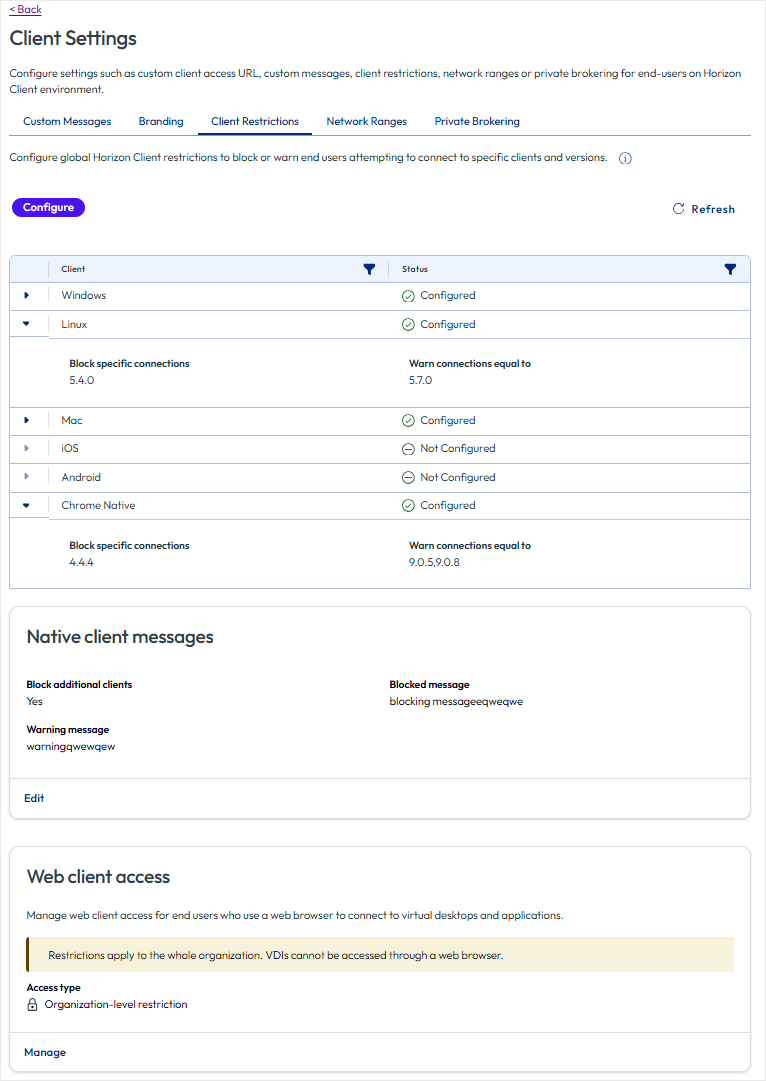
Administrators can configure their global restrictions and block or warn end users attempting to connect to specific clients and versions (Navigate to: Settings > Client Settings > Manage > Client Restrictions Tab).
Prerequisites: Client restrictions are available for Horizon Client versions 4.5.0 or later, except Horizon Client for Chrome which must be version 4.8.0 or later. Either specific or earlier versions of Horizon Client for the client type are prevented from connecting to remote desktops and published applications when this feature is configured. The capability to show warning messages to specific client versions is available for Horizon Client 5.5 and Horizon Client 2006 or later.
-
Select the Configure button to add new client restrictions.
-
Each Client has a toggle that when Enabled will block connections from specific client versions.
- Select either Earlier than, or Equal to and enter the specific (single) version.
- Then set at least one warning for users connecting from a different client versions (separate multiple versions with a comma).
-
Select Save to exit.
The table list configured client restrictions and their status. Expand each configured row to view the client details.
Native Client messages
Click Edit to Enable the Block additional clients toggle option. Then as needed, customize the Blocked message and Warning message text to be displayed when a user is prevented from logging in to the clients mentioned above.
Click Save to finalize changes.
Web Client Access
Administrators can control how their end users connect to virtual desktops and applications. Specifically, you can restrict or completely disable access via the browser-based Horizon Web Client while maintaining uninterrupted access through native Horizon Clients (Windows, macOS, Linux, and mobile).
This configuration can be managed in two places within the Horizon Universal Console:
- Though the global Settings menu.
- Through the Pool Group level.
Global Settings for Client Restrictions
Using the first option, navigate to: Settings > Client Settings > Manage > Client Restrictions and under the Web client access section, select Manage.
The Manage web client access box will open for you to choose from three Access types:
- Unrestricted access — All users can connect to their virtual desktops and applications via a web browser.
- Organization-level restriction — Blocks web client access for every user across the entire environment.
- Targeted restriction — Restricts access only for specific network IP ranges and/or user groups, useful for more nuanced, policy-driven scenarios.
If you select Targeted restriction, you will be asked for more details regarding the restriction:
-
Restrict by network:
- Internal IP addresses: These must be defined in the Network Ranges Tab on the Client Settings.
- External IP addresses
- None
-
Restrict by user groups: Start typing the name of the user group and a list of available user groups will appear to be selected. Repeat as needed, each user group you select will be shown in the table showing their Name and Domain.
Click Save to finalize changes.
Pool Group Level Settings for Cleint Restrictions:
Using the second option above to set restrictions at a Pool Group level, navigate to: Pool Group > Select Group > Edit > Pools > Policies > Client.
Confirm that the Preferred client type option is set to Horizon Client and not browser. Then for Restrict web client access, Enable the toggle to block browser-based access for desktops and applications in that specific pool group, requiring users to connect via the Horizon Client instead.
If a user attempts to launch a desktop or application through a web browser while this restriction is active (the toggle is enabled), the system will display an error indicating that access has been restricted by the administrator. All modifications to these configurations are logged in the administrative audit trail, capturing both the timestamp and the identity of the administrator who performed the action.
Administrators can leverage this feature to enforce a heightened security posture, ensuring endpoints connect exclusively through the native Horizon Client. In scenarios where access policies overlap or conflict, the more restrictive configuration always takes precedence.
Precedence and Behavior:
- If global settings are configured for Unrestricted access but a specific Pool Group has Restrict web client access enabled, users within that pool group will be blocked from web browser access.
- In contrast, if the global policy is set to Organization-level restriction, the pool group toggle becomes redundant as all pool groups are restricted by default.
- When a Targeted restriction is applied globally (by network range or user group), it interacts with the pool group toggle such that the most restrictive policy for a given user context is enforced.
Note: Access modifications applied while a user is in an active session will not take effect until that session is terminated.
Was this page helpful?