Administrators can create dedicated or floating single-session desktop pools that are managed by Workspace ONE Unified Endpoint Management (UEM) directly from the Horizon Cloud console. When this feature is enabled, Horizon Cloud automatically enrolls newly provisioned desktops into your Workspace ONE UEM environment. This streamlines Day 2 endpoint management, allowing you to deploy policies, compliance checks, apps, and operational controls immediately.
-
For floating desktop pools, we recommend installing applications in the base image or leveraging App Volumes for dynamic application delivery.
-
For dedicated single-session desktop pools, each virtual machine (VM) in the pool can be assigned to one or more users. The Workspace ONE Multiuser feature supports multiple user assignments for dedicated single-session pools.
Currently only newly created Dedicated and Floating desktop pools are supported. If any other pool type is selected, the option to manage desktops with UEM is unavailable. If you need to enroll existing VMs, refer to: Enrolling Windows Devices into Workspace ONE UEM in the Windows Desktop product documentation.
Note: UEM enrollment status updates in the Horizon Control Plane are processed asynchronously. Allow some time for the enrollment status to appear after enrollment actions.
Prerequisites
Before creating a pool managed by Workspace ONE UEM, ensure that the following requirements are met:
-
Horizon Cloud and Workspace ONE UEM must be configured to use the same Active Directory domain.
-
Workspace ONE Intelligent Hub must be installed in the VM Image before creating the dedicated single-session pool managed by Workspace ONE UEM.
-
Workspace ONE Intelligent Hub version 25.06.1 or later.
-
Workspace ONE Intelligent Hub must be installed with
PROVISIONHUB=YandDEFERENROLLMENT=Y. Example command line installation:Msiexec.exe /i airwatchAgent.msi /qn PROVISIONHUB=Y DEFERENROLLMENT=Y -
Horizon Agent version 25.2.0 or later
-
UEM is supported for:
- Identity Provider (IdP) - Workspace One Access and Entra ID
- Machine Identity - Active Directory and Entra ID
Create a Dedicated or Floating Single-Session Pool Managed by UEM
-
From the Horizon Universal Console, select Pools from the left menu.
-
Add a new pool by selecting Add > Horizon Cloud> Pool Edge Type (like Microsoft Azure or Amazon WorkSpaces Core).
-
Enter a Pool name and an optional Description. For Pool type, select either Dedicated single-session or Floating single-session.
-
Continue to configure the required settings in the sections for: Desktops, Networks, and Dynamic Environment Manager.
-
In the Workspace ONE Unified Endpoint Management (UEM) section, Toggle ON: Enroll in UEM to enable it.
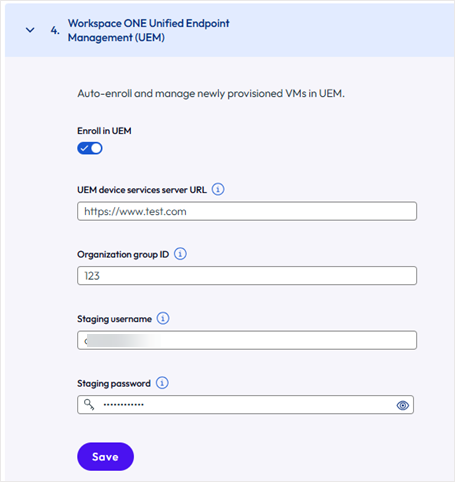
Note: Only newly created Dedicated and Floating desktop pools are supported. If any other pool type is selected, the option to manage desktops with UEM will not be available.
-
Review the confirmation dialog that indicates Intelligent Hub must be installed in provisioning mode on the gold image/template.
-
Once Enroll in UEM is enabled, the following required fields are shown for you to manually enter your UEM enrollment parameters:
- UEM device services server URL
- Organization group ID
- Staging username
- Staging password
IMPORTANT: Any typos made while manually entering the UEM parameters will cause new VMs to fail when attempting automatic enrollment into Workspace ONE UEM.
The system will validate the parameter formats (basic format checks).
-
Click Save to continue.
The Horizon Cloud console will display the enrollment as pending until an assigned user logs into the device for the first time. Upon user logon:
- The device will be automatically enrolled to Workspace ONE UEM for management.
- Horizon Cloud will update the enrollment status.
- The Workspace ONE UEM console will display a new device record under Devices > List View.
If the enrollment fails on the UEM side, the device status may remain shown as Pending.
You can edit an existing desktop pool to disable UEM enrollment for future VMs or modify enrollment parameters. Any changes made to the UEM enrollment parameters will apply only to new VMs created in the pool. Changes to the UEM enrollment parameters do not affect existing VMs in the pool.
If you need to manage Workspace ONE UEM Enrollment for Pools, refer to: Managing Pool Provisioning: Manage Workspace ONE UEM Enrollment for Pools.
Was this page helpful?