This page describes how to enable and configure Simple Network Management Protocol (SNMP) settings for the Horizon Edge Gateway. This configuration allows you to monitor key Horizon Edge Gateway events through a network management system.
How SNMP Monitoring Works with the Horizon Edge Gateway
The Horizon Edge Gateway supports monitoring through the use of SNMP traps which originate from the Horizon Edge Gateway appliance when certain events occur. These traps notify the network management system of the trigger event or condition.
Note: The Horizon Edge Gateway functions only as a trap emitter and does not support other SNMP operations, such as receiving a GET, GETBULK, or GETNEXT operation.
To Enable SNMP monitoring for the Horizon Edge Gateway, you need to configure SNMP monitoring as described in this article.
Management Information Base (MIB) files contain the trap definitions, which define the information that can be provided by managed devices. The MIB files define managed objects, described by object identifiers (OIDs) and variables arranged in a hierarchy. You can download the required MIB files by using the link provided later in this article.
Horizon Edge Gateway Events That You Can Monitor with SNMP Traps
After you enable and configure the SNMP service for the appliance, Horizon Edge Gateway supports SNMP traps for the following events.
- Currently license push failure monitoring is supported.
Each event triggers the emitting of an SNMP trap from the appliance to the network management system.
How to Configure SNMP Monitoring for the Horizon Edge Gateway
The SNMP configuration process consists of the following high-level steps:
- Step 1: Download the MIB files for use by the network management system.
- Step 2: Enable and configure the SNMP service in the Horizon Universal Console.
- Step 3: Use the Horizon Universal Console to view the Horizon Edge Gateway Engine ID.
Prerequisites
-
Deploy a Horizon Edge with a Horizon Plus license, Horizon Universal license or Horizon Cloud on Azure license.
-
You must have a configured SNMPv3 trap receiver that can receive SNMP traps.
-
Ensure that the Horizon Edge Gateway can reach the SNMP receiver. Usually the default port for SNMP is 162.
Note: SNMP-based monitoring is supported for Horizon Edges.
Step 1: Download the MIB Files and OIDs
The RFC 2578 standard of structure of management information (SMI) is the syntax used to write Management Information Base (MIB) files for specific products and functions. These MIB files are versioned independently of product and can be used to identify event types and event data related information.
To download the MIB files, go to KB article 6000665 and download the specified Omnissa-mibs-1.0.0-27.zip file.
To download the object identifiers (OIDs) used by the MIB files, go to KB article 6000666.
Step 2: Enable and Configure the SNMP Service Using the Horizon Universal Console
You can access settings for the SNMP service through the Horizon Universal Console.
-
In the Horizon Universal Console, select Integrations and click Manage in the SNMP tile.
-
On the SNMP page, click Add.
The Add SNMP wizard starts.
-
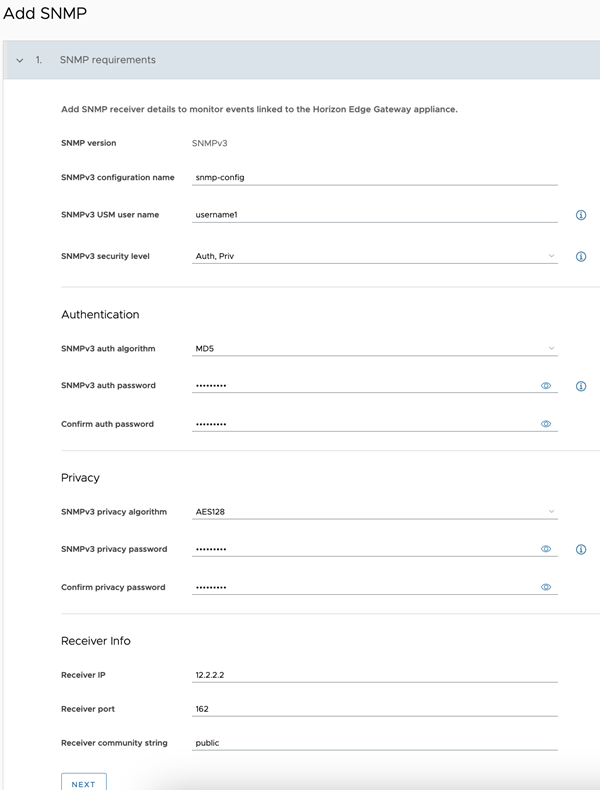
Specify settings for the configuration name, user name, and security level as described in the following table.
Setting Description SNMP version This release supports SNMPv3 only. SNMPv3 configuration name The user given name to identify the receiver configuration. SNMPv3 USM user name Configure the SNMPv3 User-based Security Model (USM) user who can access the SNMP monitoring information. The user name must be from 8 through 31 characters long and contain letters and numbers only. SNMPv3 security level Specify whether to use an optional authentication algorithm, with or without a privacy algorithm, for the SNMP service. Authentication is used to ensure the identity of users. Privacy allows for encryption of SNMPv3 messages to ensure confidentiality of data. Both authentication and privacy are optional. However, you must enable authentication to enable privacy. -
(Optional) If you specified a security level that includes authentication, configure the authentication details as described in the following table.
Setting Description SNMPv3 auth algorithm Specify the authentication algorithm used to establish the identity of SNMP users. SNMPv3 auth password Configure the password required by the authentication algorithm to establish the identity of users. The authentication password must be from 8 through 31 characters long. Confirm auth password Re-enter the authentication password. -
(Optional) If you specified the security level that includes both authentication and privacy, configure the privacy details as described in the following table.
Setting Description SNMPv3 privacy algorithm Specify the privacy algorithm used to encrypt SNMP messages. SNMPv3 privacy password Configure the password required by the privacy algorithm to generate an encryption key. The privacy password must be from 8 through 31 characters long. Confirm privacy password Re-enter the privacy password. -
Specify the details of the SNMP receiver IP and port that can receive SNMP traps from the Horizon Edge Gateway, as described in the following table, and click Next.
Setting Description Receiver IP Specify the IP address of the network management system that can receive the SNMP traps. Receiver port Specify the port number used by the network management system to receive the traps. Receiver community string Enter the community string used by the network management system to validate that the received traps originate from the Horizon Edge Gateway. The following screenshot provides an example of Add SNMP form with the settings configured.
If the configuration is successful, a message appears indicating that an SNMP configuration is added.
-
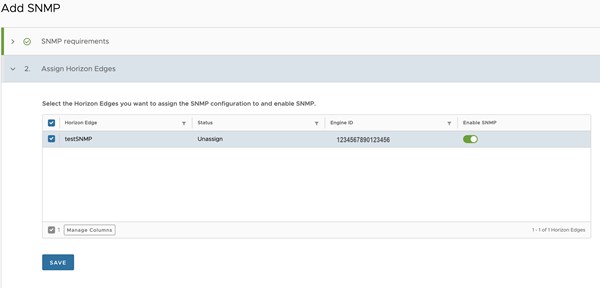
In the Assign Horizon Edges section, select the Horizon Edge to assign to the SNMP configuration.
You can assign multiple Horizon Edges to a single SNMP configuration. However, you cannot assign a Horizon Edge to multiple SNMP configurations. When a Horizon Edge is assigned to an SNMP configuration, it no longer appears in the list of Horizon Edges.
When you assign an SNMP configuration to an Horizon Edge, the engine ID is created.
-
To enable SNMP monitoring for the selected Horizon Edges, ensure that the Enable SNMP toggle is on.
Note: The default state of the Enable SNMP toggle is on while associating Horizon Edges.
-
Click Save.
Step 3: Obtain the SNMP Engine ID for a Specific Horizon Edge Gateway Using the Horizon Universal Console
During the SNMP enablement process, the Horizon Edge Gateway automatically generates a unique SNMP engine ID for use by your network management system. The engine ID is used with a hashing function to generate keys for authentication and encryption of SNMP v3 messages.
Note: You need the SNMP Engine ID to configure the SNMP receiver and to identify the SNMP trap messages emitted form that Horizon Edge Gateway.
Use the Horizon Universal Console to navigate to the SNMP engine ID of a Horizon Edge.
- Click Capacity.
- Click the name of a Horizon Edge to which you have assigned an SNMP configuration.
- Scroll to the SNMP section and locate the Engine ID value.
What to do next
You can return to the SNMP page at any time to edit or delete an existing SNMP configuration. You might edit an SNMP configuration to change the SNMP receiver details or SNMP associations. To delete an SNMP configuration, first edit the configuration to unassign the assigned Horizon Edges.
Was this page helpful?