App Volumes application packages created in another Horizon Edge deployment can be used in the current deployment using the import functionality. You can also use this functionality to reimport the packages with missing application attributes or if the packages are missing from the inventory.
Prerequisites
Ensure that you are aware of the following:
-
Confirm that your environment meets all the prerequisites listed in Overview and Prerequisites For Using App Volumes Applications in Horizon Cloud.
-
The JSON and VHD files for the application package you plan to import must be in the staging file share of your Horizon Edge under
appvolumes/packages.Tip: The JSON and VHD files required for importing the application package look similar to the following:
7Zip.jsonand7Zip.vhd. Some of the sources for JSON and VHD files are standalone capture and the file share of another Horizon Edge.To access the staging file share in the Azure and Amazon Workspaces Core deployments, do the following:
-
For the Microsoft Azure edge, add your client IP address to the allow list of addresses that can access the staging file share through the firewall. In the Microsoft Azure portal, go to the page that contains the network security settings for your storage account. Under the firewall section, enable the option to add your client IP address.
You can confirm the location of this file share by navigating to the appropriate file share in Microsoft Azure Storage Explorer. To identify the staging file share for the Horizon Edge, click Capacity, select the name of the Horizon Edge, and navigate to the App Volumes Application Storage section.
Note: You might need to update firewall rules for the storage account in the Microsoft Azure portal to access the files in the file share.
-
For the Amazon Workspaces Core Edge, in the AWS portal, join an AWS EC2 instance to your active directory, connect to the EC2 windows instance, open a command prompt, and access the Amazon FSx for Windows file server using the IP address of the Amazon FSx for Windows file server.
For more information about these tasks, see the corresponding AWS documentation.
-
Procedure
-
In the Horizon Universal Console, navigate to Desktop and App Catalog.
-
On the Desktop and App Catalog page, click App Volumes.
-
Click Add > Import Application.
-
On the Import page, select the site and Horizon Edge from which you want to import the app packages into the Horizon Universal Console.
-
Depending on your use case, use the corresponding Import option:
Option Use Case New packages Use this option when you want to import a new application package in the App Volumes inventory from the staging file share of the selected edge. All packages Use this option to re-import an application package if there are missing application attributes such as owner, shortcut, and so on, or if the package is already imported but missing from the inventory. -
Click Import.
After a successful import, app packages are visible in the App Volumes tab of the Horizon Universal Console. You might have to refresh the page to see the new application.
Results
-
Once imported, the JSON data is updated in the Horizon Universal Console.
Important: Do not attempt to delete the JSON or VHD files directly from the Staging and Delivery fileshares. Always use the Horizon Universal Console to delete the application packages.
-
To view the Horizon Edge to which the application package is imported, navigate to the package, expand the package details, and look for the Horizon Edge information.
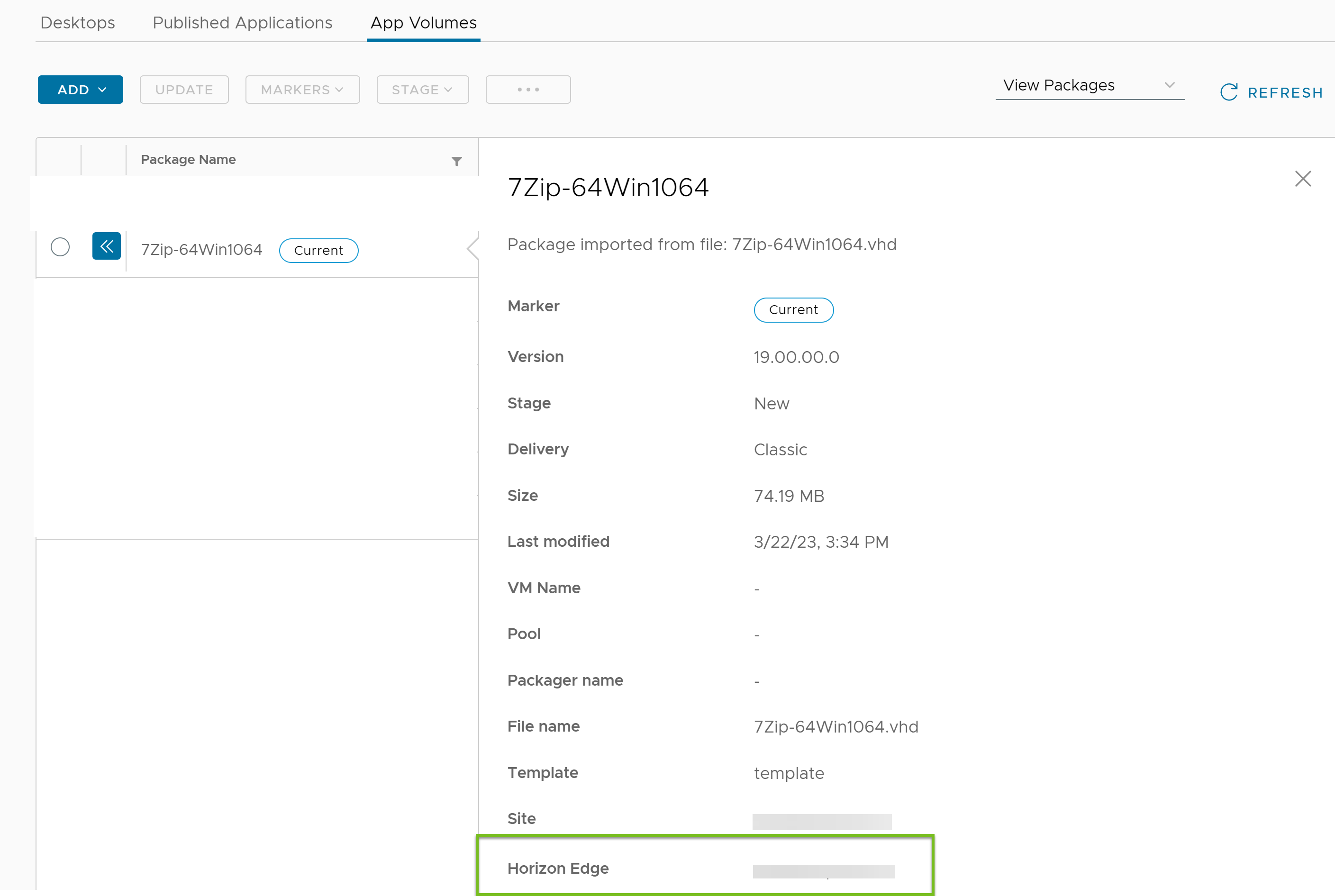
If you perform the import again for additional Horizon Edge deployments (after copying/transferring the VHD and JSON file to each Horizon Edge from which you must import) the application becomes available for multiple Horizon Edge deployments. In this case, the Horizon Edge information in the package details window displays the number of Horizon Edge deployments. To see all the deployments, you can click View and the page displays a table which lists the Horizon Edge deployment details.
Was this page helpful?