The Express onboarding process provides several pre-configured resources and default settings as it guides you through the process of setting up your new account to enable end users to launch desktop and app sessions quickly. The process requires you to enter a minimum number of inputs, use default values and configurations, and be able to quickly launch desktop and application sessions.
Express Onboarding is available for Azure greenfield deployments only.
After you have successfully completed the Express onboarding process, you can experiment with Horizon Cloud options, explore documentation and demos to learn about ways to use the product, and customize the service for your organization.
Procedure
-
The first step in Express Onboarding is to respond to the link in your Welcome email and complete the needed pre-Horizon Cloud onboarding steps described at Onboarding to Horizon Cloud. Be sure to complete Identity and Access prerequisites before starting the Express Onbarding workflow, as described at Setting Up Identity and Access Provider Information for Edge Deployments.
-
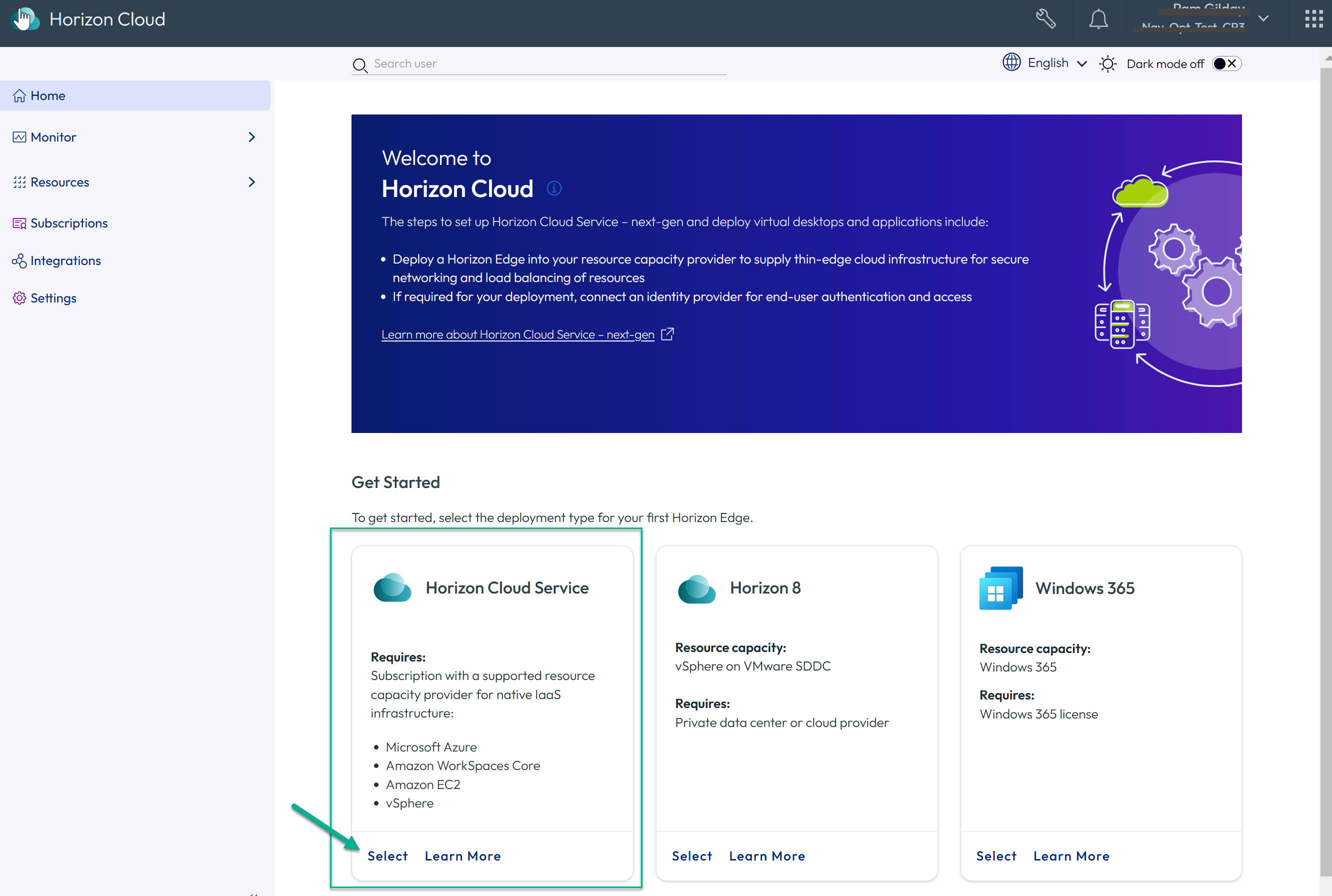
When prompted on the Welcome to Horizon Cloud page, click Select on the Horizon Cloud tile.
-
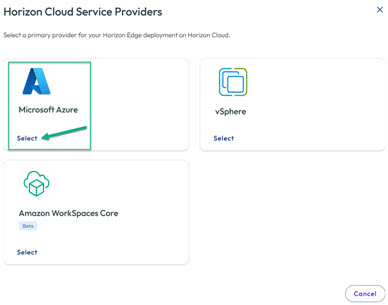
Click Select on the Microsoft Azure tile.
-
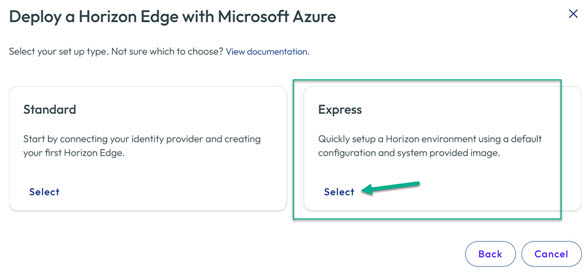
Click Select on the Express tile.
-
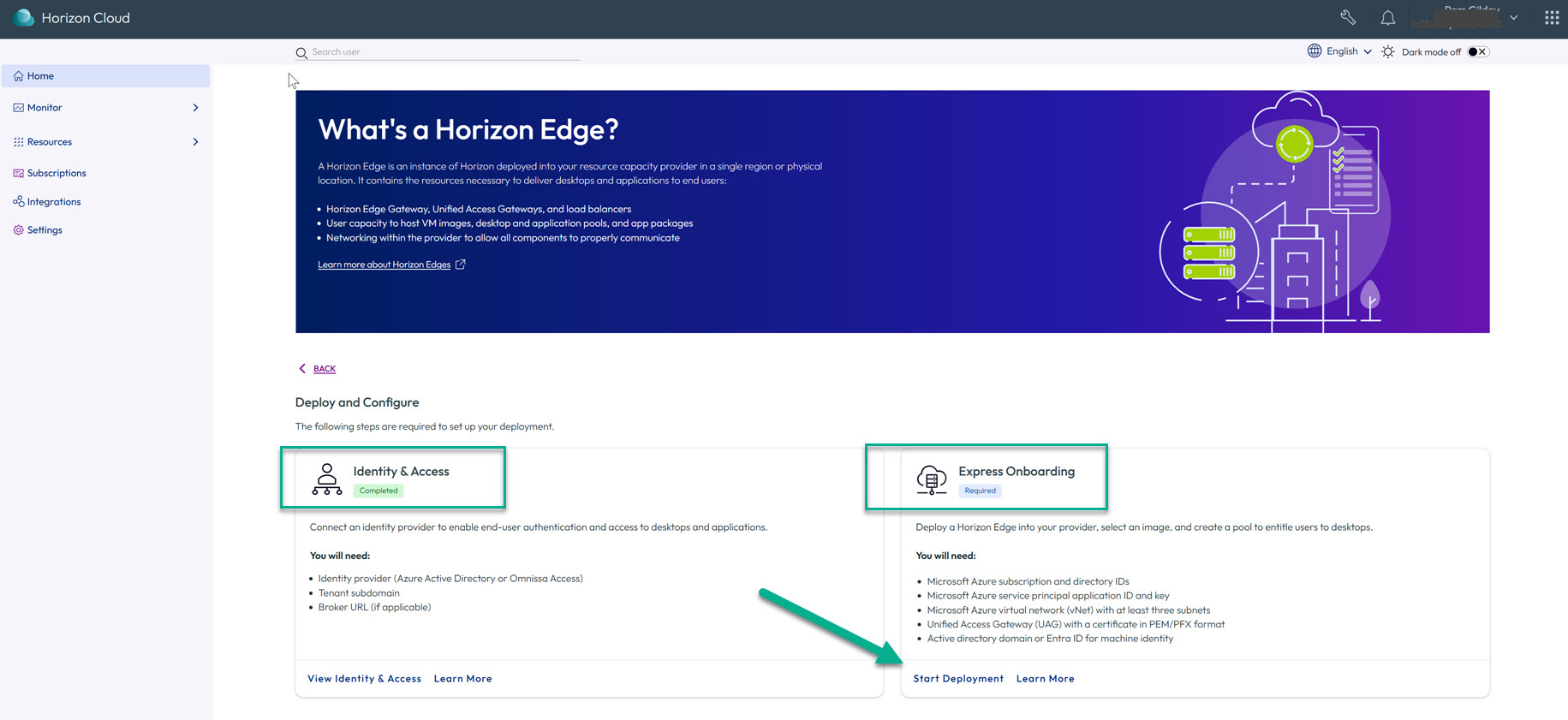
Click Start Deployment on the Express Onboarding tile.
Note: If you have not yet completed the Identity & Access prerequisites, you cannot proceed with the Express Onboarding workflow. In that case, back out of the workflow, complete the Identity and Access prerequisites, and then restart this process.
-
Respond to each field in each section of the Express Onboarding page.
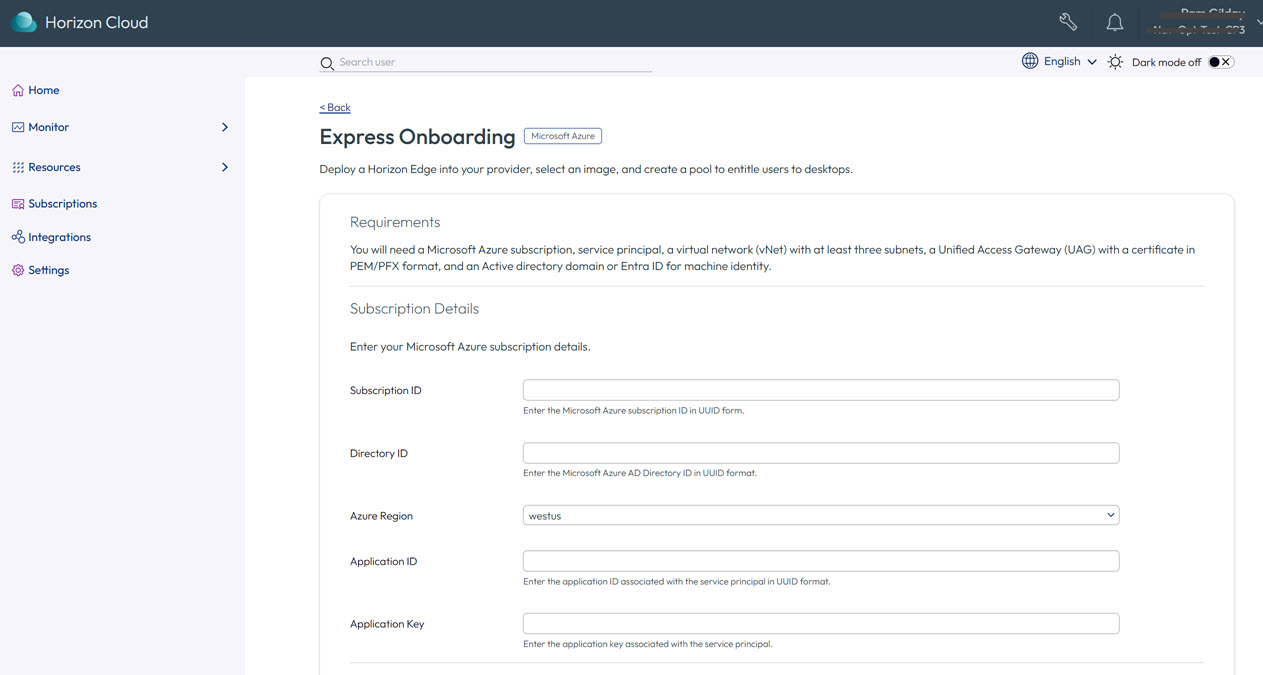
On-screen help is provided to address basic questions as you navigate through the sections of the Express Onboarding page. For more information about various field options, you can search the Horizon Cloud product documentation.
-
When you have completed the Express Onboarding page, click Submit to initiate deployment and monitor deployment progress.
Note: As stated on-screen, after you click Submit the Express Onboarding UI workflow will no longer be available.
Note: After you exit the Express Onboarding screen, you can monitor resources from their respective resource pages.
-
You can monitor deployment progression of the various resource types such as the edge, Unified Access Gateway, pool and pool group, and so on.
If there are issues with any of the resource types after submitting the Express Onboarding page, messages will appear in the UI that guide you to logs that can assist you in troubleshooting.
-
When deployment is successfully completed, click Close on the Deployment Complete tile.
Was this page helpful?