This documentation page describes the Horizon Accelerator Control Center features that provide operational insights about the provider resources that are used for your Horizon Cloud environment.
This feature is available for use in the Horizon Universal Console with the Horizon Accelerator add-on license.
Currently, this feature is available for use with the Microsoft Azure capacity provider.
Introduction
The Operational Insights view provides actionable insights and on-screen guidance into resources within the provider that you might adjust to reduce operational costs.
The following screenshot illustrates the UI location, Accelerator > Operational Insights. This screenshot also illustrates this view when a Microsoft Azure provider selected for each of the gauges.
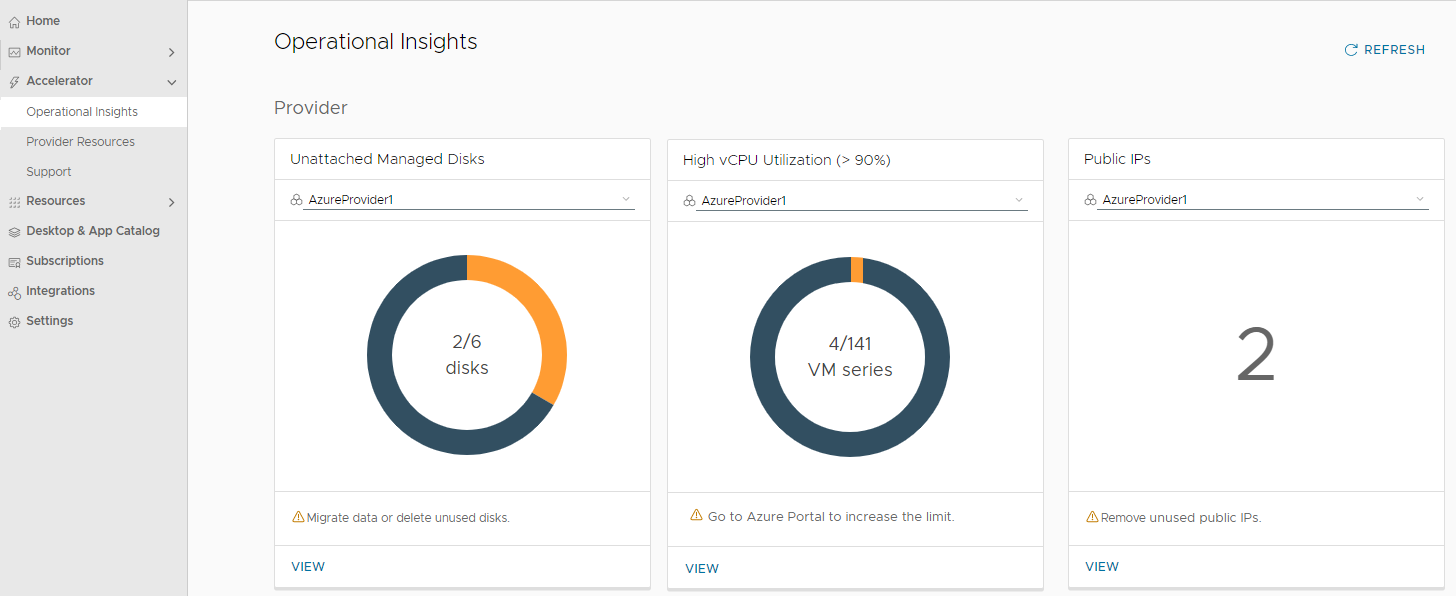
Each resource-related area highlights issues that might exist, and reveals opportunities for optimization.
Within each drill-down view, you can examine details of the provider resource and see guidance for remediating issues.
Resource Insights - Microsoft Azure Provider
The Operational Insights page provides insights for the following resources that your Horizon Cloud environment uses from the Microsoft Azure providers configured for it.
Each displayed gauge provides data that corresponds to the specific resource provider that's selected at the top of the gauge and the specific resource type.
Note: For Microsoft Azure, the provider is based on an Azure subscription. The displayed data is specific to the resources located in the subscription associated with the selected provider.
For each gauge and detailed view, the system obtains information according to characteristics that the Azure API provides for that specific resource type.
-
Unattached Managed Disks
This gauge provides insights into the number of unattached managed disks that exist in the selected provider.
The gauge reflects the overall list of managed disks in the selected provider, and indicates which subset of those disks are attached to virtual machines and which are not attached to virtual machines (unattached disks).
As described in the Microsoft Azure documentation, Azure managed disks are high-performance storage designed to be used with Azure virtual machines.
Because an Azure subscription incurs a cost for each managed disk, the presence of unattached disks is an actionable insight.
- Recommended solution - Unattached managed disks consume resources even if the disk is not being used. Consider migrating any on-disk data you need from these unattached disks to lower cost options such as blob files. When finished migrating the data, delete the unused disks.
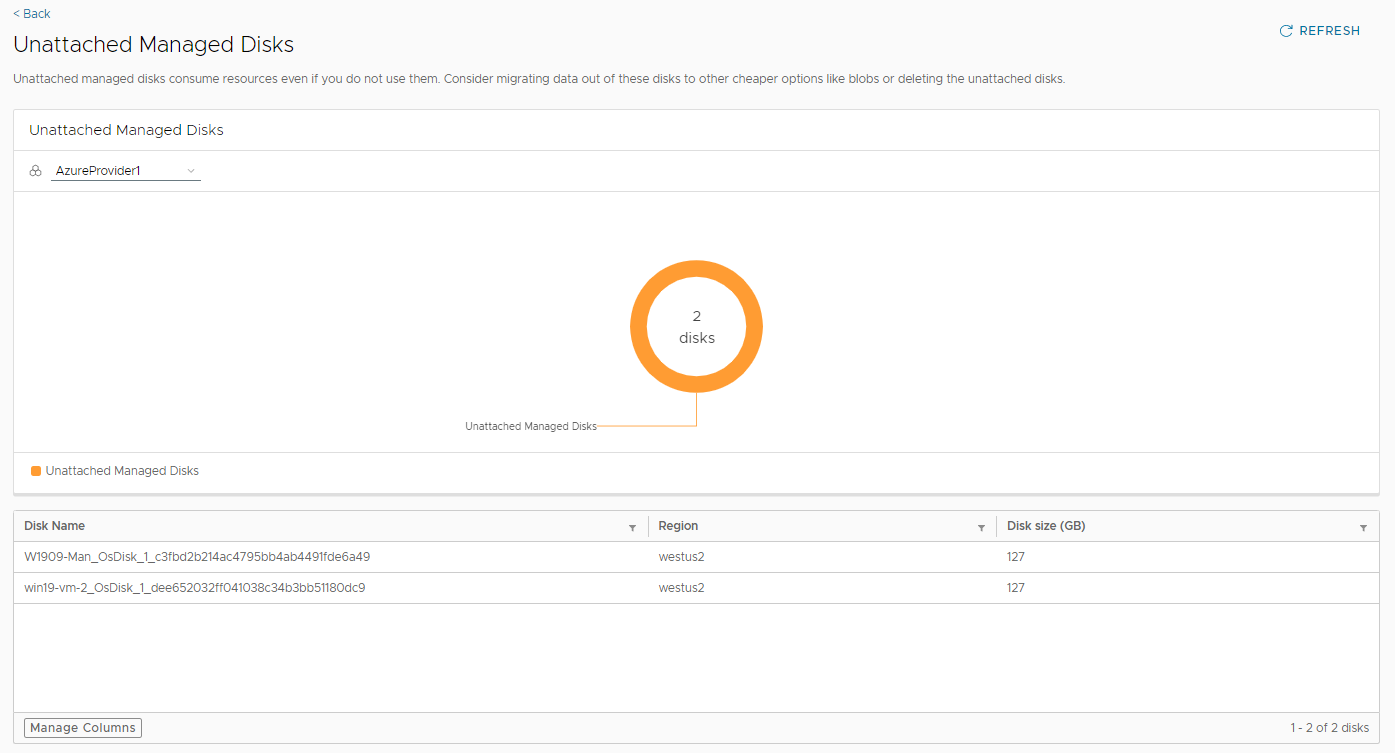
- View - View the list of unattached managed disks by name, region, and disk size. The following screenshot illustrates the drill-down view.
-
High vCPU Utilization (> 90%)
This gauge provides insights into which VM series might need an increase in the provider's Compute quota.
The gauge reflects the current utilization of Azure Compute quota in the selected provider and which VM series has 90% or greater vCPU utilization.
A utilization over 90% is an actionable insight for you to request additional quota for that VM series in the indicated Azure region to ensure the quota exists in the provider before a need for it arises.
- Recommended solution - Consider increasing quota for the VM series that have 90% or greater vCPU utilization. Increasing the quota for a VM series is done in the Azure Portal, using the Quotas blade and filtering on Compute and the relevant Azure region.
- View - View the list of Azure VM series which have 90% or more vCPU utilization. From this view, you can determine which specific VM series to request a quota increase for.
-
Public IPs
From a security standpoint, the best practice is to limit the number of open entries to the virtual desktop infrastructure (VDI) from the external world.
Although the VDI's Unified Access Gateway and Horizon Edge Gateway instances require public IPs, this operational insight discovers all of the other public IPs that are enabled in the provider's network and provides a listing for your review.
- Recommended solution - Review and disable unwanted or unused public IPs.
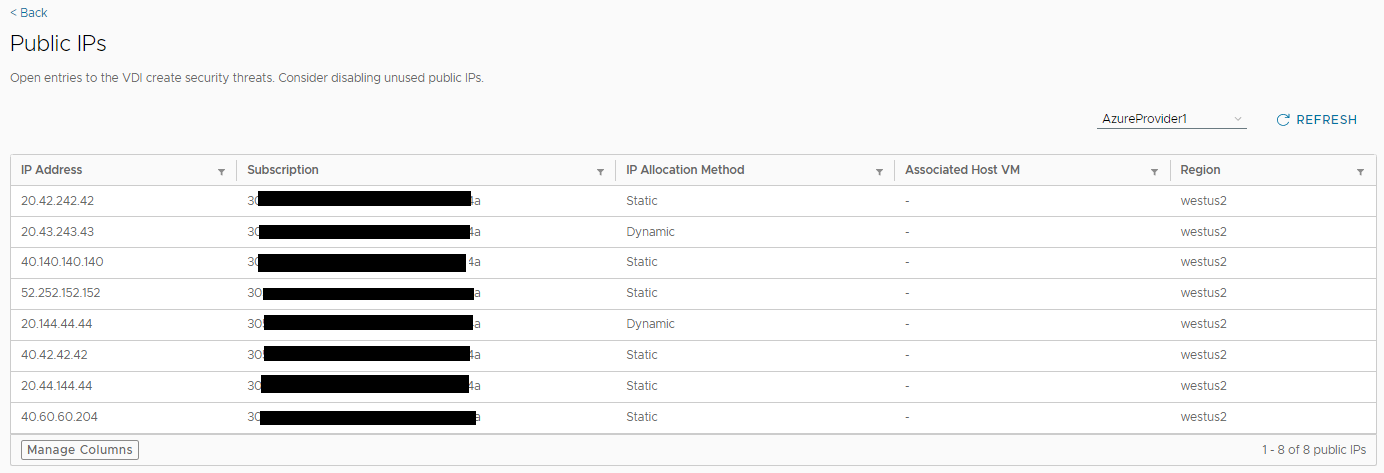
- View - View the list of public IPs and related information, such as their IP address and associated VM. The following screenshot illustrates the drill-down view. Some values are redacted for privacy.
UI Actions - Filter, Manage Columns, Refresh
Each section provides for these standard actions.
-
Filters
Each column heading provides a filtering icon.
-
Refresh
When you drill down from the gauges view into a detailed view, the system fetches the data from the selected resource provider and displays the data. The data you see is the up-to-the-moment data.
If you have been viewing the data for a while and want to fetch the latest data, click Refresh to populate the display with the up-to-the-moment data.
-
Manage Columns
Use this feature to show and hide columns from the display.
Was this page helpful?