If you have a Horizon Plus license, Horizon Availability Monitoring provides you with a client that you can install and use to test the health of your Horizon Edge resources. The tests can help you quickly detect and isolate issues before they become more serious. For example, you can use the Horizon Availability Monitoring client to test connections, and take other actions, on various components, such as the Horizon Connection Server, your Active Directory, the Horizon Gateway appliances, desktops, and published applications.
After you configure the Horizon Availability Monitoring client, you can use the Horizon Universal Console to configure tests that run health checks on your Horizon Edge environment.
Note: Horizon Availability Monitoring functionality applies solely to Horizon Edges that reside within your tenant.
The broad-level steps of the Horizon Availability Monitoring process are as follows.
-
Select the client type.
- Select the Installable client type to download, install, and configure the Horizon Availability Monitoring client on your own Windows system, which includes pairing the client to the Horizon Universal Console.
- Select the Cloud client type to configure the Horizon Availability Monitoring client out in the cloud.
-
Use the Horizon Universal Console to create and run one of the following types of tests from the Horizon Availability Monitoring client.
In the following list, each test requires progressively greater access to your Horizon Edge environment, which requires you to provide a greater amount of access-related information.
CAUTION:
As a best practice for Horizon Availability Monitoring testing, use a test account instead of a regular user account when prompted to provide credentials (user name and password).
-
Connectivity Test
A successful result occurs when the Connectivity test validates the network path between the client and the Unified Access Gateway appliance.
The Connectivity test runs from the Horizon Availability Monitoring client to the Unified Access Gateway appliance.
The prerequisite for this test is as follows.
-
Have the URL to the Horizon Edge, which is the connectivity test target.
For Horizon, this is the Horizon Connection Server URL, which is used by the Horizon Client.
-
-
Authentication Test
A successful result occurs when the Authentication test validates that a Horizon Connection Server is alive by authenticating against the Active Directory.
The Authentication test runs from the Horizon Availability Monitoring client, to the Horizon Edge deployment, to the Horizon Gateway appliances (Unified Access Gateway and Horizon Edge Gateway), and to the Horizon Connection Server.
The prerequisites for this test are as follows.
-
Have the URL to the Horizon Edge, which is the connectivity test target.
For Horizon, this is the Horizon Connection Server URL, which is used by the Horizon Client.
-
Have the credentials available for the test account you will use for this Horizon Availability Monitoring test.
-
-
Resource Launch Test
A successful result occurs when the Resource Launch test launches a selected desktop or publish application.
The resource launch test runs from the Horizon Availability Monitoring client, through the Horizon Edge deployment, all the way to the desktop.
The prerequisites for this test are as follows.
-
Have the URL to the Horizon Edge, which is the connectivity test target.
For Horizon, this is the Horizon Connection Server URL, which is used by the Horizon Client.
-
Have the credentials available for the test account you will use for this Horizon Availability Monitoring test.
-
Have the desktop or published application name that you want to launch as part of the test.
-
-
Simulated Launch
The Simulated Launch uses the Horizon Edge Gateway as a destination and simulates a session launch without consuming a real desktop or application. You can test and monitor the desktop connection path with a simulated agent module embedded in the edge deployment.
Simulated Launch validates the desktop connection flow involving simulated client, Connection Service, UAG, and the Edge module.
The prerequisite for this test is as follows,
- You must have deployed Edge capacity and UAG.
-
Configure the Initial Horizon Availability Monitoring Test
You configure Horizon Availability Monitoring tests on the Horizon Availability Monitoring page of the Horizon Universal Console. The appearance of the Horizon Availability Monitoring page changes after the first configuration. This topic describes the initial configuration of the Horizon Availability Monitoring client through the configuration of the first test. For subsequent configurations, the steps are similar, though the appearance of the interface differs slightly.
Note: Horizon Availability Monitoring functionality applies solely to Horizon Edges that reside within your tenant.
You access the Horizon Availability Monitoring page by selecting Monitor > Availability. Before you configure your first Horizon Availability Monitoring test, the Availability Monitoring page appears as follows.
The following task illustrates the steps required to configure your first test, where the Availability Monitoring page resembles the preceding image.
Prerequisites
Have the information required for the test type you will perform. See the preceding explanation of the Connectivity, Authentication, Resource Launch, and Simulated Launch test types.
Procedure
-
Using the Horizon Universal Console, in the left menu, select Monitor > Availability.
-
Click Start.
The Horizon Availability Monitoring wizard opens, starting with the first step, which is to add the Horizon Availability Monitoring client.
For the initial creation of a Horizon Availability Monitoring test, you create one client and one test. After you finish the wizard, you can create additional clients and tests.
-
Select and configure the client type, either the Installable client type or the Cloud client type.
-
Installable Client Type
A client that you must download and install at a network location on a Windows system. This type of client is a best choice when you want to simulate a test from the same network location from which desktop users are located.
-
Cloud Client Type
A client hosted in the cloud. This type of client is a best choice when desktop users are accessing the desktop from the Internet. As an administrator, you do not need to maintain the machine that hosts the agent.
-
To download, install, and configure the Horizon Availability Monitoring client on a Windows system, perform the following steps.
-
For the Select type option, select Installable.
-
Click Download to allow your browser to download the client bundle, which is a Windows Installer Package (.msi file).
-
Click the copy icon next to the pairing code to copy the code.
-
Move the Windows Installer Package to a folder on the Windows system from which you will run the Horizon Availability Monitoring client.
-
On the Windows system, start and complete the Windows Installer Package installation.
-
If you want a more friendly client name, rename the client.
-
Enter the pairing code in the appropriate text box when prompted.
The Start Availability Monitoring page displays the updated status of the pairing process, such as Pairing complete.
-
-
Click Next.
-
-
To configure the Horizon Availability Monitoring client in the cloud, perform the following steps.
-
For the Select type option, select Cloud.
-
In the Name text box, enter a name for the client.
-
From the Region drop-down menu, select a region.
The Region drop-down menu includes all the regions available in your environment.
-
-
-
Select and save the test type.
See the preceding explanations of the Connectivity, Authentication, Resource Launch, and Simulated Launch test types.
-
Provide the information requested and save the test.
The amount of information that the page prompts you to provide increases for each test type you configure from the Connectivity test to the Authentication test to the Resource Launch to the Simulated Launch test.
Prompts Applicable to All Test Types Description Type Select the test type to perform. Name Create a name for the test. Client Select the client from which to run the test. For the initial test, this client is the client you added in the first step of the Horizon Availability Monitoring wizard. When you create clients in the future, you can configure this test by changing the client to another client or by adding clients. Note: Multiple clients can use the same test. Interval Select how often you want the test to run. The test runs continuously at the interval you select until you change the interval or delete the test. URL The URL of the Horizon Edge that serves as the test target. Additional Prompts Applicable to Authentication and Resource Launch Test Types Description Username Enter the user name of the test account for this Horizon Availability Monitoring test. Password Enter the password of the test account for this Horizon Availability Monitoring test. Domain (optional) The domain of the Horizon Edge that serves as the test target. Additional Prompt Applicable to the Resource Launch Test Type Description Pool Name Provide the name of the desktop or application to launch. Additional Prompt Applicable to the Simulated Launch Test Type Description Horizon Edge Select the edge to act as a destination for HST test. Unified Access Gateway address The address of the Unified Access Gateway. Verify SSL Toggle on or off Verify SSL. When this option is toggled on, the test verifies the existence and authenticity of a server identity certificate.
Results
The Availability Monitoring page reappears with an updated look, presenting information about your configured tests, clients, and results. This updated look is the permanent look of the page going forward.
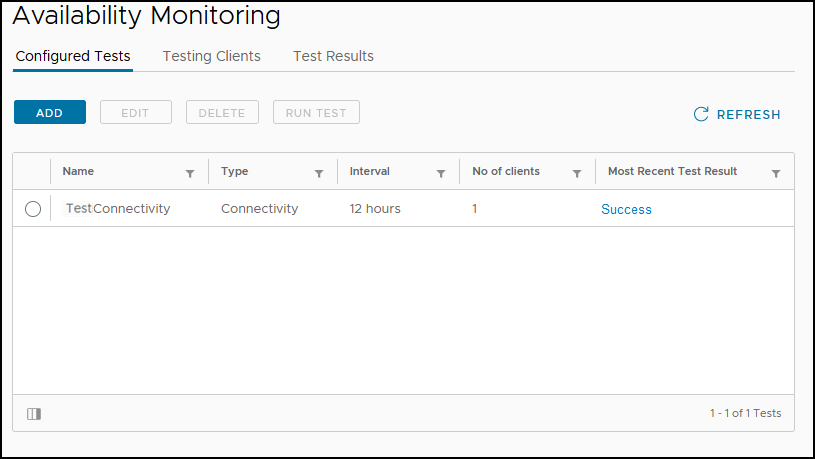
Horizon Availability Monitoring Actions You Can Perform
After you create the initial Horizon Availability Monitoring test, you can take several different actions from the Availability Monitoring page that ultimately allow you to use Horizon Availability Monitoring functionality to test the health of your Horizon Edge deployment.
You can perform the following actions, many of which are the same as or similar to the steps for configuring the initial Horizon Availability Monitoring test. See Configure the Initial Horizon Availability Monitoring Test.
Note: When a Horizon Availability Monitoring test fails, a notification appears on the Notifications page, which is accessible from the bell ( ) icon located in the upper-right corner of any page.
| Action | Description |
|---|---|
| Filter information on the Availability Monitoring page. | From each tab on the Availability Monitoring page, you can use the column filters to present the information in a manner that best suits your needs. |
| Add, edit, delete, or run configured tests. | Select Availability > Configured Tests to take any of the following actions.
|
| Add, edit, or delete testing clients. | Select Availability > Testing Clients to take any of the following actions.
|
| View test results. | Select Availability Test Results to view a list of test results. The list includes 30-days of test results. On the page, you can view a list of the test results, for example, you can view which tests succeeded and which tests failed, if any. Troubleshoot a failed test by considering the test type that failed and when it failed. See the preceding test-type information for details. |
Was this page helpful?