After you have configured your Active Directory and identity provider information and connected to your Windows 365 account, you are ready to create a Microsoft Azure-based Horizon Edge.
Prerequisites
Before performing the steps in this task, complete the following prerequistes in the workflow:
-
Configure identity and access providers. See Configure identity and access for integrated Windows 365.
-
Create the connection between Horizon Cloud and your Windows 365 account. See Connect to Windows 365.
For related information about the sequence of steps for getting started with integrated Windows 365 in Horizon Cloud, see Configuring Windows 365 Integration.
For related information about configuring Horizon Edges, see Requirements Checklist for Deploying a Microsoft Azure Edge and Microsoft Azure Edge Deployments.
Procedure
-
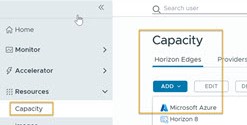
From the Horizon Universal Console, click Capacity, click the Horizon Edges tab, and then click Add > Microsoft Azure.
-
Enter an Edge name and description.
-
Proceed to add the Edge using the UI stepper guidance and instructions at Deploying a Microsoft Azure Edge.
Note: The Primary values that you specify here are later used for the Microsoft Azure provider instance (Azure subscription) for connecting Windows 365 Cloud PCs to Horizon Cloud.
Note: The Microsoft Azure-based Horizon Edge that you use when working with integrated Windows 365 must be deployed in the same Azure region as your Azure Cloud PCs. Omnissa recommends that you deploy the Edge to the same region as your Windows 365 Cloud PC VMs.
Note: Microsoft Azure subscription subnets require line of sight to your Windows 365 Cloud PCs. Windows 365 must be able to access your Horizon Edge subnets.
-
When you have created the Horizon Edge, proceed to the next step in the process at Add a resource provider for integrated Windows 365.
Was this page helpful?